Edit your account (details, password, theme)
Edit your first name, last name, email and password, and choose Cascade's appearance (light, dark or your device's).
Before you start
- You need an account and you must be signed in. See Sign in.
- To change your password, you must know your current password.
Steps
1. Open your account
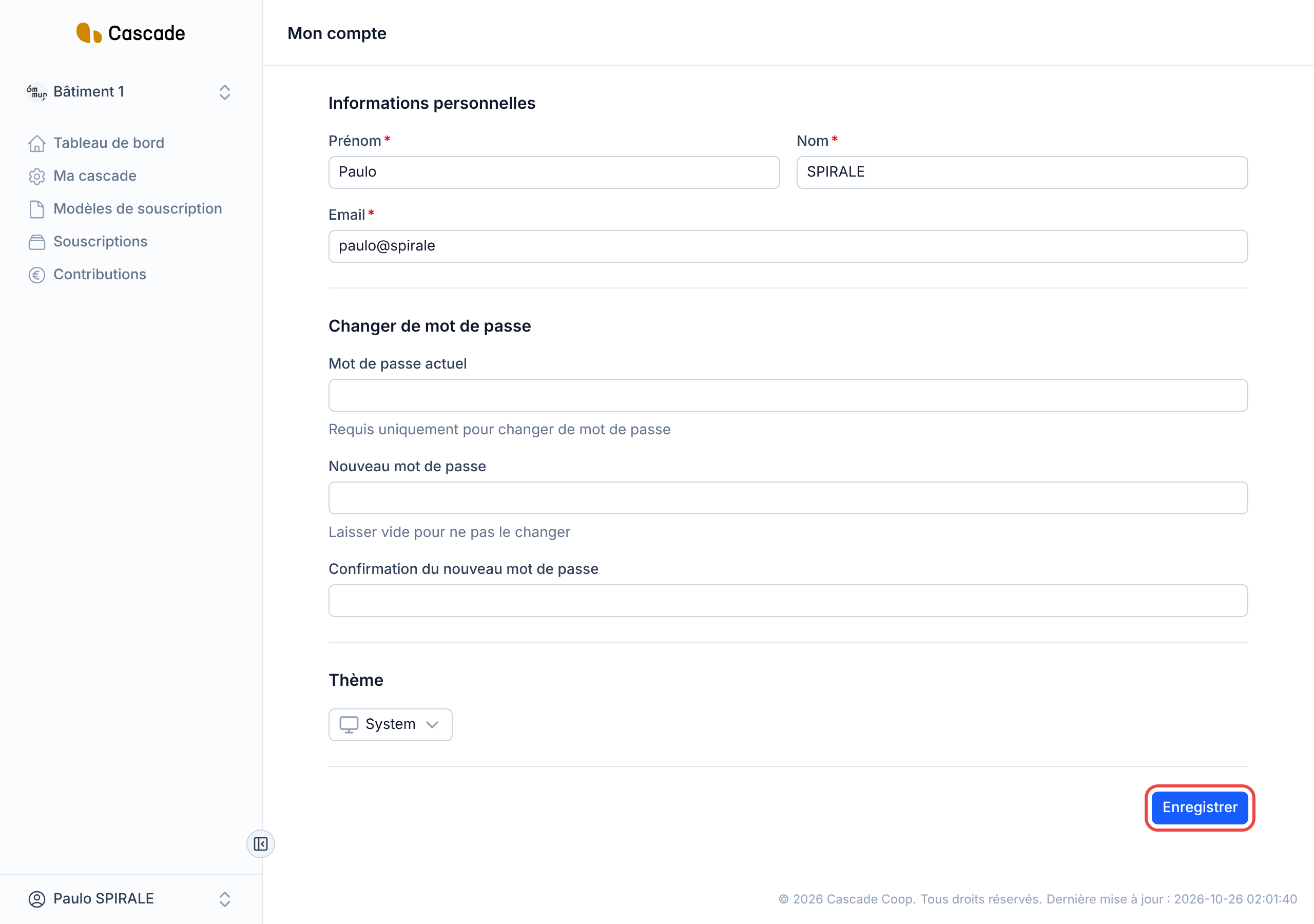
At the bottom of the left menu, click your name, then Mon compte (My account).
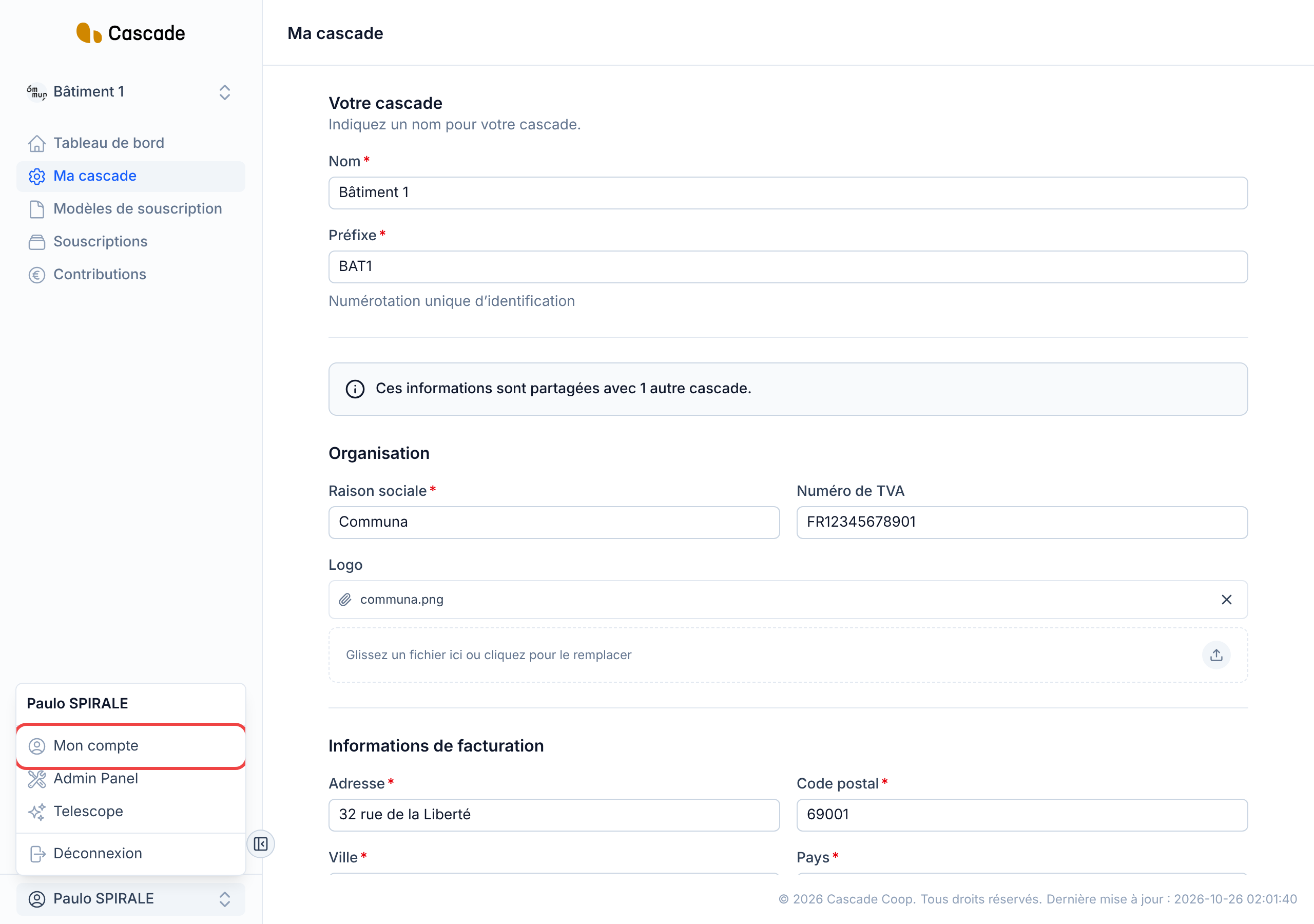
2. Edit your personal details
In the Informations personnelles (Personal information) section, you can change your Prénom (First name), your Nom (Last name) and your Email. All three are required, and two accounts cannot have the same email.
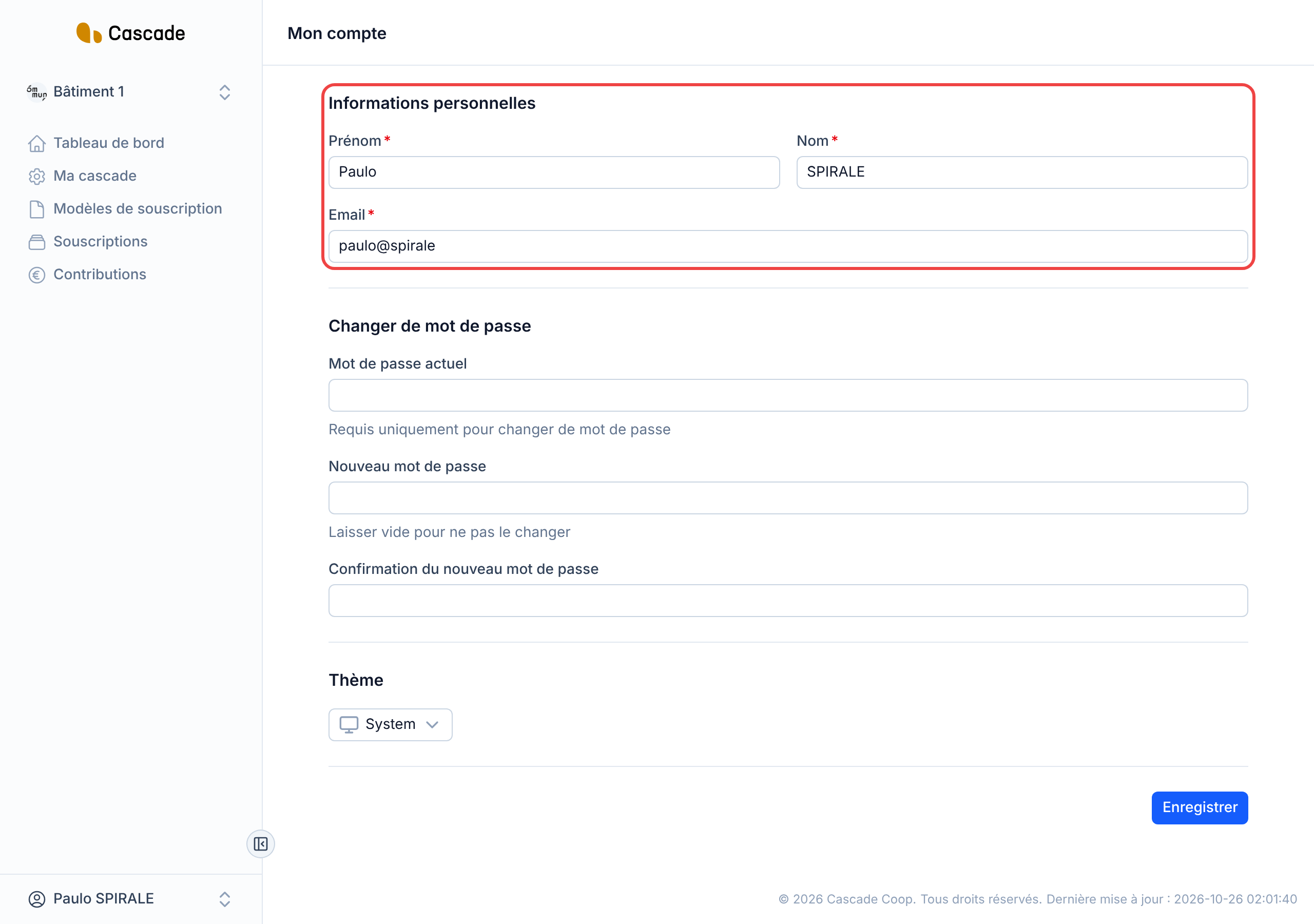
3. Change your password (optional)
In the Changer de mot de passe (Change password) section:
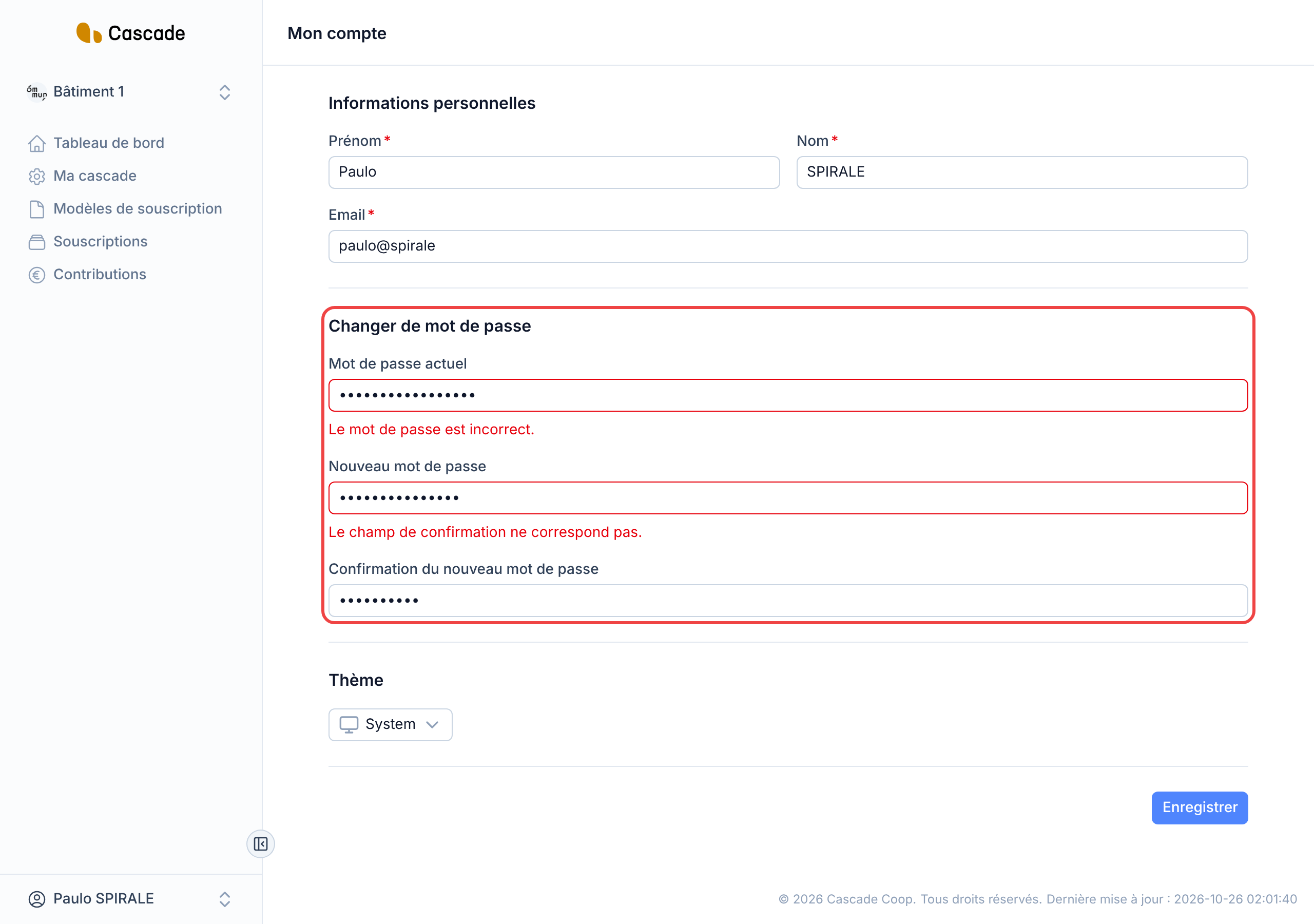
- Mot de passe actuel (Current password): to be entered only if you are changing your password.
- Nouveau mot de passe (New password): leave this field empty to keep your current password.
- Confirmation du nouveau mot de passe (New password confirmation): must be identical to the new password.
Errors appear as soon as you leave a field, for example « Le mot de passe est incorrect. » (The password is incorrect.) or « Le champ de confirmation ne correspond pas. » (The confirmation field does not match.), along with a « Corrigez les erreurs du formulaire avant de continuer. » (Fix the form errors before continuing.) notification.
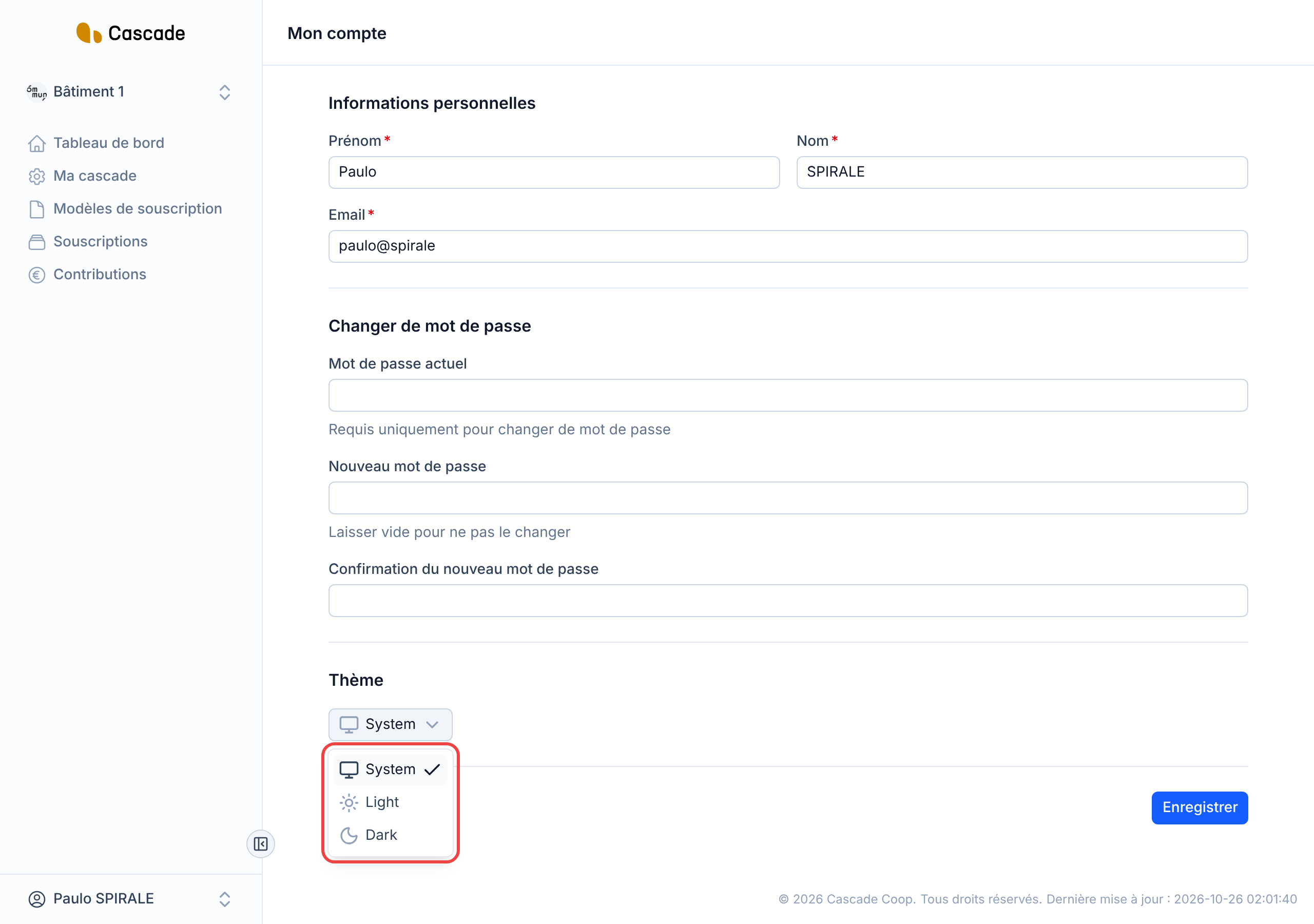
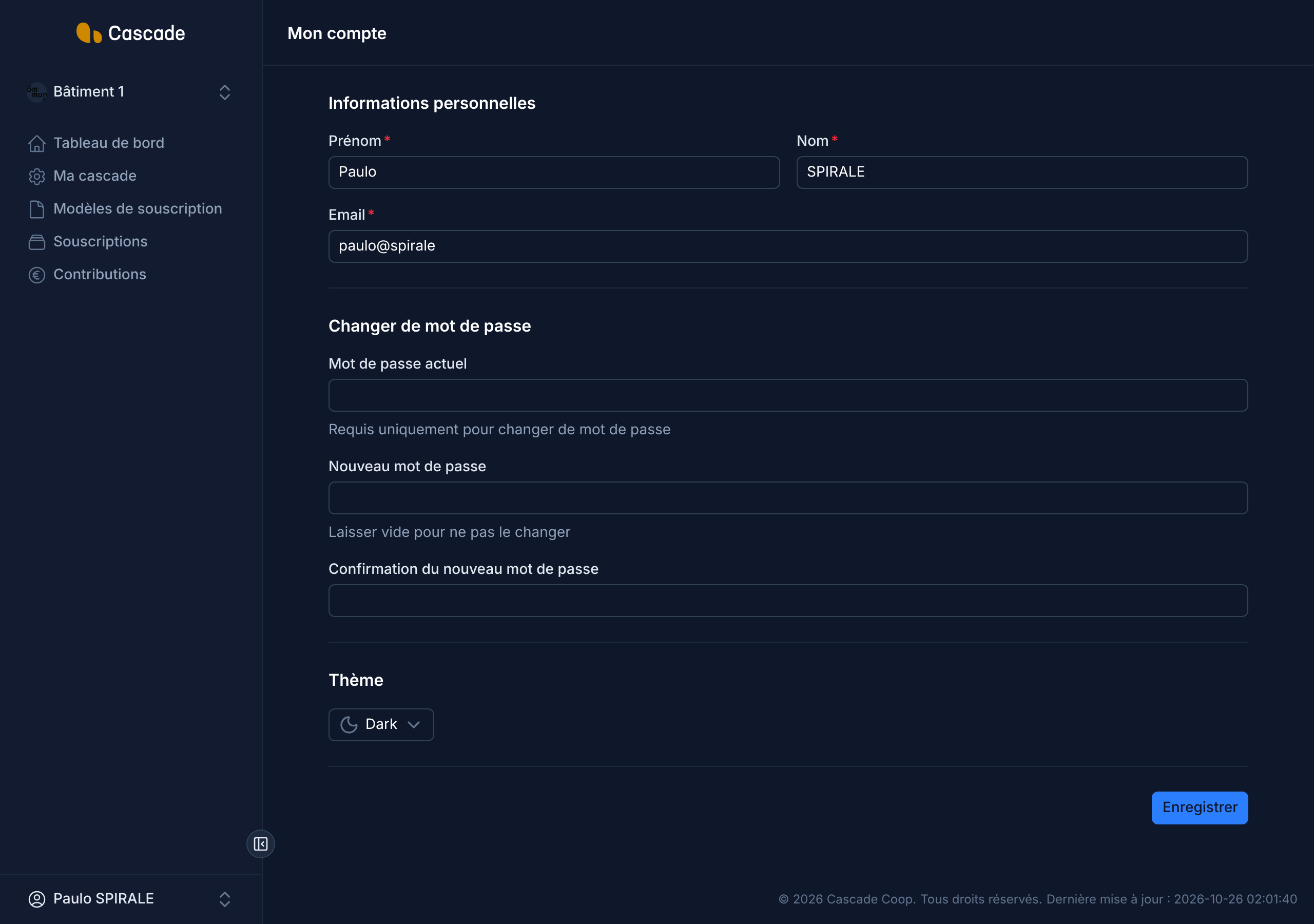
4. Choose your theme
In the Thème (Theme) section, open the list and choose Cascade's appearance: System (your device's), Light or Dark. These three labels are displayed in English on screen. The change applies immediately, without waiting for you to save.
5. Save
Click Enregistrer (Save), at the bottom of the page.
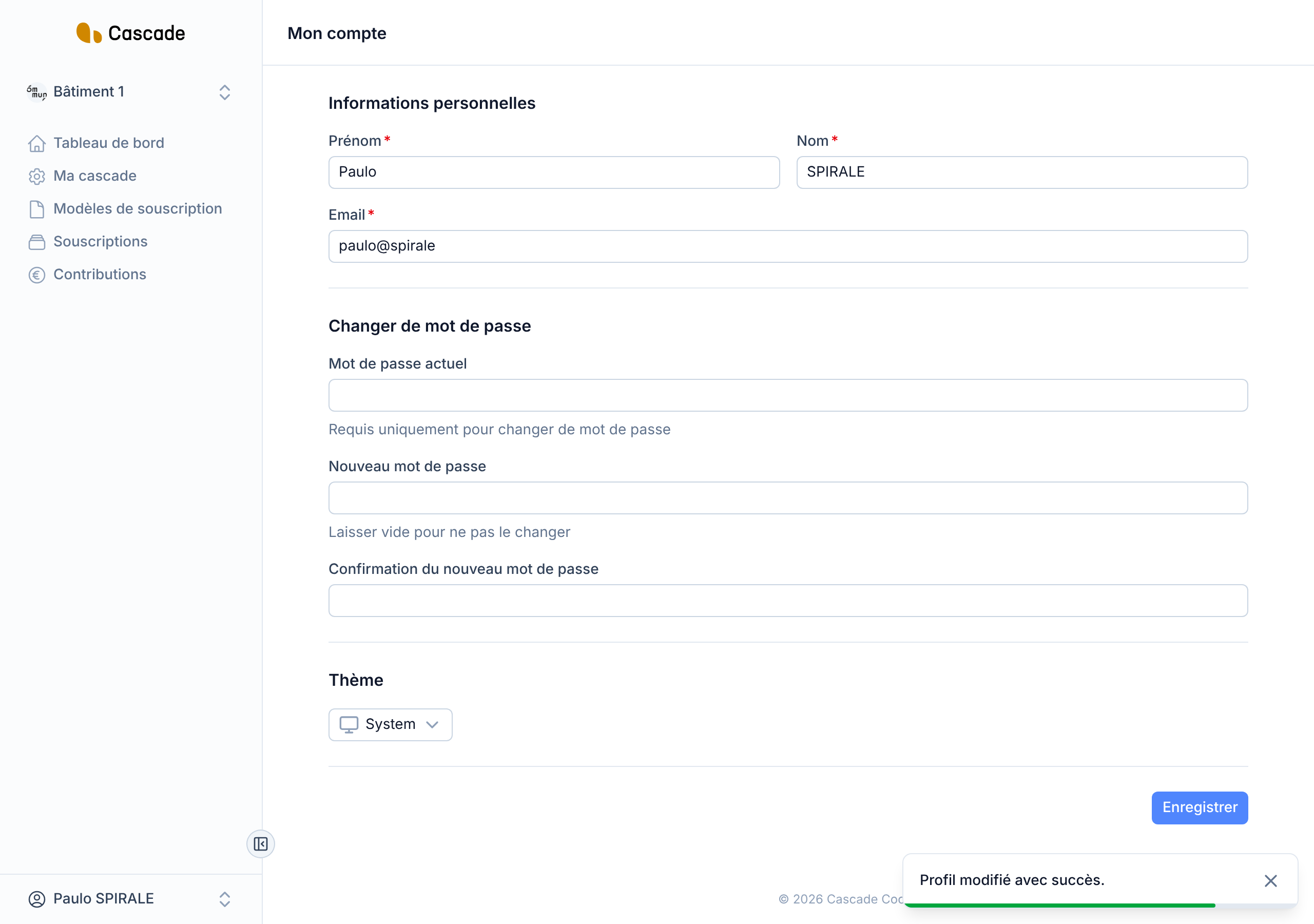
You stay on the "Mon compte" (My account) page, with the message Profil modifié avec succès. (Profile successfully updated.) The password fields are cleared.
What happens next?
- Your new details are taken into account right away: your name appears at the bottom of the menu, and your new password is used the next time you sign in.
- No confirmation email is sent, either to the old or to the new address.
Good to know
- The Nom (Last name) is always saved in capitals, however you type it.
- The current password is only requested if you fill in the new password. If you don't touch the password section, you can save your details without entering it.
- In production, the new password must be at least 8 characters long and must not appear in a known password leak.
- This screen does not let you reset a forgotten password: you have to ask an administrator. It does not let you change your organizations or your rights either. See Create and manage users (linking users to organizations).
- Your account is personal: you can only edit your own.
Frequently asked questions
No: the theme applies as soon as you choose it. It is remembered by your browser, not by your account: on another device or another browser, you will get the System theme again.
With the new one, as soon as you save.
Read the messages under the fields: email already used, incorrect current password, confirmation different from the new password, or an empty required field.