Sign in
Access your Cascade space with your email address and password. You then land on the page you wanted to open, or on the dashboard.
Before you start
- You need a Cascade account. Accounts are created by the Cascade team: see Create and manage users (linking users to organizations). You cannot sign up by yourself from the sign-in page.
- You have your email address and your password.
Steps
1. Open the sign-in page
Open your Cascade space's address in your browser. If you are not signed in, you land on the Connectez-vous à votre compte (Sign in to your account) page. It is also displayed when you try to open a page of the application without being signed in: you will find that page again after signing in (step 4).
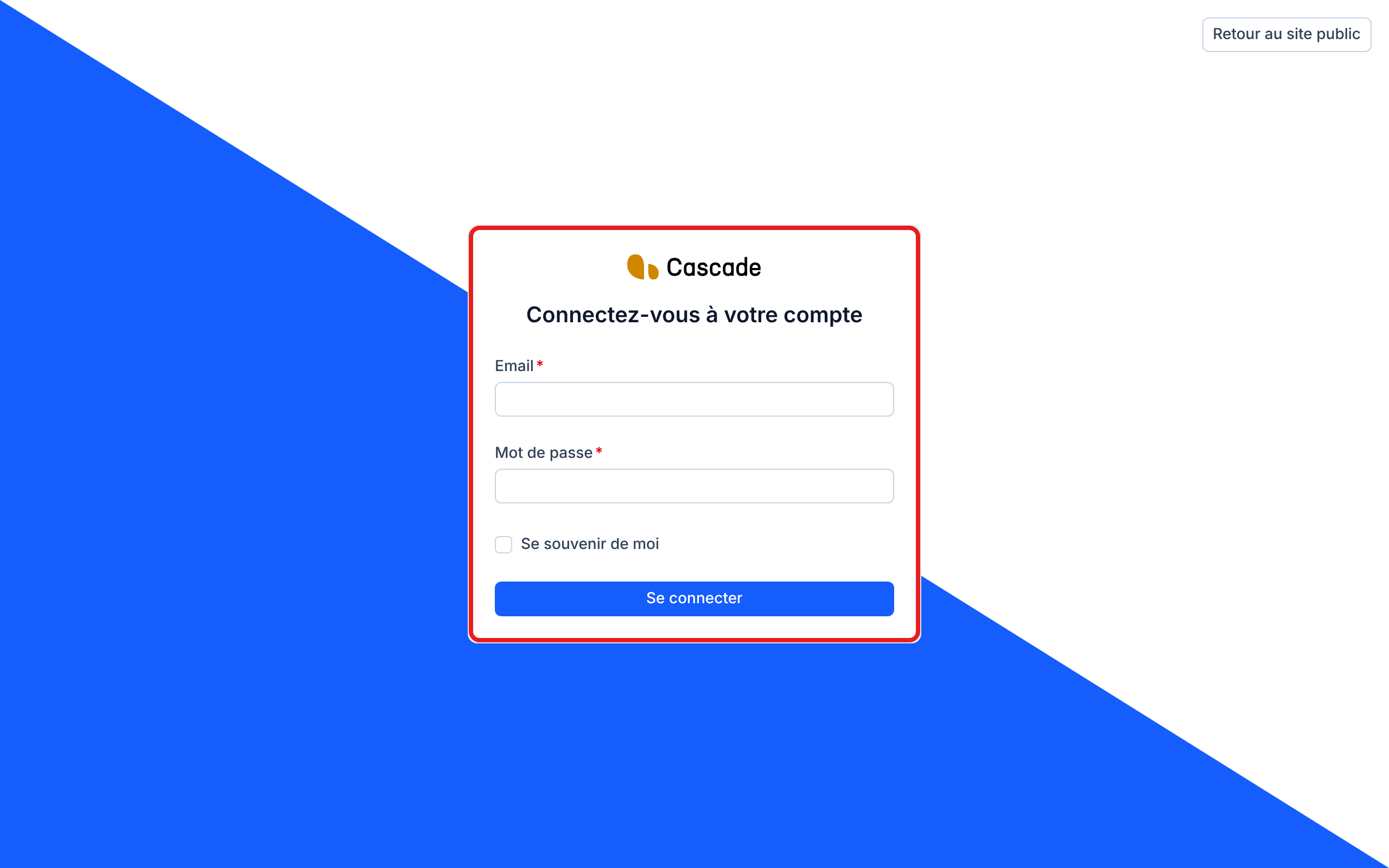
2. Enter your credentials
Fill in Email and Mot de passe (Password), two required fields. Tick Se souvenir de moi (Remember me) if you want to stay signed in longer on this computer; don't do it on a shared computer.
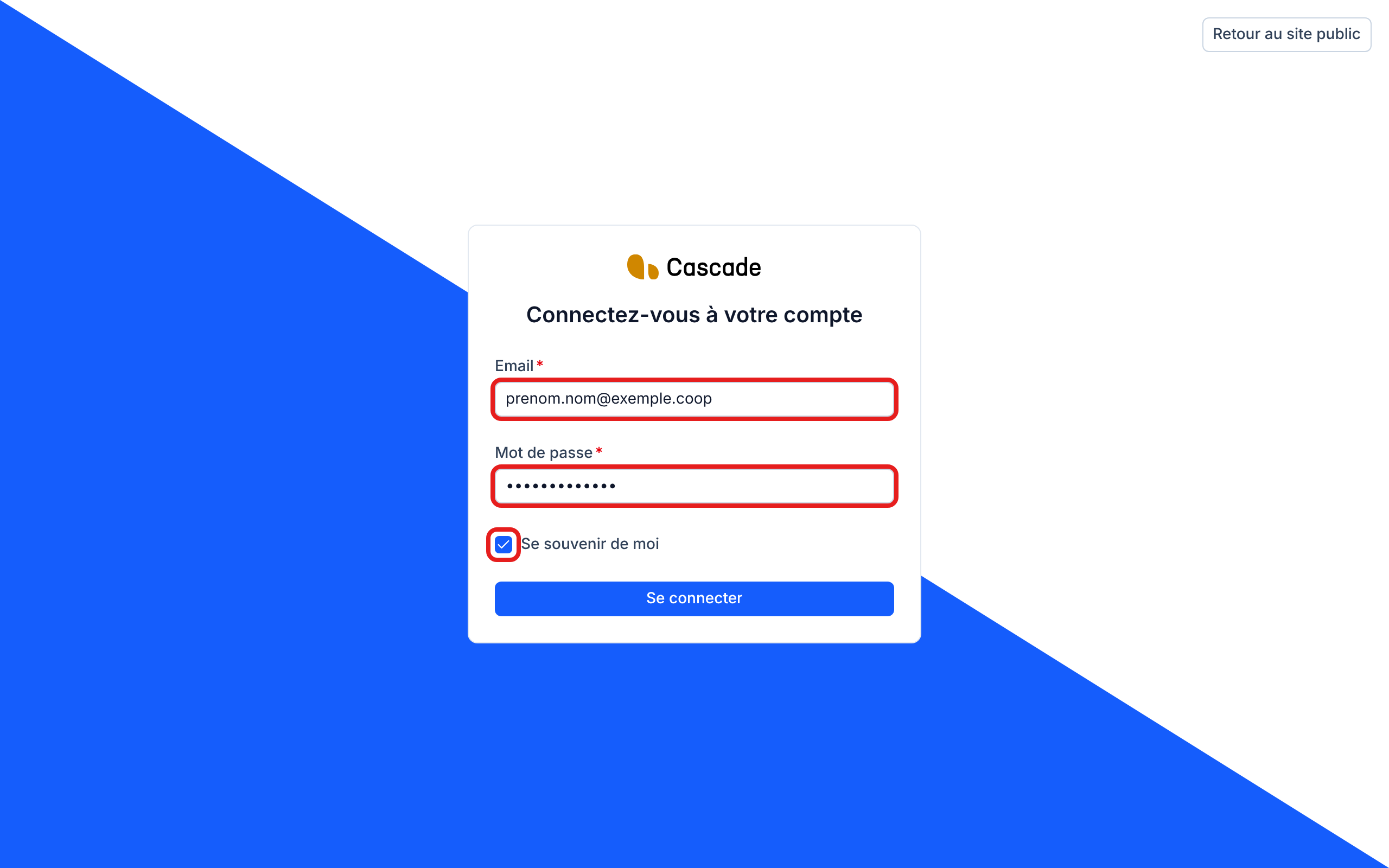
3. Click Se connecter
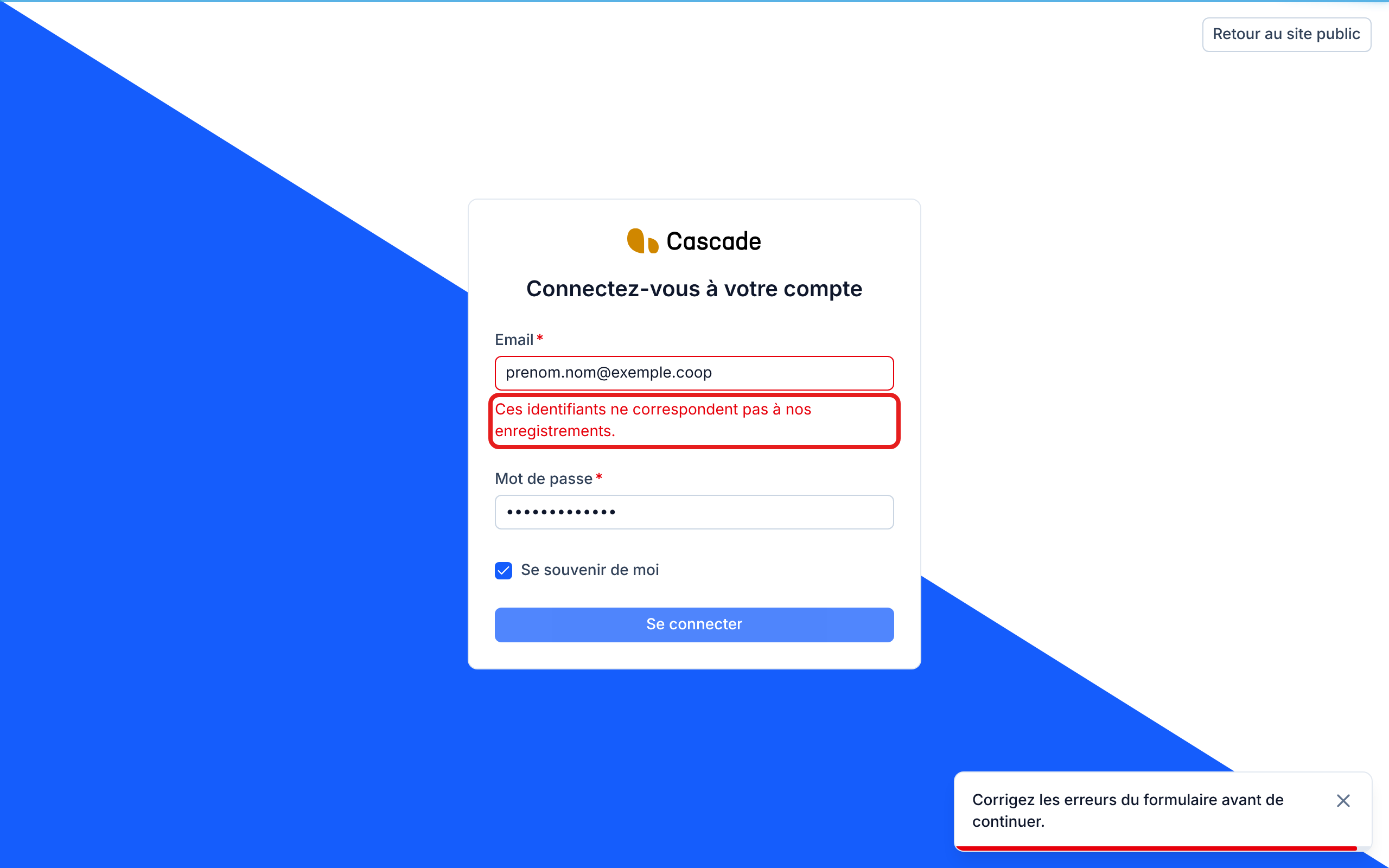
Click Se connecter (Sign in). If the address or the password is wrong, the message Ces identifiants ne correspondent pas à nos enregistrements. (These credentials do not match our records.) appears under the Email field, and a notification asks you to fix the form errors. The message is the same whatever the error: it does not say whether the address or the password is wrong. Fix it, then click Se connecter again.
4. Get into the application
When the credentials are correct, you land on the page you wanted to open before being redirected to the sign-in, or otherwise on the Tableau de bord (Dashboard). If your account is not linked to any Cascade, you are taken to the creation of a Cascade: see Create a Cascade.
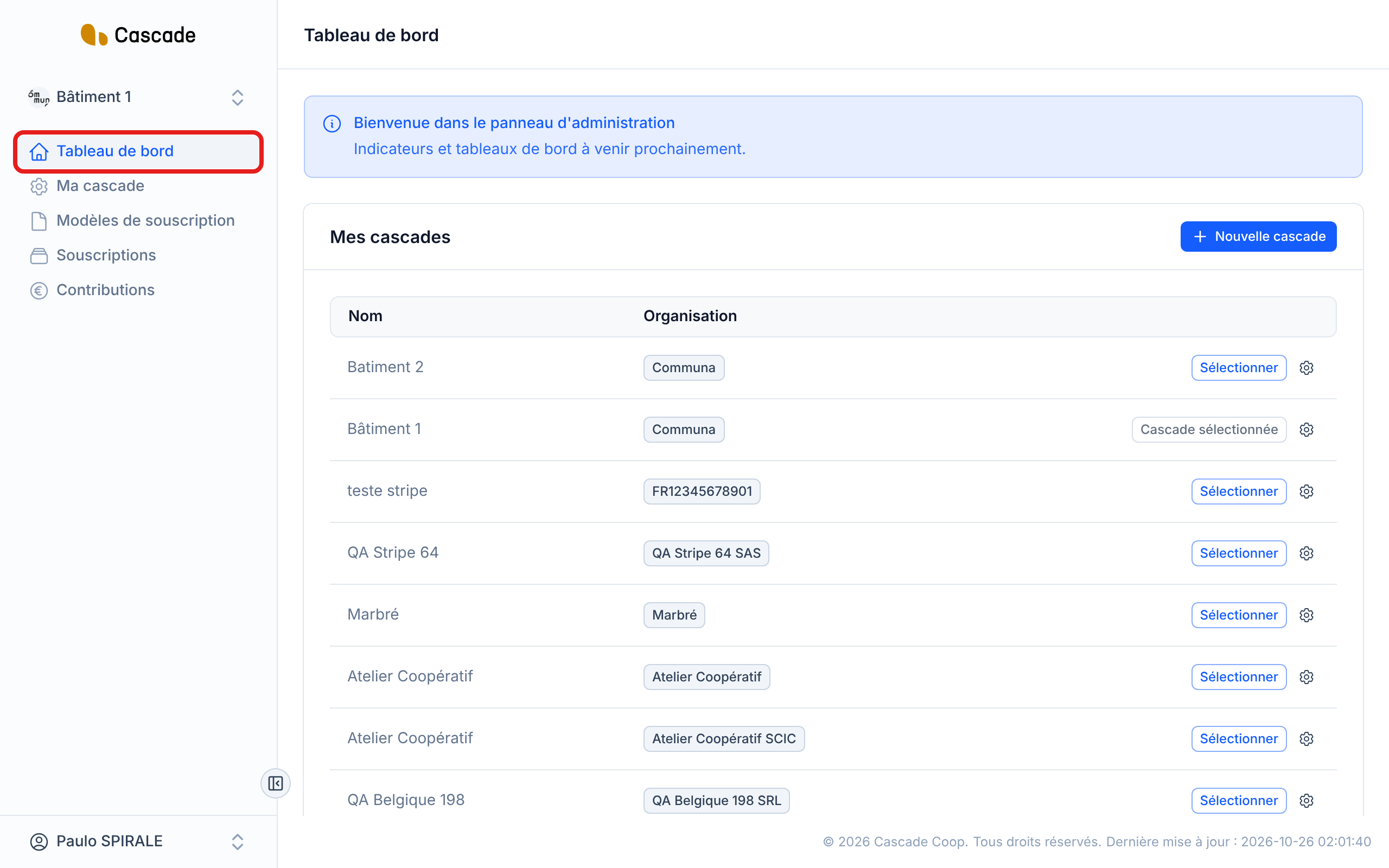
5. Sign out when you are done
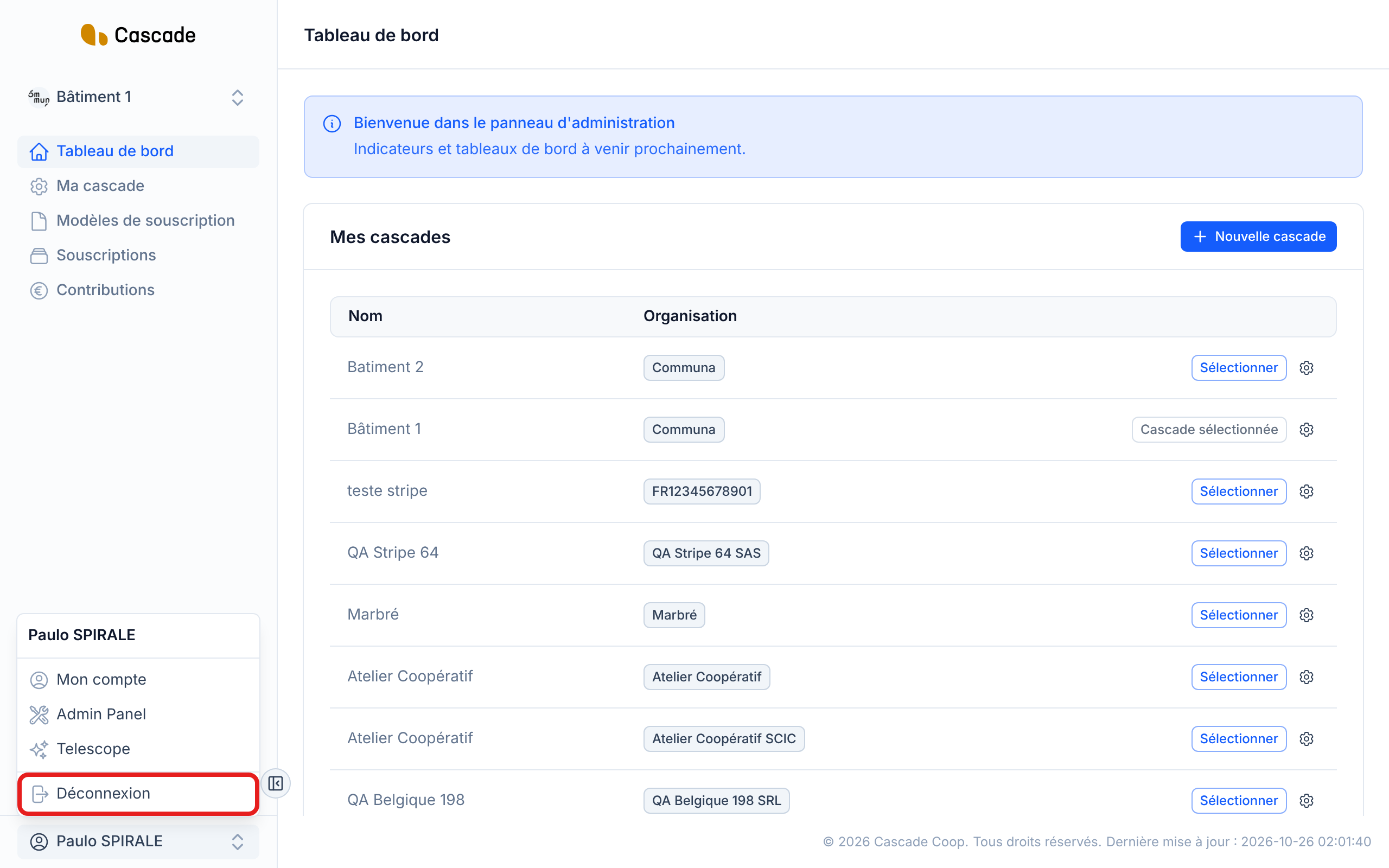
At the bottom of the menu, click your name, then Déconnexion (Sign out). You go back to the sign-in page. Remember to sign out on a computer that is not yours.
What happens next?
- You land in the space of your first Cascade. If your account has several, you switch Cascade from the menu at the top left, and this choice is remembered until you sign out. To find out more: see Change the current Cascade.
- You stay signed in as long as you use the application. After a certain time without activity, you are sent back to the sign-in page. With Se souvenir de moi (Remember me), you stay signed in much longer, even after closing the browser.
- To change your password once you are signed in: see Edit your account (details, password, theme).
Good to know
- After 5 failed attempts with the same address from the same computer, sign-in is blocked for a short while. The message Tentatives de connexion trop nombreuses. Veuillez essayer de nouveau dans … secondes. (Too many sign-in attempts. Please try again in … seconds.) shows the waiting time. A successful sign-in resets the counter.
- There is no "Forgot password" link for now: if you can no longer find your password, contact the Cascade team.
- The Retour au site public (Back to the public site) button, at the top right, opens Cascade's presentation site in a new tab.
- The contributor and the signer do not have an account: they never use this page, they act from the links received by email.
Frequently asked questions
Check the email address you entered: it is your account's, not necessarily the one of another tool. If you have made several attempts, wait for the indicated delay to end before trying again.
After a long inactivity, your session expired: sign in again, you will find the page you had opened.
Tick Se souvenir de moi (Remember me) when you sign in, on your own computer only.