Change the current Cascade
Switch from one Cascade to another when you manage several: all the screens (subscriptions, contributions, models…) then show only the data of the Cascade you chose.
Before you start
- You must belong to the organization of each Cascade you want to open: only the Cascades of your organizations appear. To add one, see Create a Cascade.
- If you only have one Cascade, the selector is still displayed: it lists that Cascade and the Nouvelle cascade (New Cascade) entry.
Steps
1. Spot the Cascade you are working in
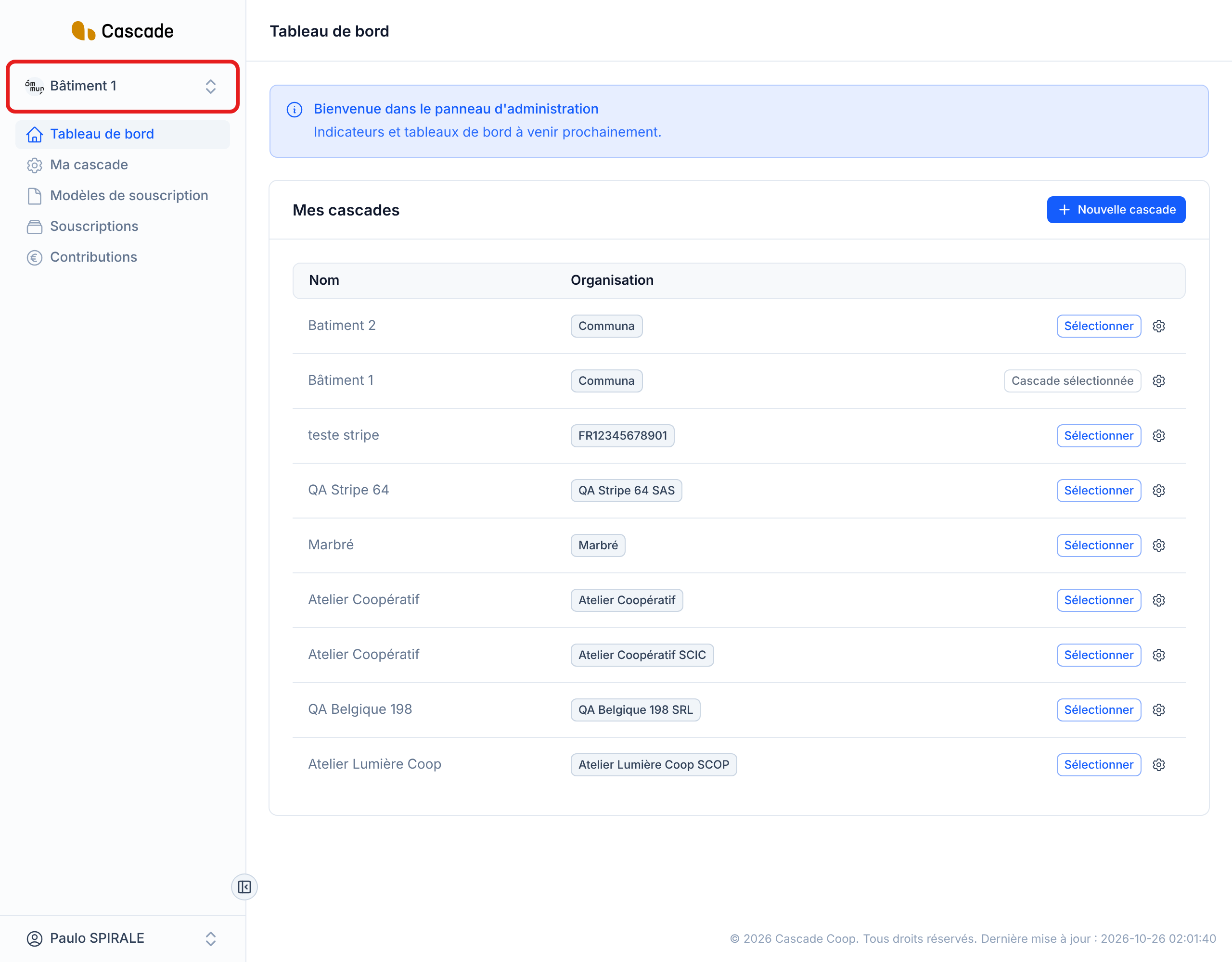
At the top of the sidebar, under the logo, the button shows the name (and the logo) of the open Cascade. Everything you see in the other screens (subscriptions, contributions, subscription models, Ma cascade (My Cascade) settings…) belongs to this Cascade, and to it alone.
2. Open the list and choose another Cascade
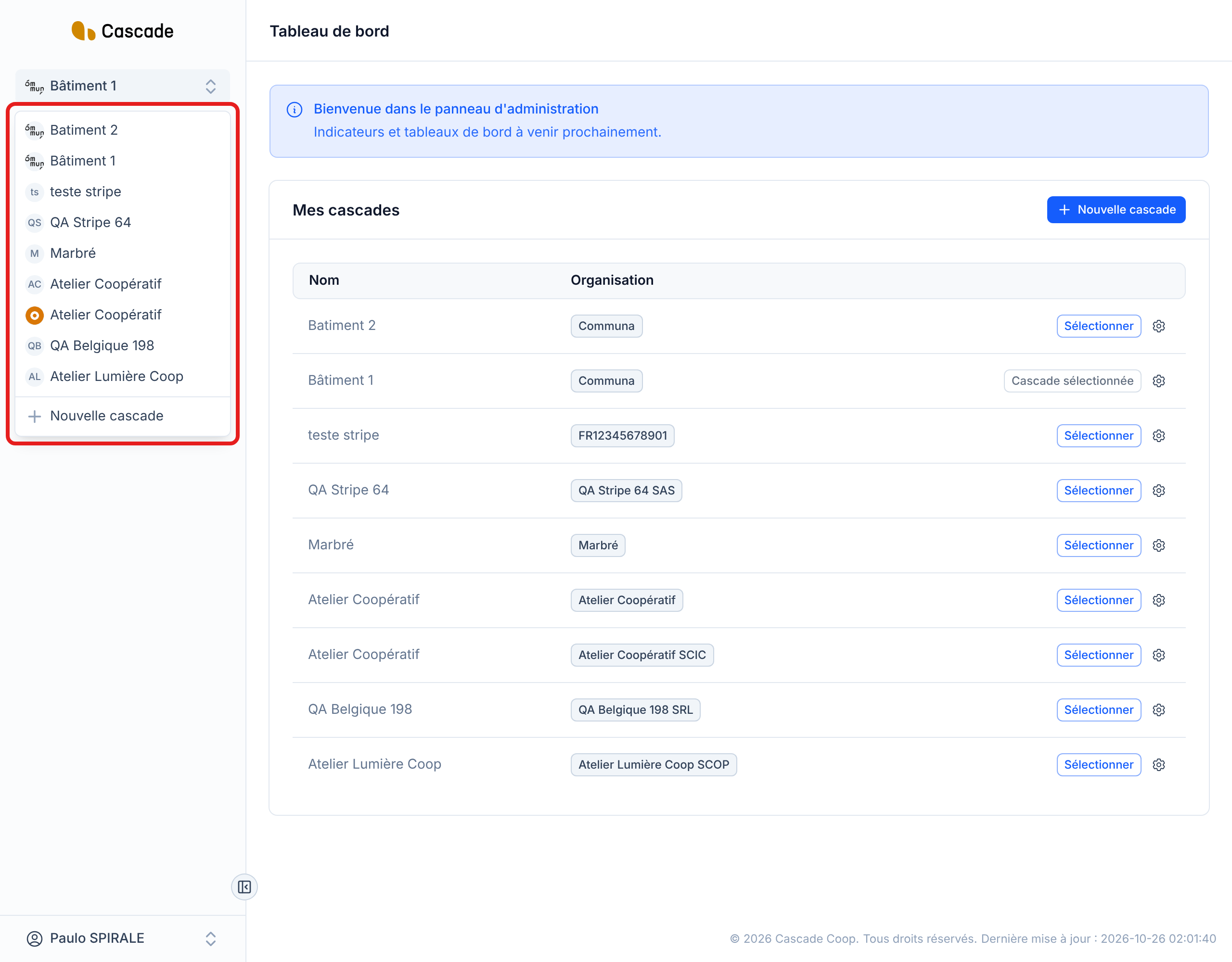
Click this button: the list of all your Cascades opens, with the organization's logo next to each name. Click the one you want to open. The last line, Nouvelle cascade (New Cascade), takes you to the creation of a Cascade.
When two Cascades have the same name, the list does not tell them apart: use the dashboard instead (next step), which also shows the organization.
3. Or use the dashboard
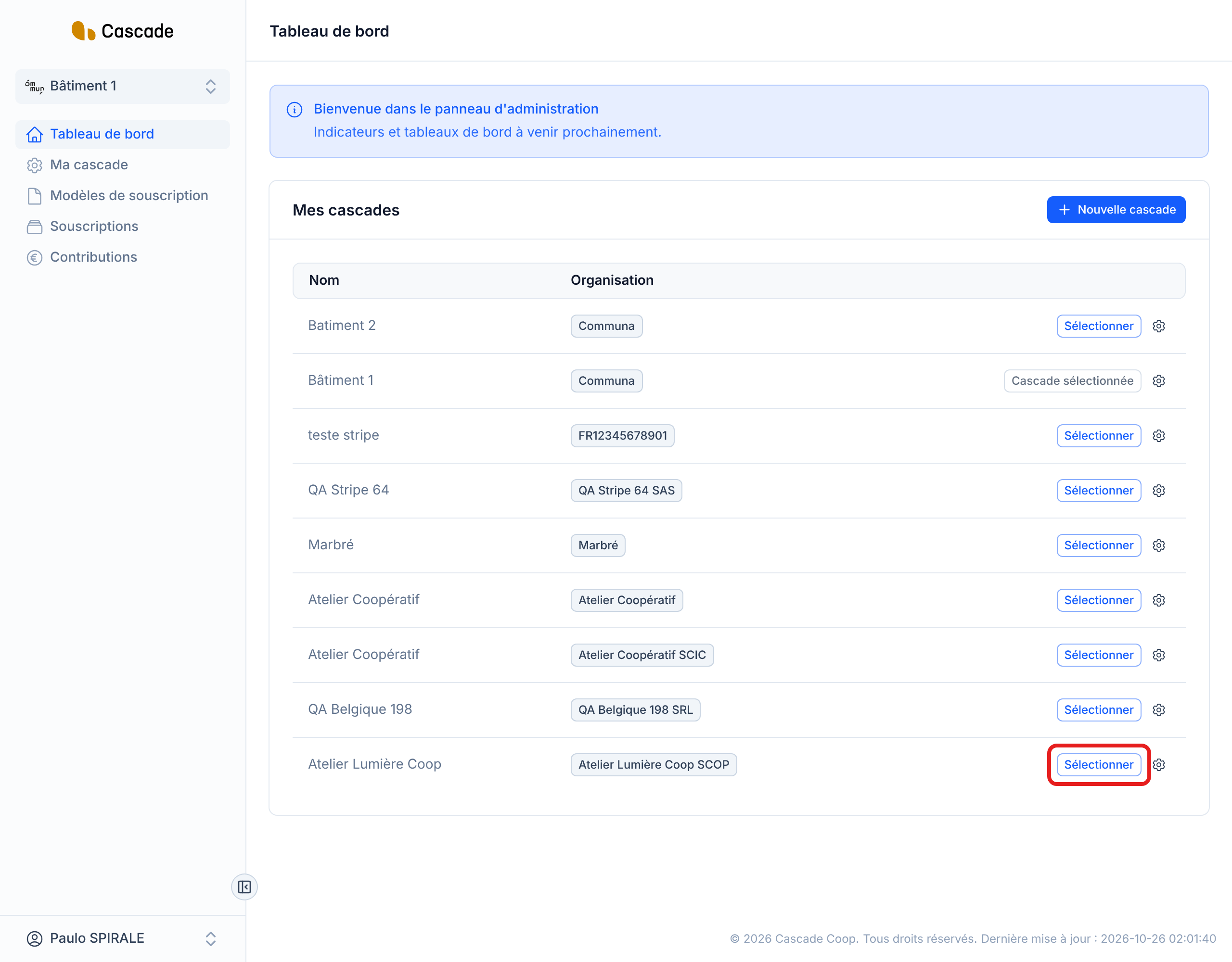
In the menu, go to Tableau de bord (Dashboard). The Mes cascades (My Cascades) block lists each Cascade with its organization. Click Sélectionner (Select) at the end of the row. On the Cascade that is already open, the button is greyed out and reads Cascade sélectionnée (Cascade selected). The cog icon next to it opens that Cascade's settings, and selects it at the same time.
4. Check that you are in the right Cascade
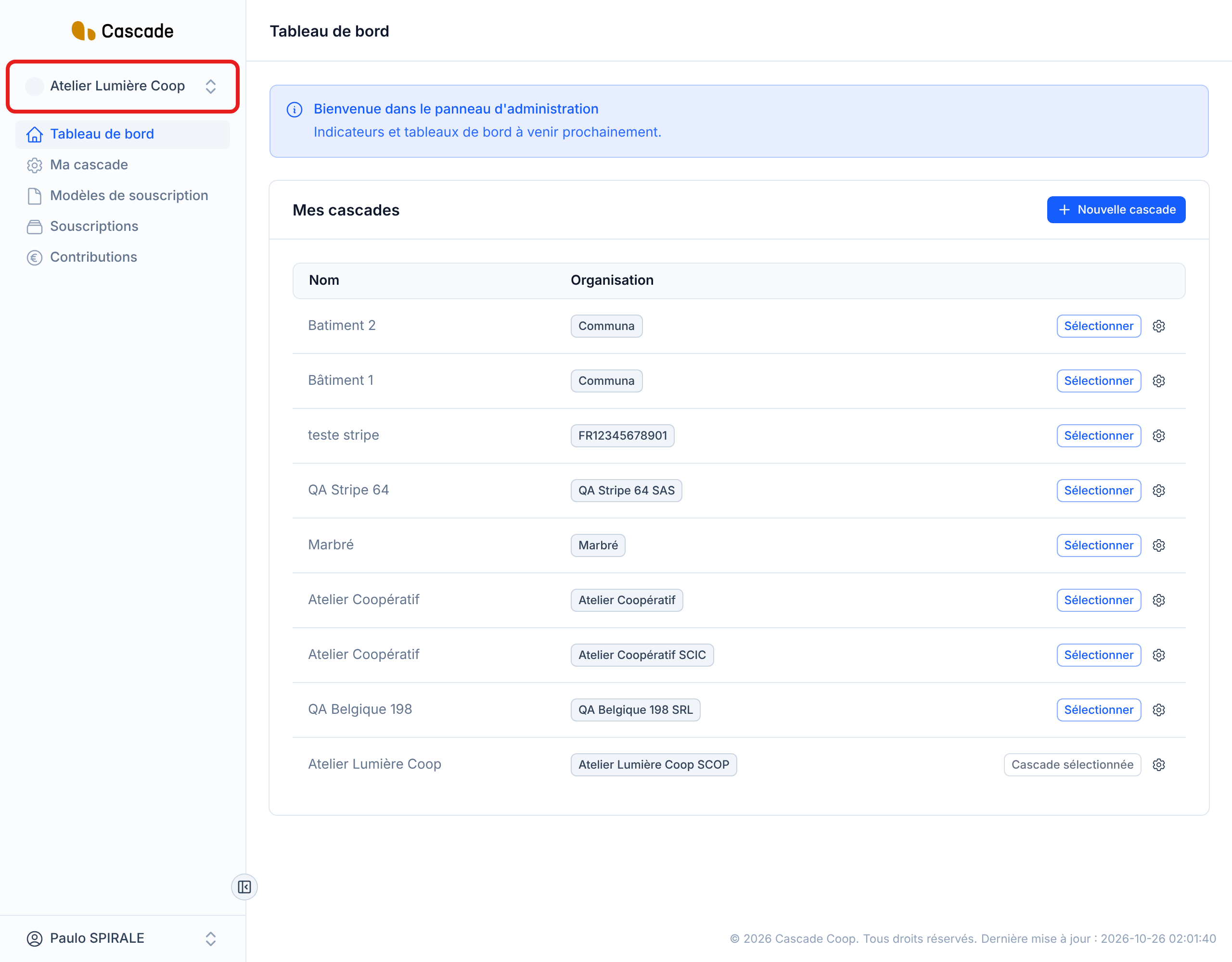
After your choice, you always land on the Tableau de bord (Dashboard), whichever screen you were on. The name of the new Cascade is displayed at the top of the sidebar, and the Cascade sélectionnée (Cascade selected) button moves to its row. Then go back to the screen you need (Souscriptions (Subscriptions), Contributions…): it now shows this Cascade's data.
What happens next?
- Nothing is modified or sent: switching Cascade only changes what you are looking at. No email is sent.
- What Cascade does by itself every day does not depend on the Cascade you have open: see What Cascade does every day.
- Your choice is kept during your session: you stay in this Cascade from one screen to the next, until you choose another one.
Good to know
- The data of one Cascade is never mixed with that of another: lists, searches and actions only apply to the open Cascade. To work on two Cascades, switch Cascade between the two.
- After you sign in, Cascade opens one of your Cascades. If it is not the one you want, change it as described above.
- A link received by email that concerns a specific Cascade (documents to approve, for example) opens that Cascade directly, without you having to choose it. If you don't belong to its organization, you get a "not found" page.
- When you create a Cascade, it immediately becomes the open Cascade.
- When the sidebar is collapsed, the selector only shows the Cascade's logo; it opens the same way.
- There is no search in the list: if you have many Cascades, use the dashboard.
Frequently asked questions
Only the Cascades of the organizations you belong to are offered. Ask an administrator to link you to the organization.
That's normal: switching Cascade always takes you back to the dashboard, because the screen you were on showed the old Cascade's data.
Look at the name at the top of the sidebar: that is the Cascade your creation will be saved in.