Create a contribution or credit note by hand
Add a contribution to a subscription yourself, on top of the automatically generated ones: one-off fees, an adjustment… With a negative amount, you create a credit note that corrects a contribution that is already due.
Before you start
- You need a subscription that has already started: its effective date must be today or in the past. See Create a subscription (invite a contributor).
- For a SEPA direct debit, the subscription model must have a direct debit lead time. See Choose the default payment method and the direct debit lead time.
Steps
1. Open the form
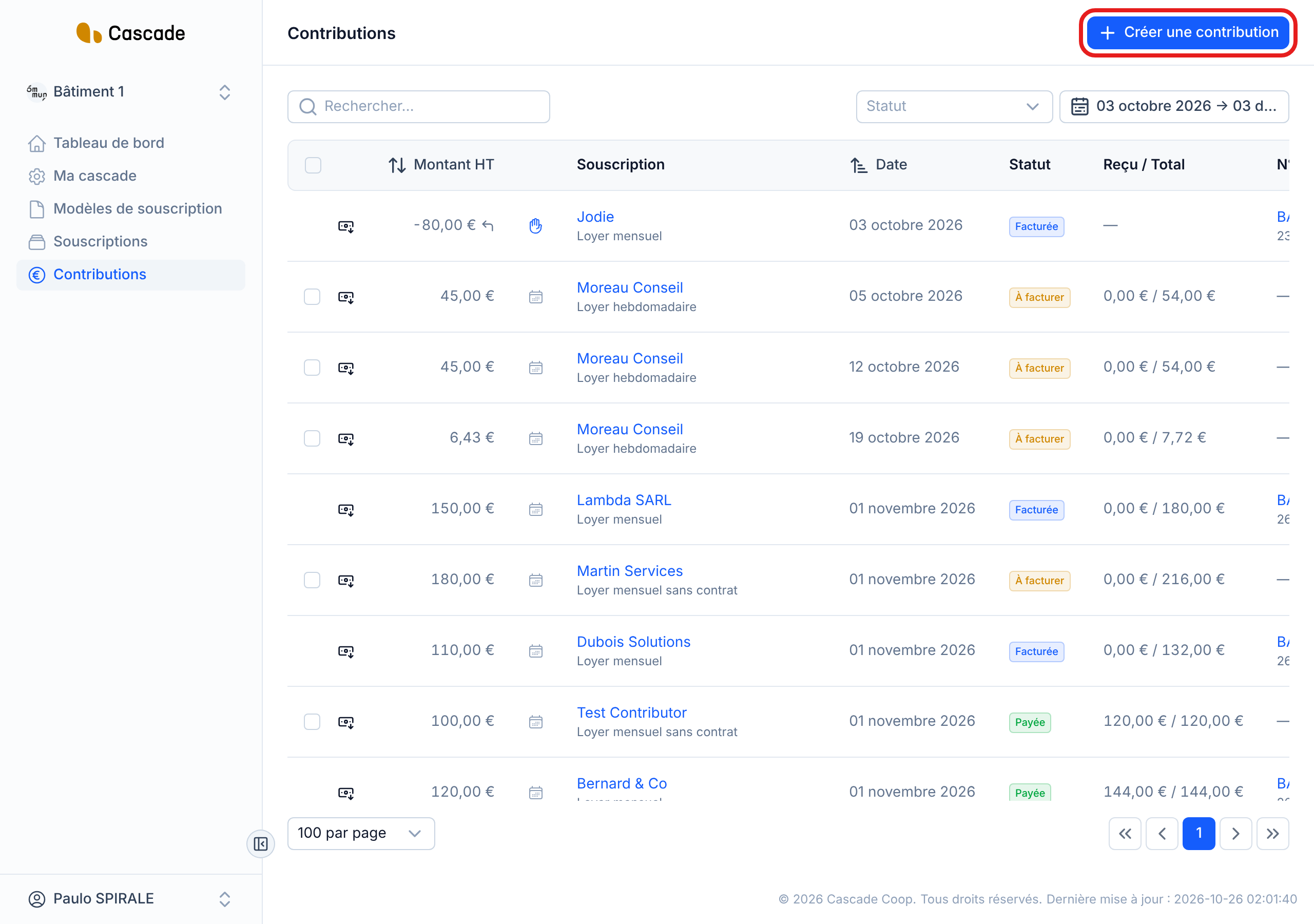
In the menu, go to Contributions, then click Créer une contribution (Create a contribution).
2. Choose the subscription
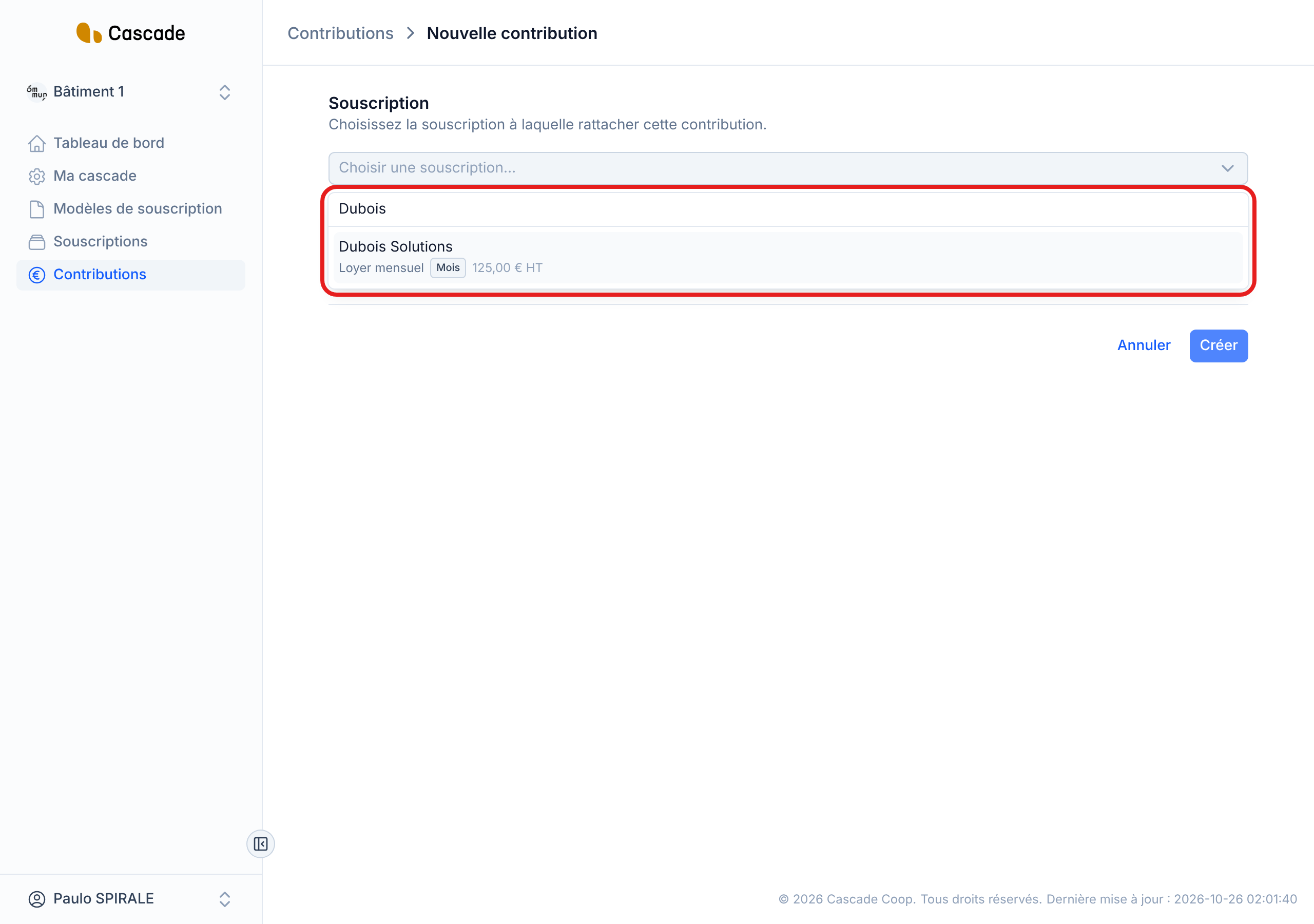
In the Souscription (Subscription) field, type the name of the contributor or of the subscription model. Each row shows the contributor, the model, the recurrence and the subscribed amount excl. VAT.
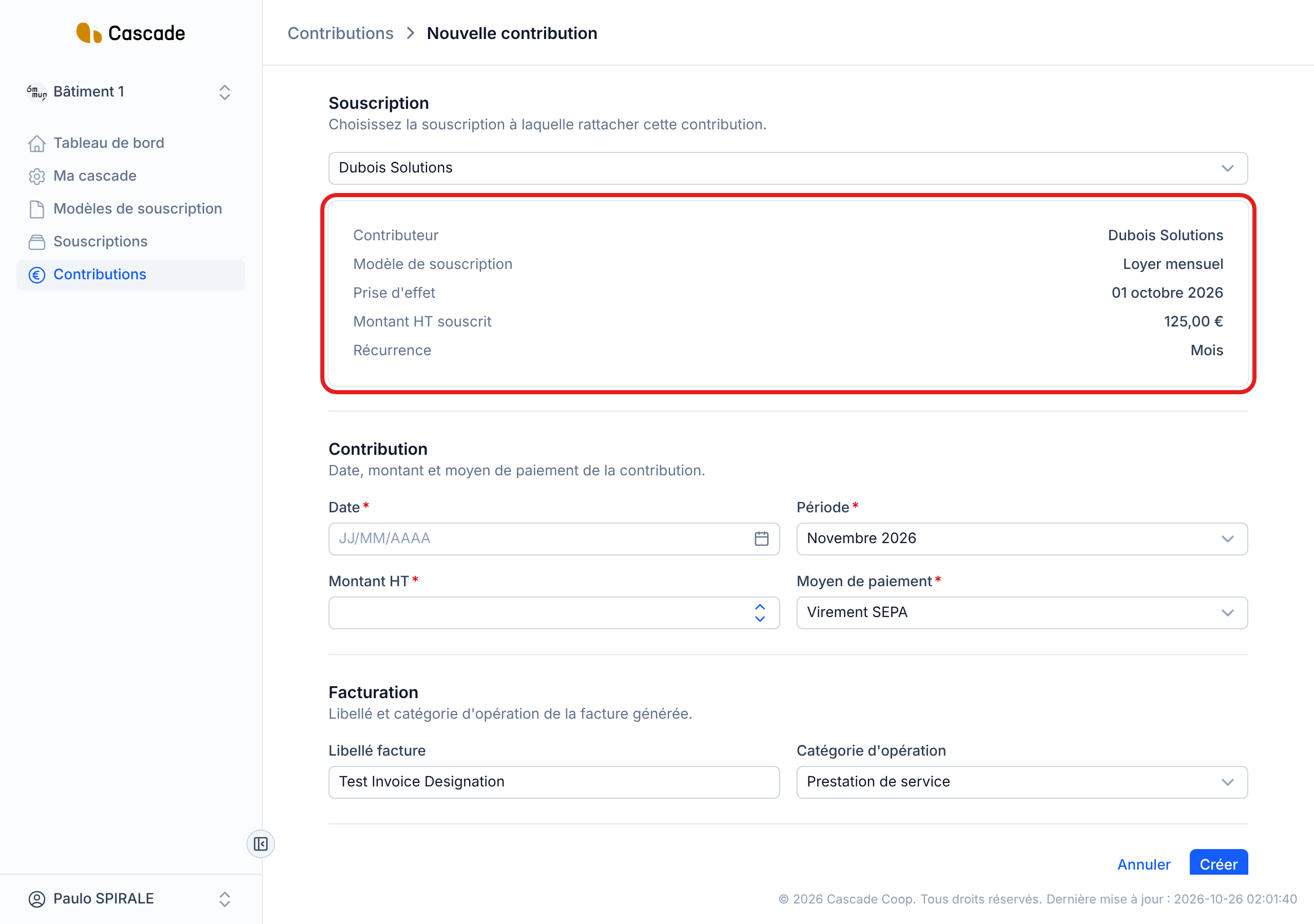
Once the subscription is chosen, a box summarizes it: contributor, subscription model, effective date, subscribed amount excl. VAT and recurrence. The rest of the form appears, already pre-filled with the settings of the subscription and of its model (payment method, invoice description, operation category, current period). You can change everything for this contribution.
3. Enter the date and the period
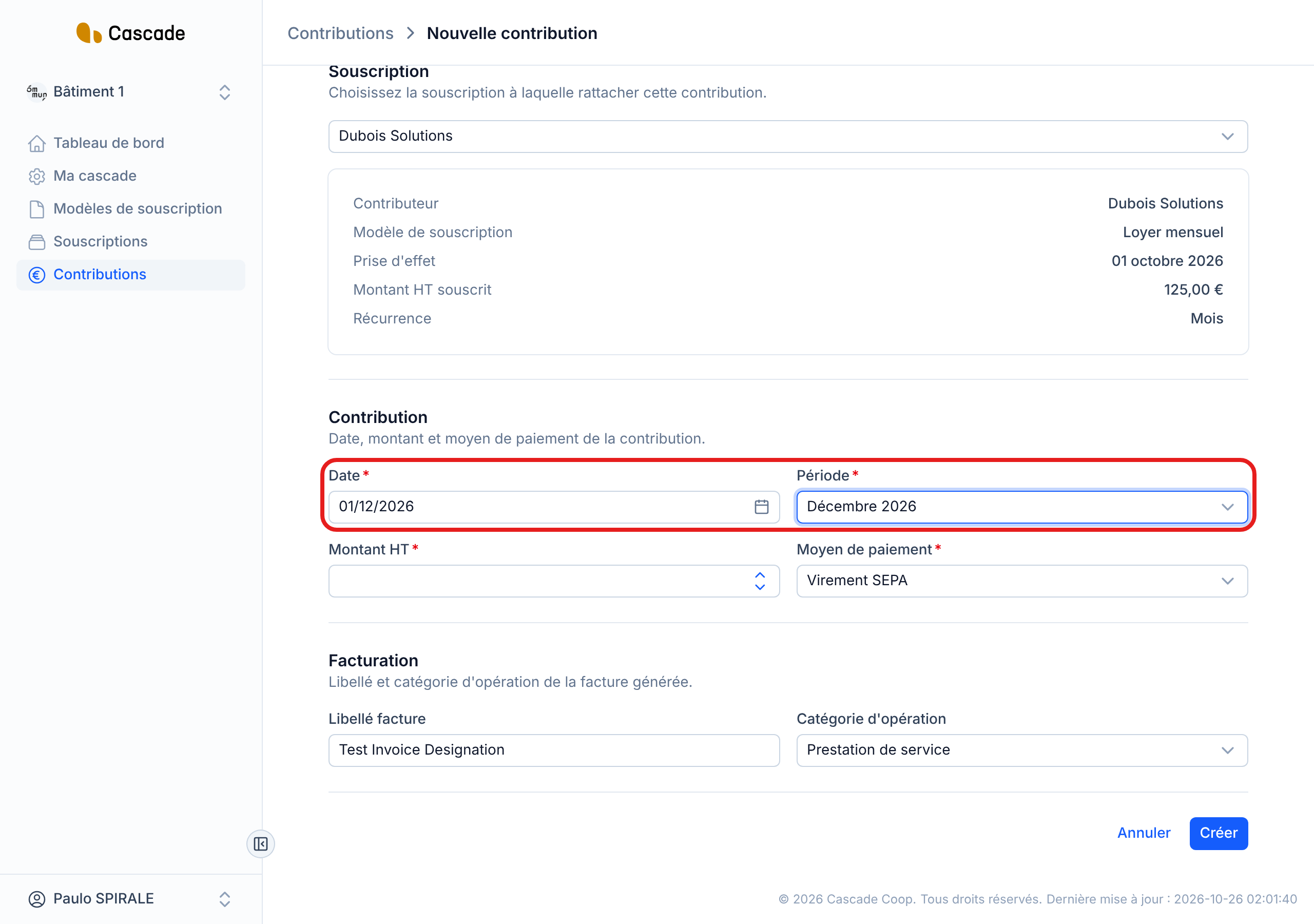
- Date: the day the contribution is due. It cannot be earlier than the subscription's effective date.
- Période (Period) (recurring subscriptions only): the period the contribution covers. It is pre-filled with the current period, and the list offers nearby periods, past and future (for example the last 12 months and the next 3 for a monthly recurrence).
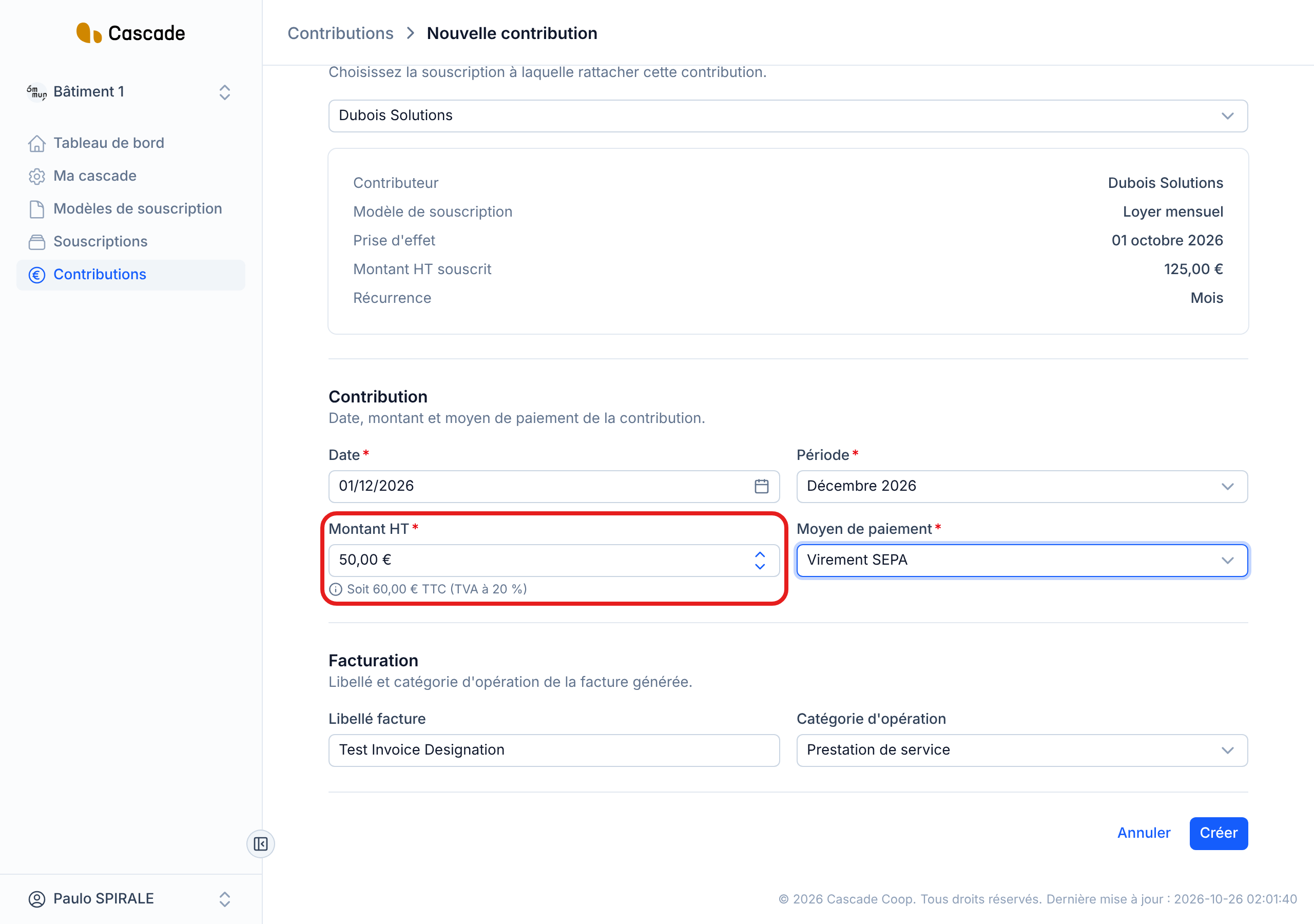
4. Enter the amount
Enter the Montant HT (Amount excl. VAT). The amount incl. VAT is shown just below, calculated with the VAT rate of the subscription model.
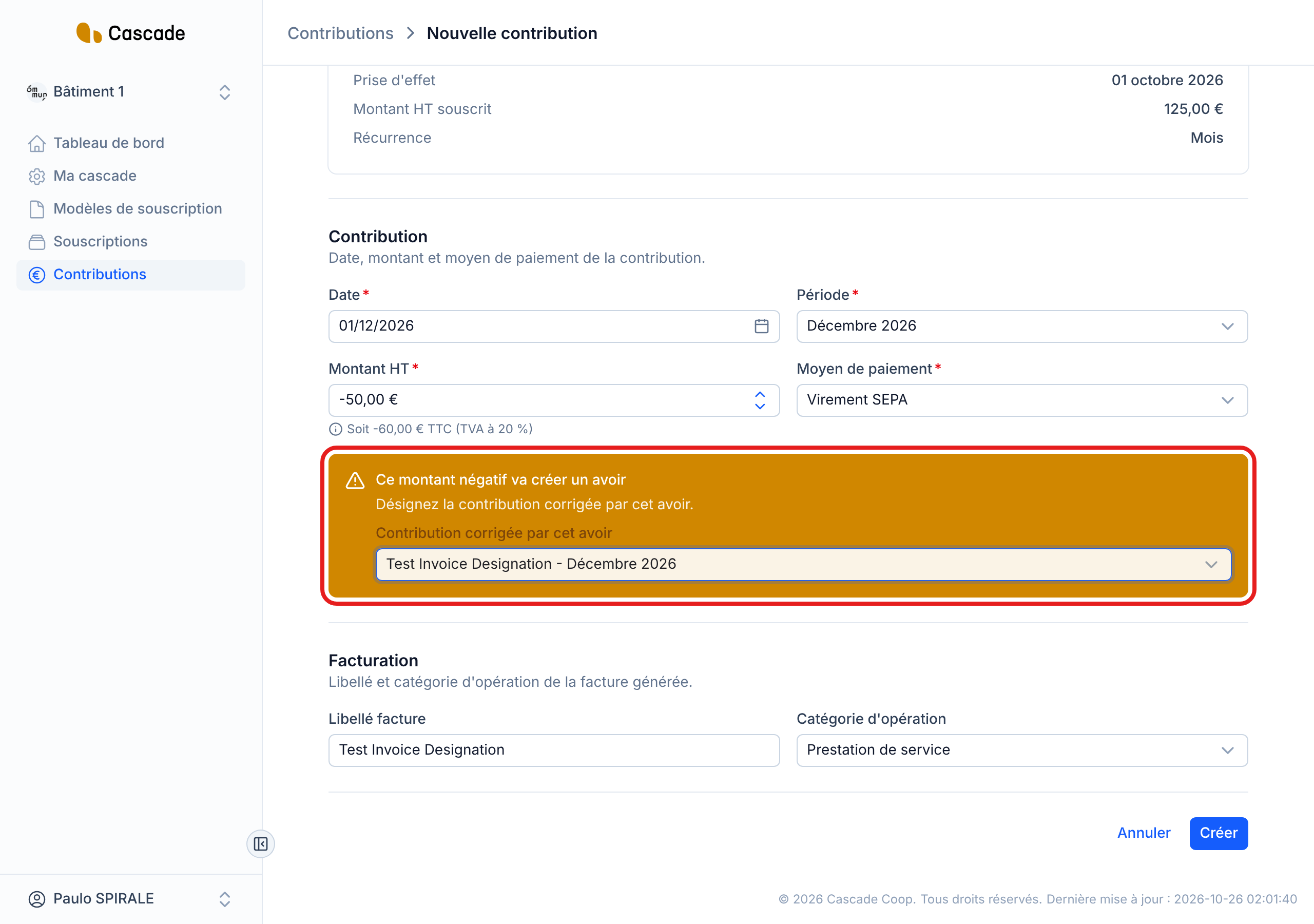
To create a credit note, enter a negative amount. A box saying « Ce montant négatif va créer un avoir » (This negative amount will create a credit note) appears: in Contribution corrigée par cet avoir (Contribution corrected by this credit note), choose the contribution you are correcting. This choice is optional, and only the positive contributions of this subscription are offered.
5. Choose the payment method
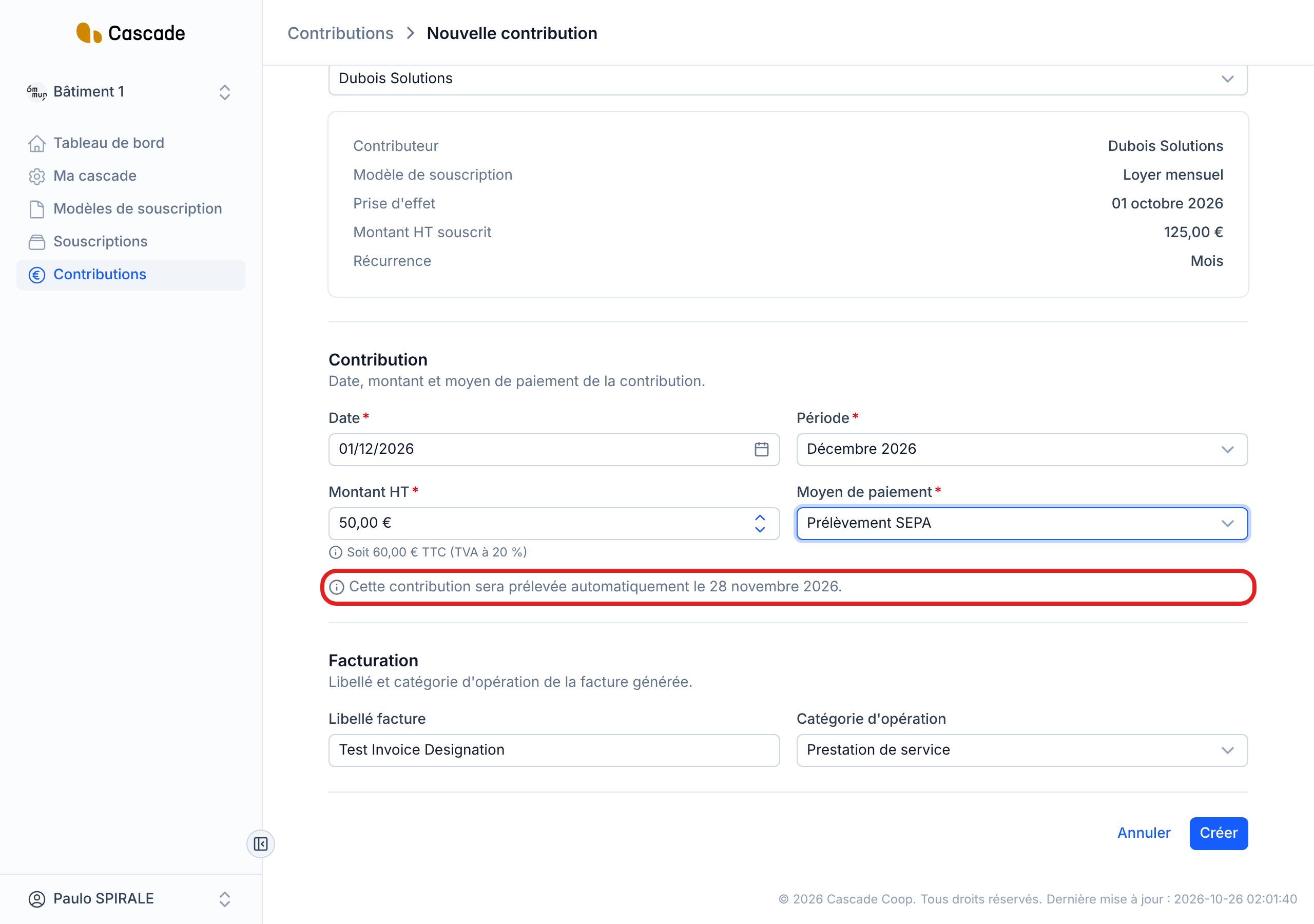
The Moyen de paiement (Payment method) takes the one from the subscription: Virement SEPA (SEPA transfer), Prélèvement SEPA (SEPA direct debit), Carte bancaire (Bank card), Espèces (Cash) or Chèque (Cheque). Change it if this contribution will be paid another way.
With Prélèvement SEPA, the form tells you the date on which the contribution will be debited: the contribution date minus the model's direct debit lead time. If the invoice can no longer go out in time, it tells you the earliest date, 2 days after the invoice is sent.
6. Check the invoicing information
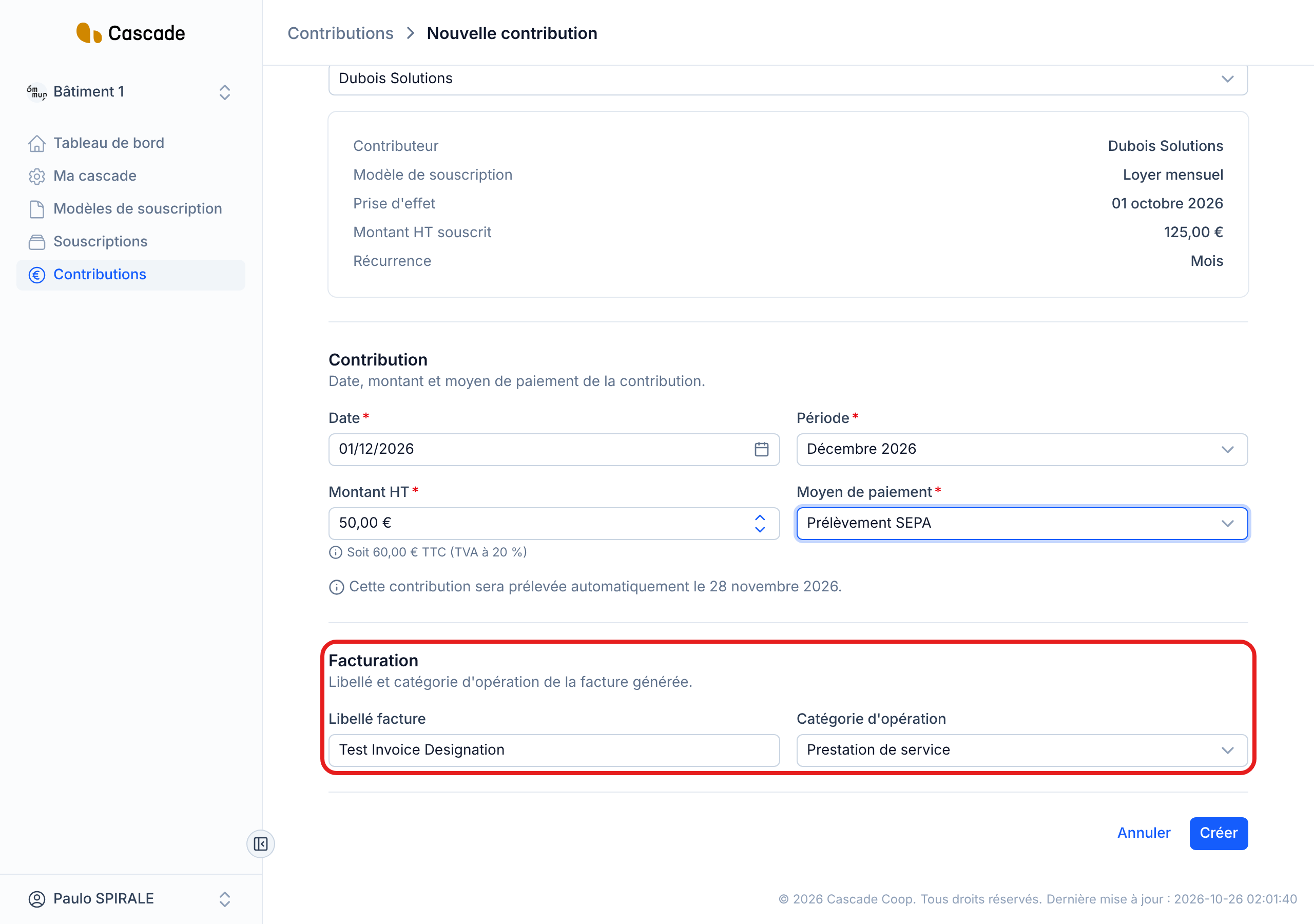
This section only appears if the subscription model's sending method is Facture (Invoice).
- Libellé facture (Invoice description): the text that will appear on the invoice.
- Catégorie d'opération (Operation category): Prestation de service (Service) or Vente de marchandise (Sale of goods).
Both are taken from the subscription model; your changes only apply to this contribution.
7. Create the contribution
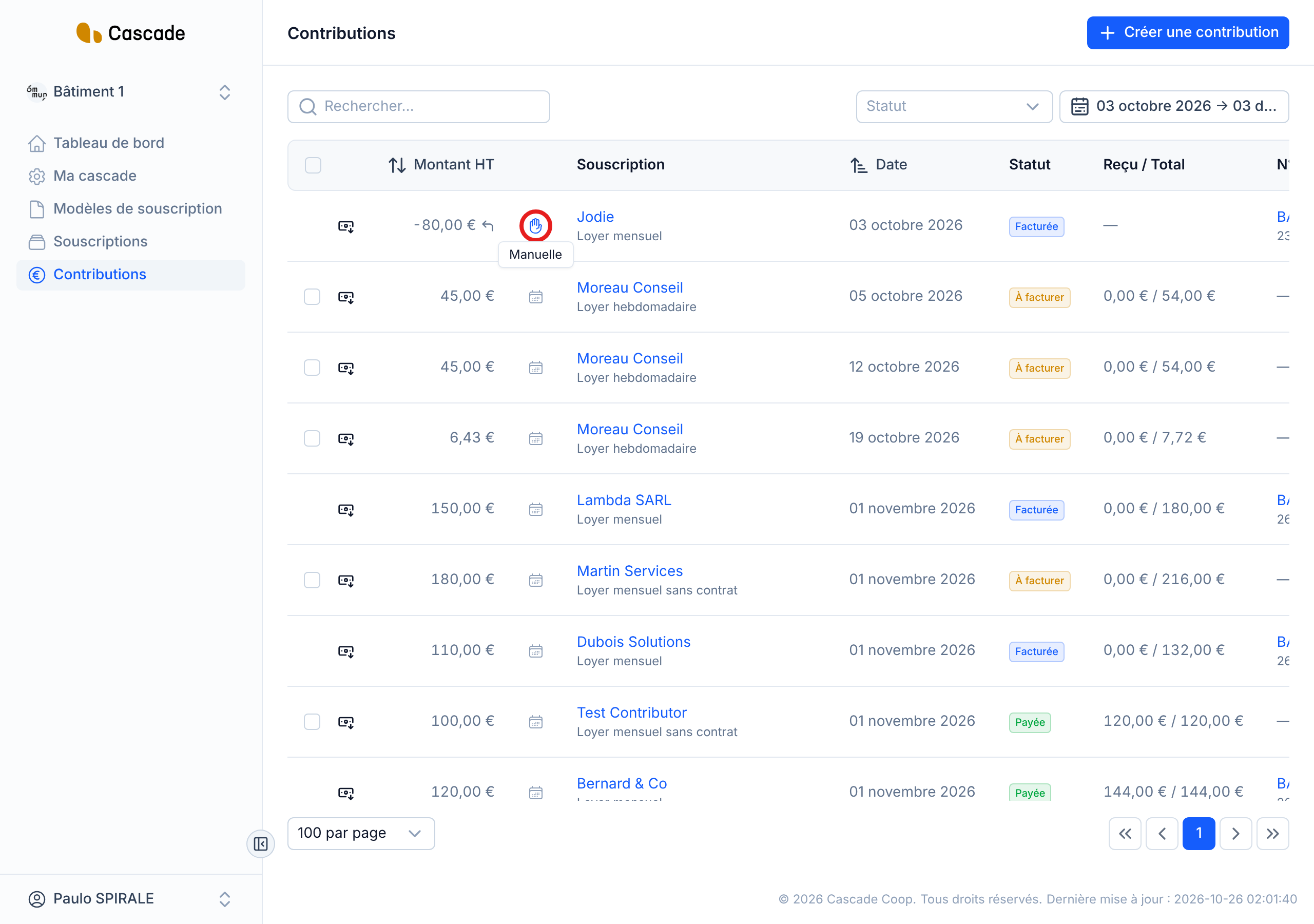
Click Créer (Create). You go back to the list of contributions, where your contribution appears with a hand icon: hover over it to read Manuelle (Manual).
What happens next?
- Status: the contribution is À facturer (To invoice) if the subscription model's sending method is Invoice, otherwise Nouvelle (New).
- Expected payment: for a positive contribution, a payment of the amount incl. VAT is expected on the contribution date (or on the debit day). You will be able to record it with Mark a contribution as paid.
- Invoice: if the model has an invoicing lead time, the contribution is invoiced and the invoice is sent to the contributor automatically, on the morning of the scheduled day, or the following morning if that day has already passed (see What Cascade does every day). Otherwise, invoice it yourself from the list: see Invoice contributions (one or several at a time).
- Credit note: no payment is expected and it is never invoiced automatically. Invoice it from the list, once the contribution it corrects has been invoiced (an icon reminds you of this next to its amount).
- No email is sent to the contributor when it is created; they only receive the invoice.
Good to know
- A contribution can be neither edited nor deleted once created: review everything before clicking Créer (Create). To correct a mistake, create a credit note.
- The amount cannot be zero.
- A contribution you created is kept when the subscription changes version, unlike the upcoming automatic contributions, which are replaced.
- SEPA direct debit is refused if the subscription model has no direct debit lead time.
Frequently asked questions
Only subscriptions that have already started are offered: check its effective date. For a subscription with several versions, only the most recent one appears.
Create a credit note for the same amount, as a negative, and designate the contribution as the one being corrected.