Mark a contribution as paid
Record on a contribution a payment received outside the application: transfer, cheque or cash. Its status updates by itself: paid if everything is settled, partially paid otherwise.
Before you start
- The contribution must be awaiting payment: this is the case for any positive contribution that is not yet fully settled, whether it was generated automatically or created by hand (see Create a contribution or credit note by hand).
- The payment must have been received by transfer, cheque or cash.
Steps
1. Find the contribution in the list
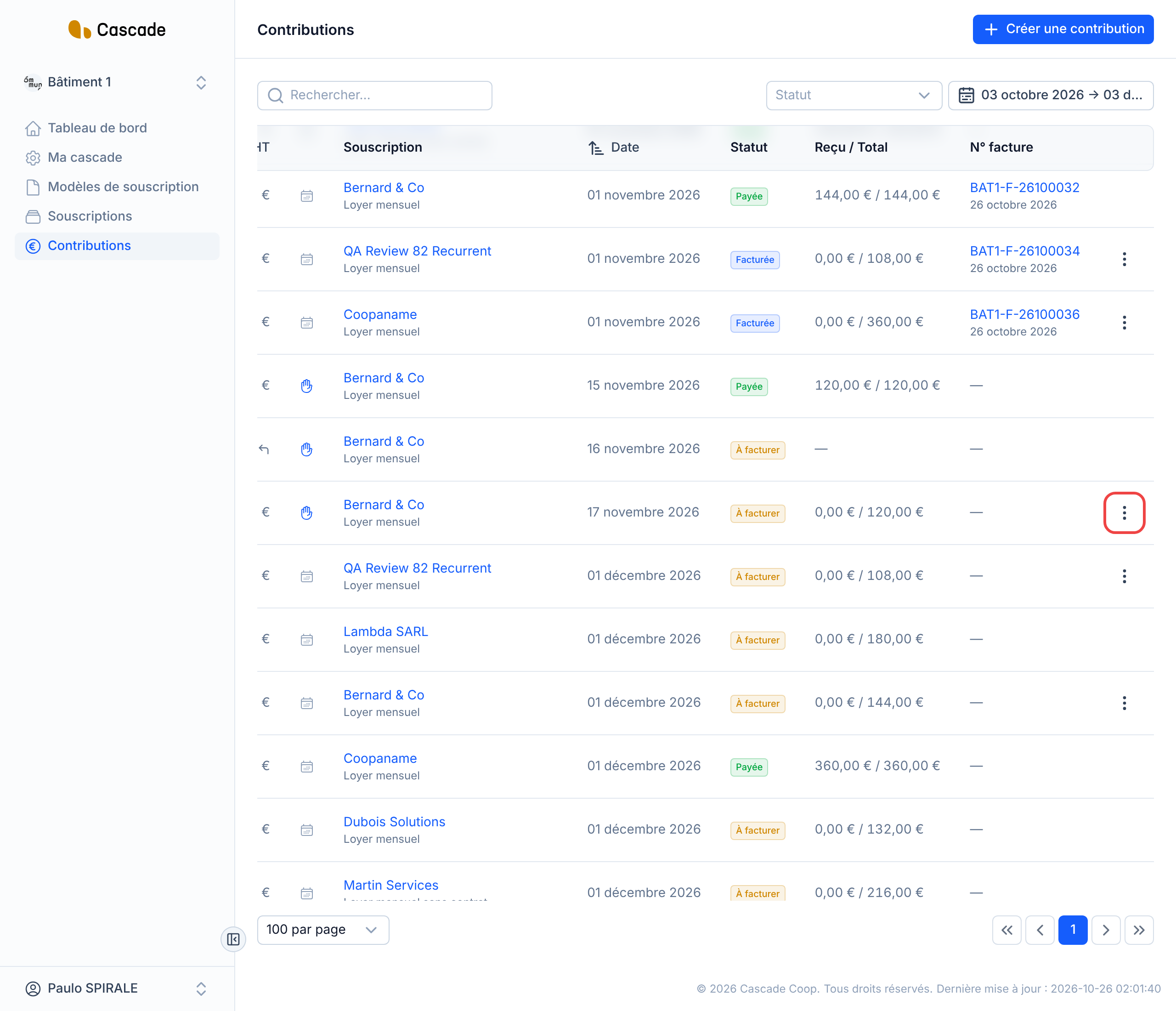
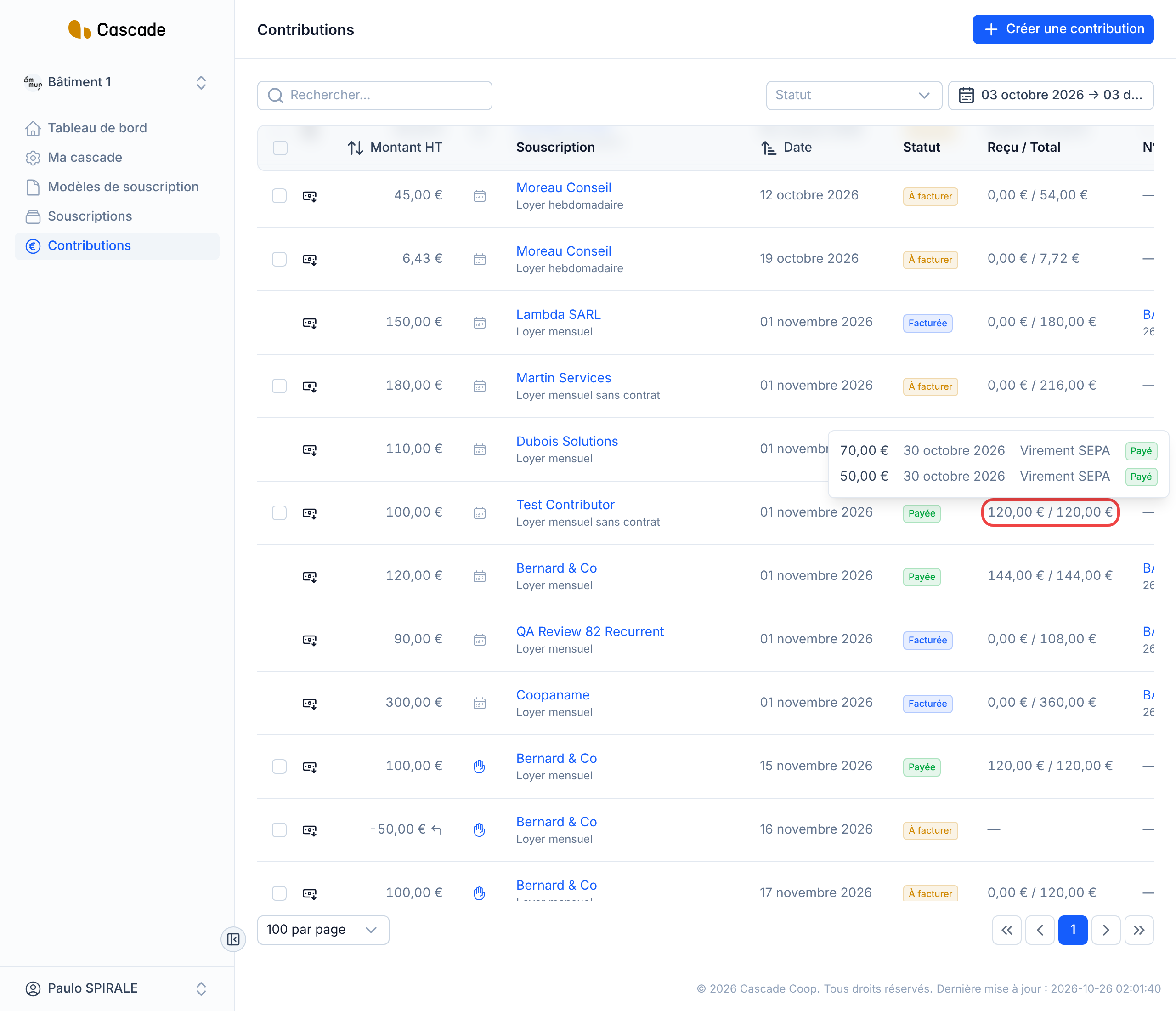
In the menu, go to Contributions and find the contribution, using the search or the Statut (Status) and date filters if needed. The Reçu / Total (Received / Total) column shows what has already been received out of the amount incl. VAT that is due.
Click the ⋮ button at the end of the row. It only appears on contributions that are still awaiting a payment.
2. Choose Ajouter un paiement
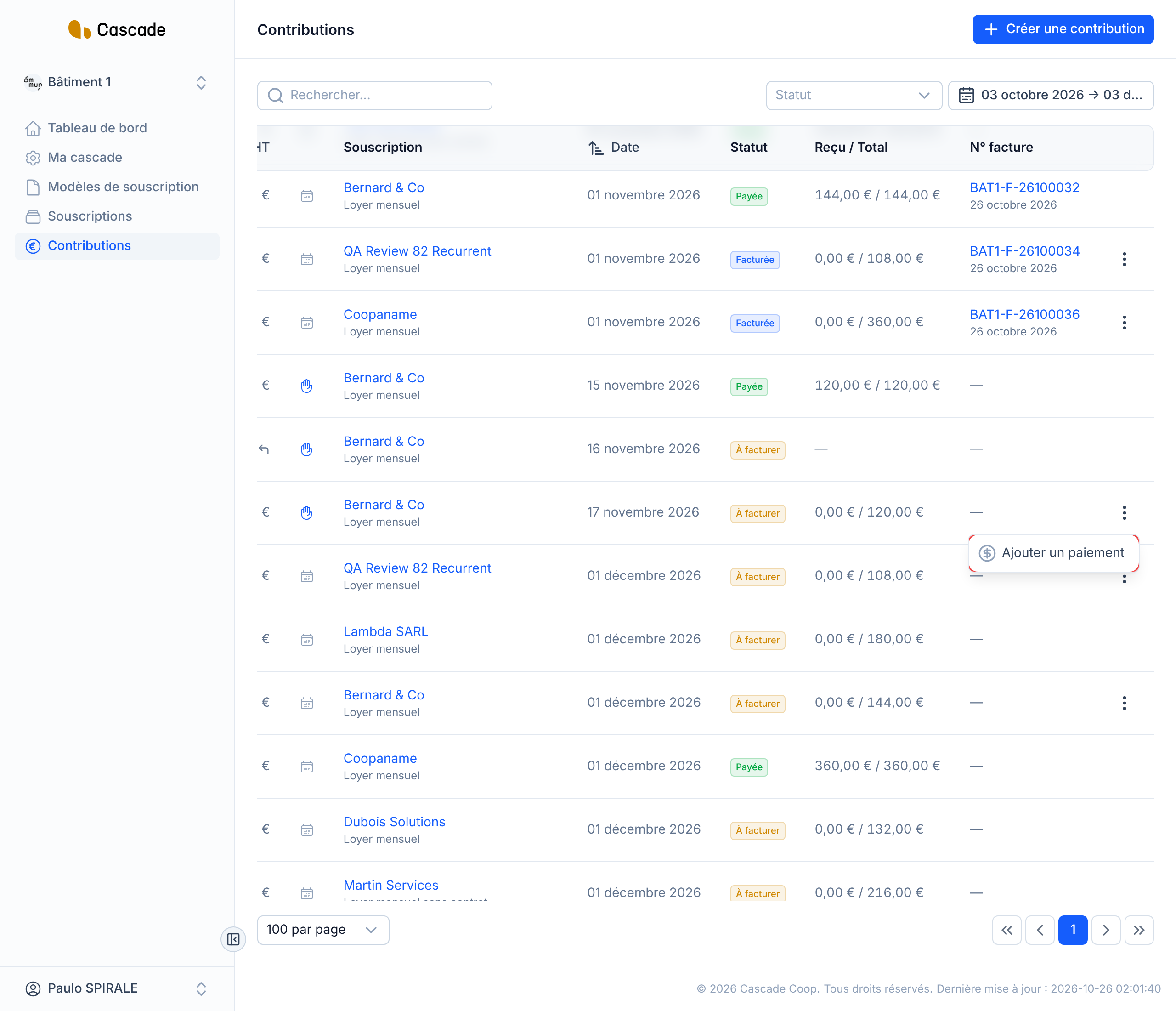
In the menu that opens, click Ajouter un paiement (Add a payment).
3. Check what is proposed
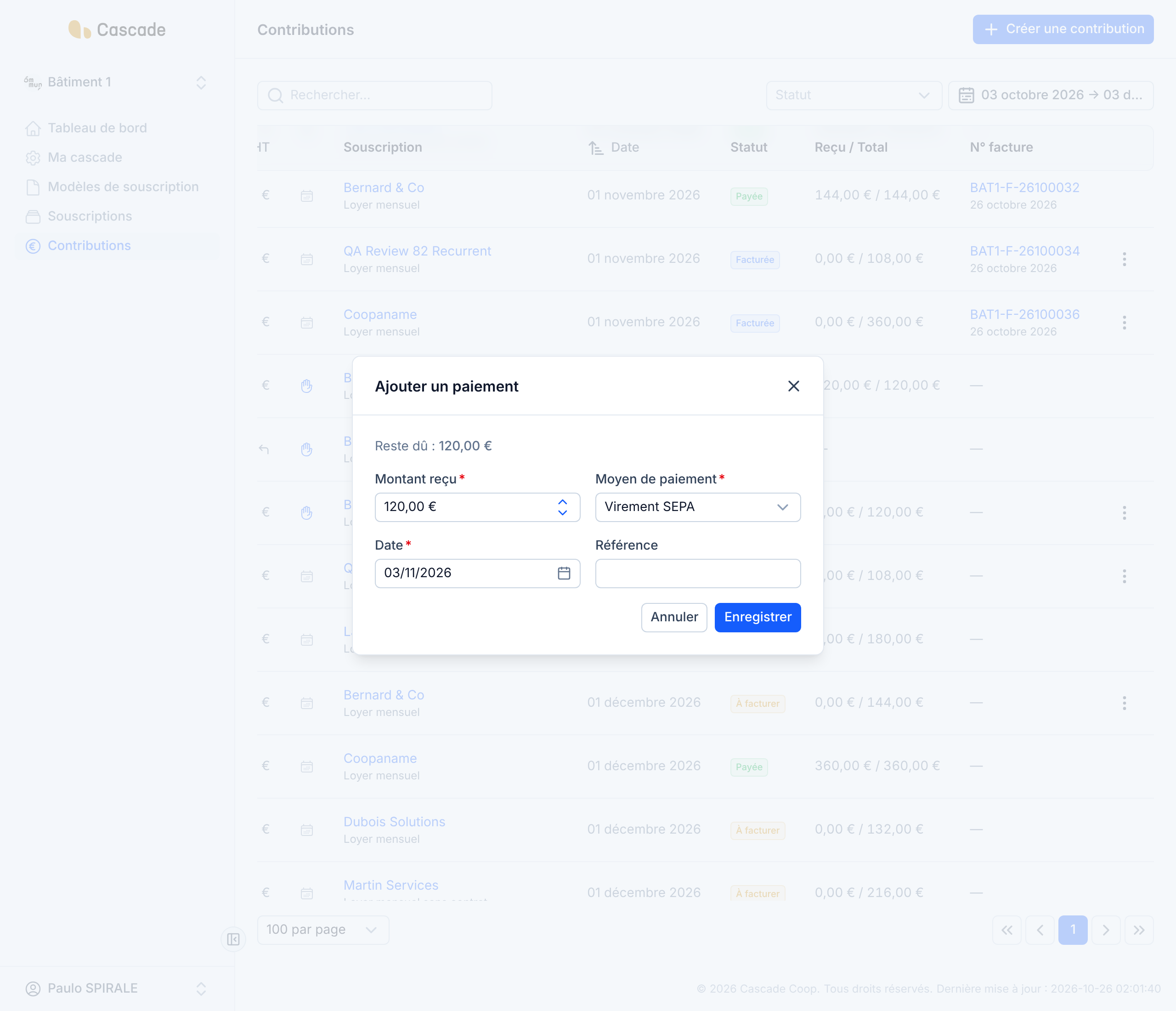
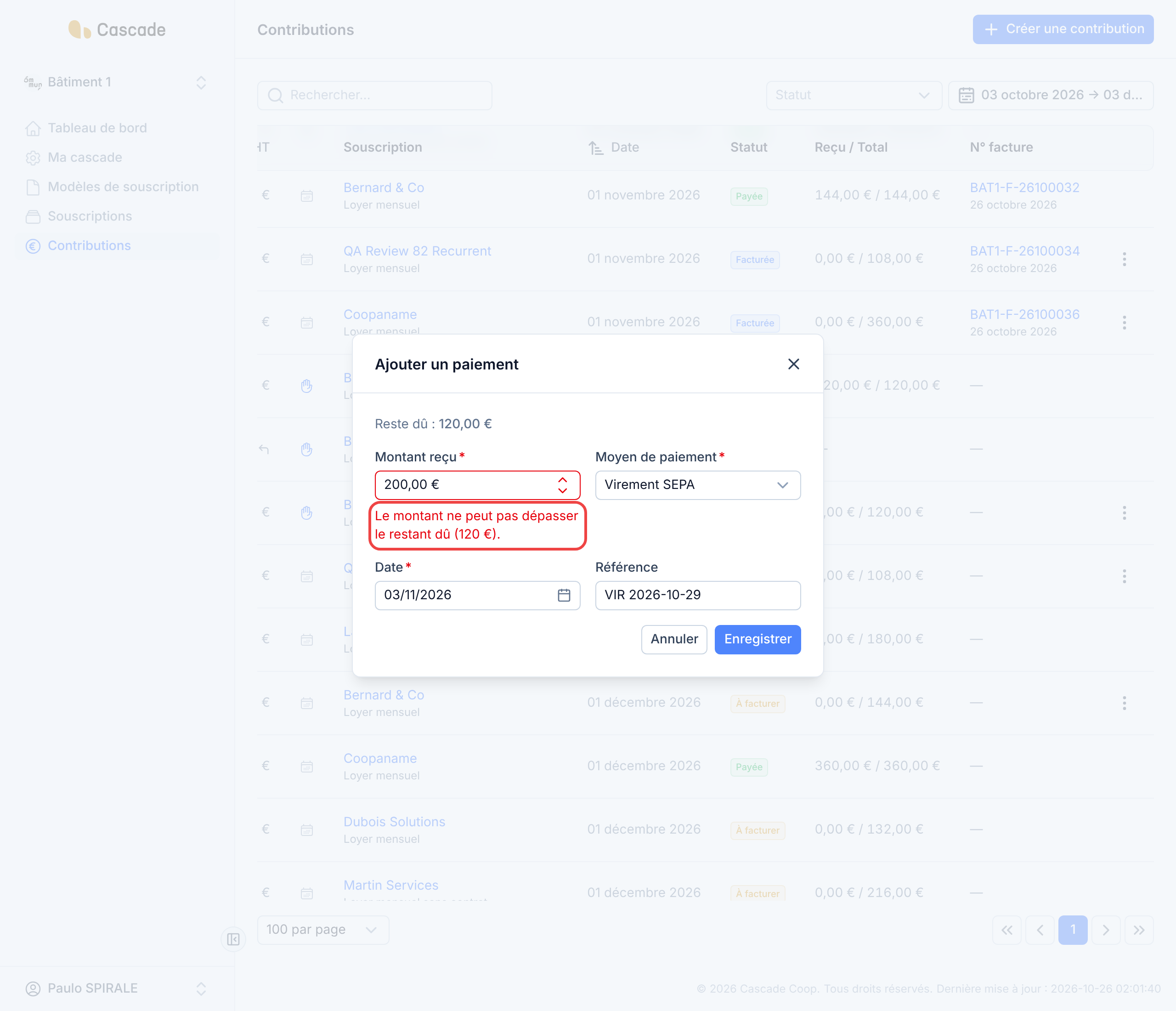
The Ajouter un paiement (Add a payment) window shows the Reste dû (Remaining balance), including all taxes. It is already filled in with the expected amount, the planned payment method and today's date.
4. Enter the payment received
- Montant reçu (Amount received): the amount incl. VAT actually collected. It can be less than the remaining balance (partial payment), never more.
- Moyen de paiement (Payment method): Espèces (Cash), Virement SEPA (SEPA transfer) or Chèque (Cheque).
- Date: the day you received the payment.
- Référence (Reference) (optional): a cheque number, the description of a transfer… anything that will help you find the payment again.
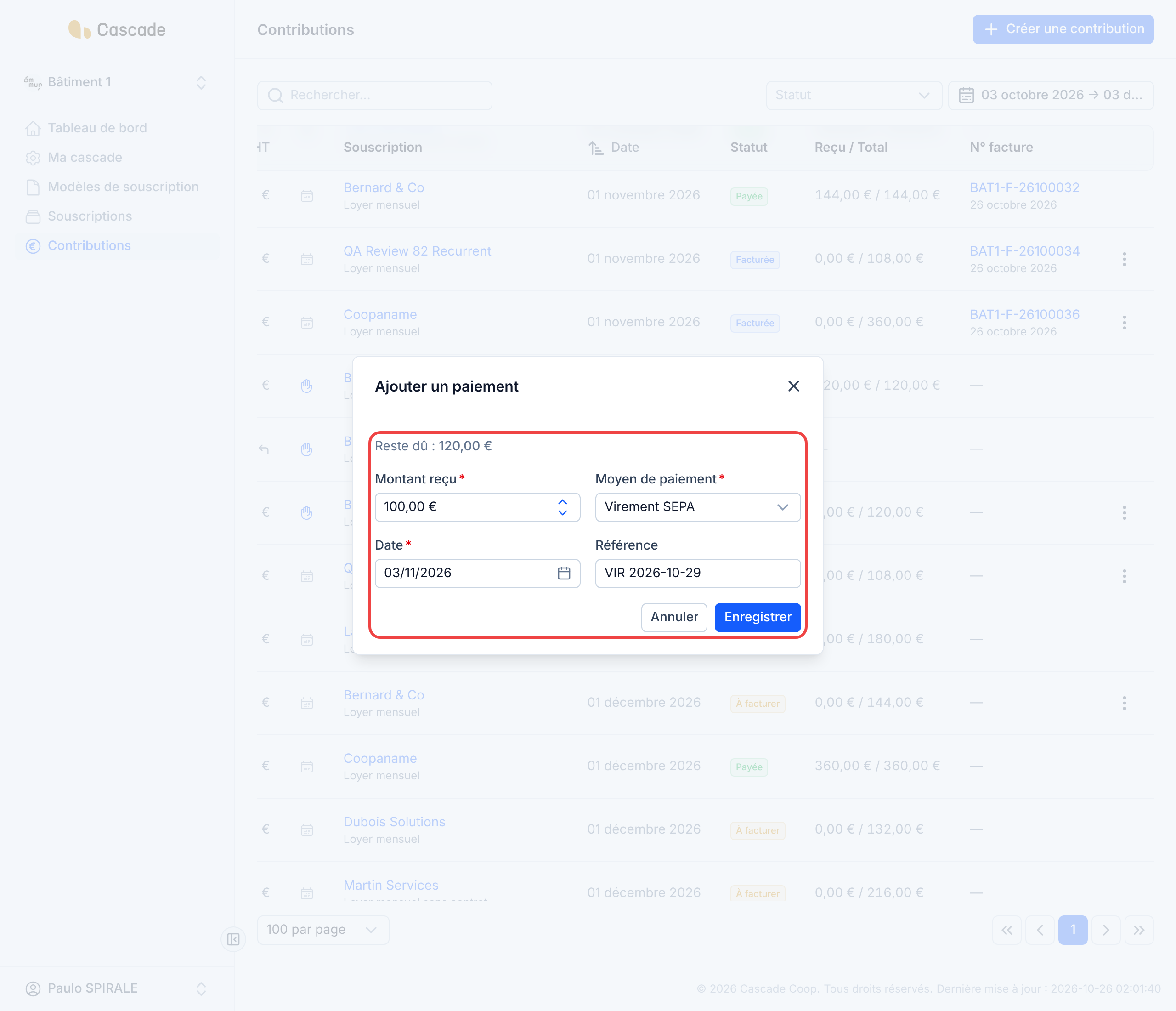
If the amount exceeds the remaining balance, the message « Le montant ne peut pas dépasser le restant dû » (The amount cannot exceed the remaining balance) appears under the field and the payment cannot be saved.
5. Save
Click Enregistrer (Save). The window closes and the message Paiement enregistré (Payment saved) confirms the operation.
To see the details of a contribution's payments, hover over the amount in the Reçu / Total (Received / Total) column: each payment appears with its amount, date, payment method and status (Payé (Paid) or En attente (Pending)).
What happens next?
- Status: the contribution changes to Payée (Paid) if the total is received, otherwise to Partiellement payée (Partially paid). The Reçu / Total (Received / Total) column is updated.
- Partial payment: the remainder is still expected, on its original date and with its original payment method. The ⋮ button stays available so you can record the rest.
- Invoice: recording a payment changes nothing about invoicing. A contribution paid before being invoiced must still be invoiced: it is still taken into account by automatic invoicing (see What Cascade does every day), or can be invoiced from the list (see Invoice contributions (one or several at a time)).
- No email is sent to the contributor.
Good to know
- For now, a recorded payment can be neither edited nor deleted: check the amount and the date before clicking Enregistrer (Save).
- The amounts in the window include VAT, whereas the Montant HT (Amount excl. VAT) column of the list is excluding tax.
- The amount received is capped at the remaining balance: an overpayment is recorded on a new contribution (see the frequently asked questions).
- SEPA direct debit and bank card payments cannot be recorded by hand: only cash, transfer and cheque are offered.
- A contribution that is paid but not yet invoiced shows Payée (Paid): its status does not say that an invoice is still to be issued. Spot it by its empty N° facture (Invoice no.) column.
Frequently asked questions
It is not awaiting a payment: either it is already fully paid, or it is a credit note.
Record the first payment with the amount received: the contribution changes to Partiellement payée (Partially paid). When the second payment arrives, reopen Ajouter un paiement (Add a payment) on the same row; the remaining balance is already proposed.
First record the payment up to the remaining balance: the contribution changes to Payée (Paid). Then create a new contribution for the amount of the overpayment on the same subscription (see Create a contribution or credit note by hand), and record the surplus on it. Be careful, the contribution is entered excluding tax and the payment including all taxes: for €24 incl. VAT received in excess with 20% VAT, create a contribution of €20 excl. VAT.