Make an amendment
Edit a subscription the contributor has already signed: the application creates a new version and generates an amendment, which you send for signature (or approve without signature).
Before you start
- The contributor must have already signed their contract (or a previous amendment). As long as they have not signed, editing the subscription changes it directly, without an amendment: see Send a contract for signature and Sign a contract (contributor).
- The subscription model must have an amendment template: at least a header, a footer or a paragraph. Otherwise the application refuses the change. See Set up the amendment template (conditional paragraphs).
- You can only edit the latest version of the subscription, and only if it has not ended. A one-time subscription cannot be amended.
Steps
1. Open the subscription
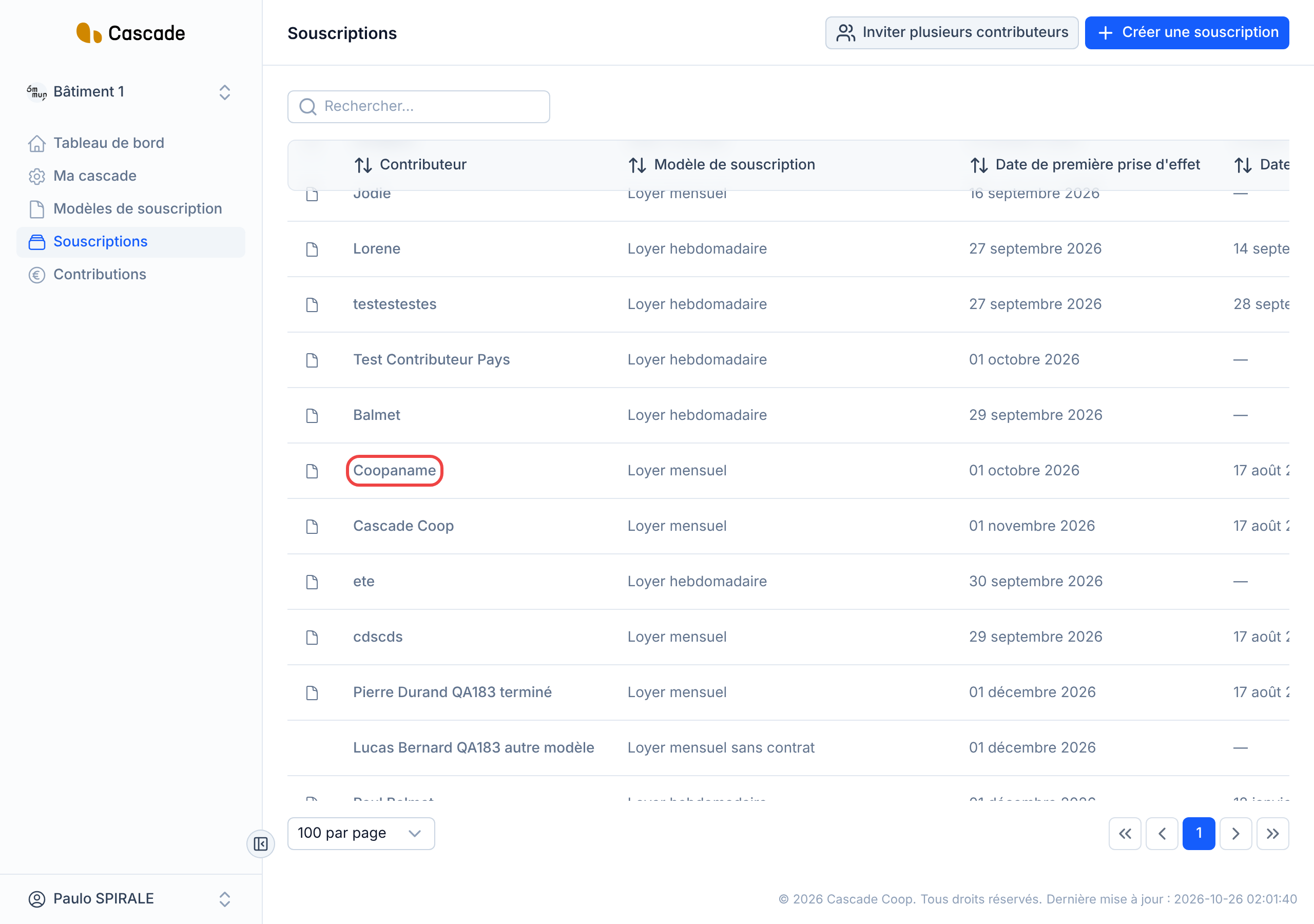
In the menu, go to Souscriptions (Subscriptions), then click the contributor's name. The page opens on the latest version of the subscription, with the Historique (History) of its versions at the top.
2. Change what changes
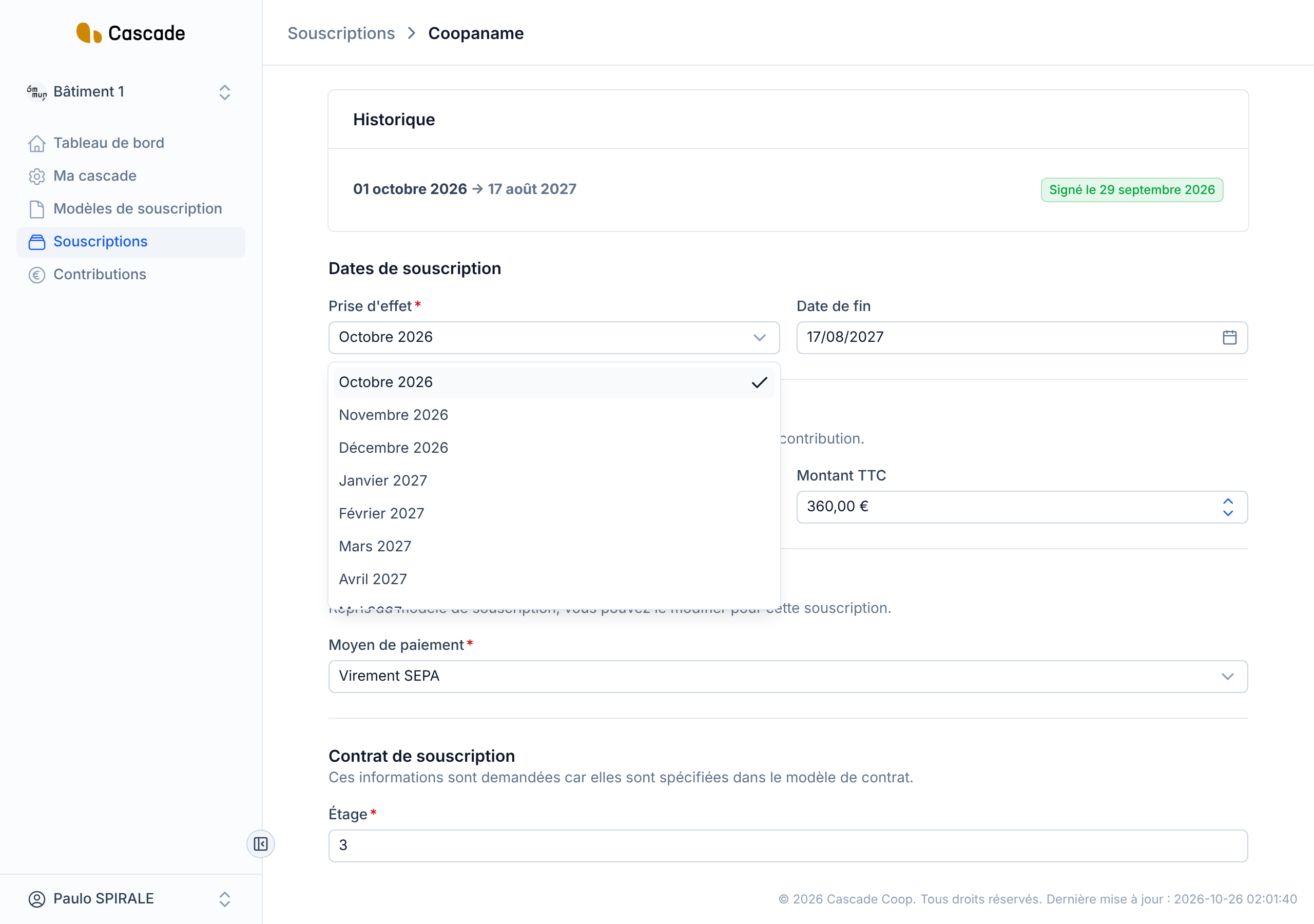
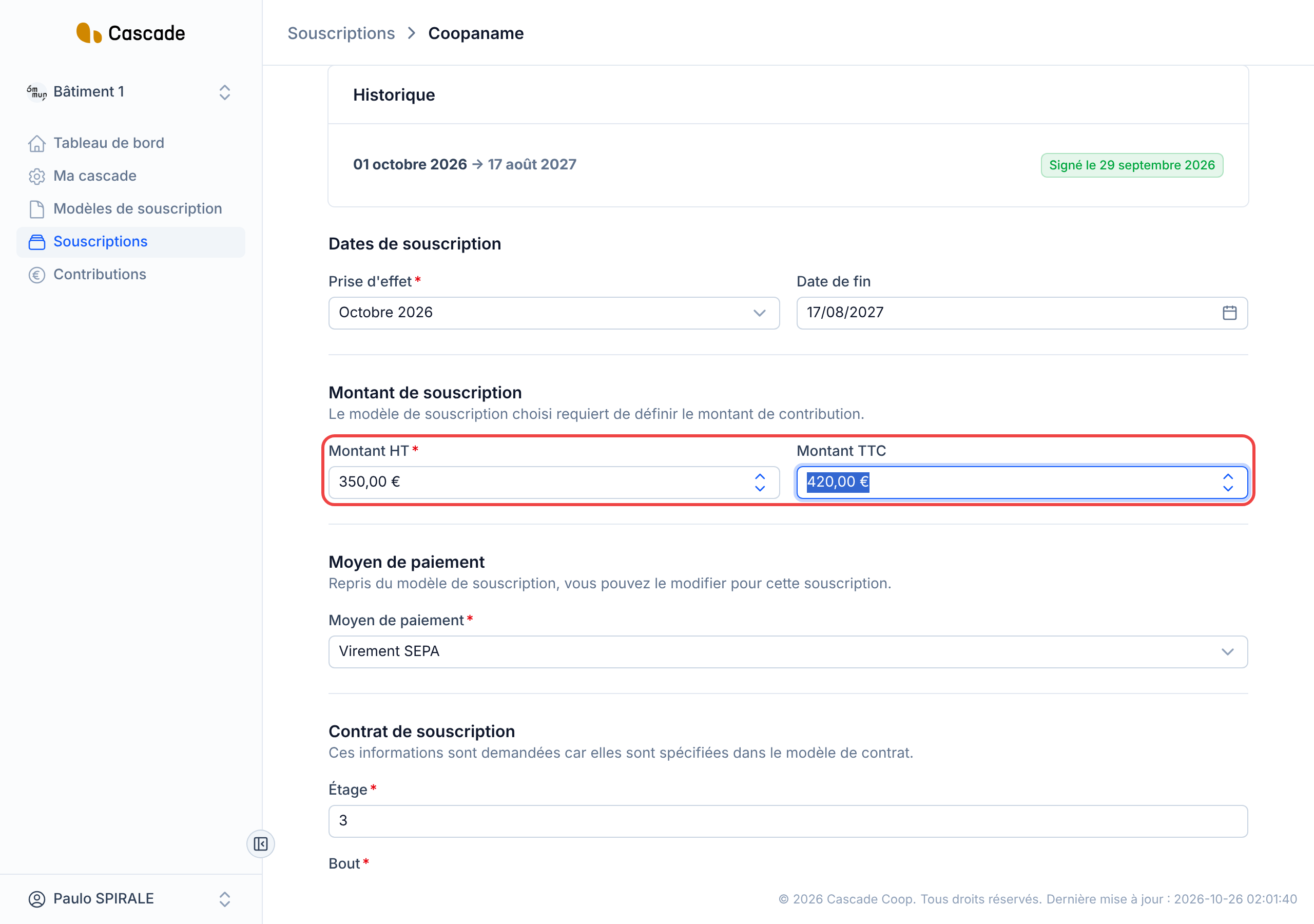
Change the relevant values in the form:
- Prise d'effet (Effective date): the date from which the amendment applies. The list offers the starts of periods (the 1st of the month for a monthly recurrence, for example). You cannot choose a date earlier than the effective date of the current version; the same date is accepted, to change only the amount.
- Date de fin (End date), Montant HT (Amount excl. VAT) (the amount incl. VAT is recalculated), Moyen de paiement (Payment method) and the fields of the Contrat de souscription (Subscription contract) section.
- The Informations du contributeur (Contributor information).
Only the Date de fin, the Montant HT and the contract fields that the amendment template has chosen as triggers are carried into the amendment. The other changes do create a new version, but add no paragraph to the amendment.
3. Save and confirm
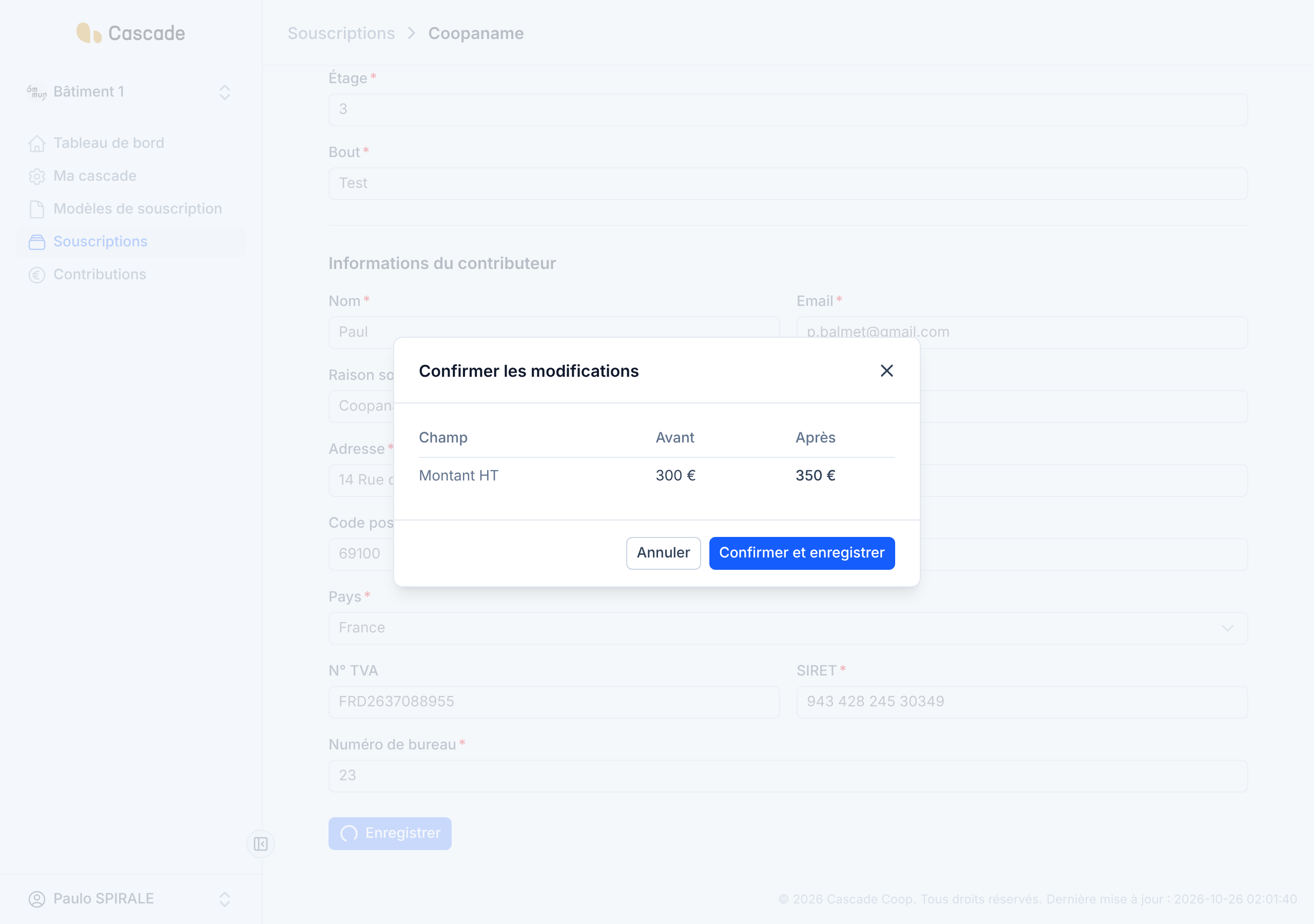
Click Enregistrer (Save). If you changed an element that triggers a paragraph of the amendment, a window Confirmer les modifications (Confirm the changes) lists each change: the field, its value before and its value after. Check them, then click Confirmer et enregistrer (Confirm and save), or Annuler (Cancel) to go back to the form without saving anything.
If no triggering element has changed, the window does not appear and the change is saved directly.
4. Review the amendment
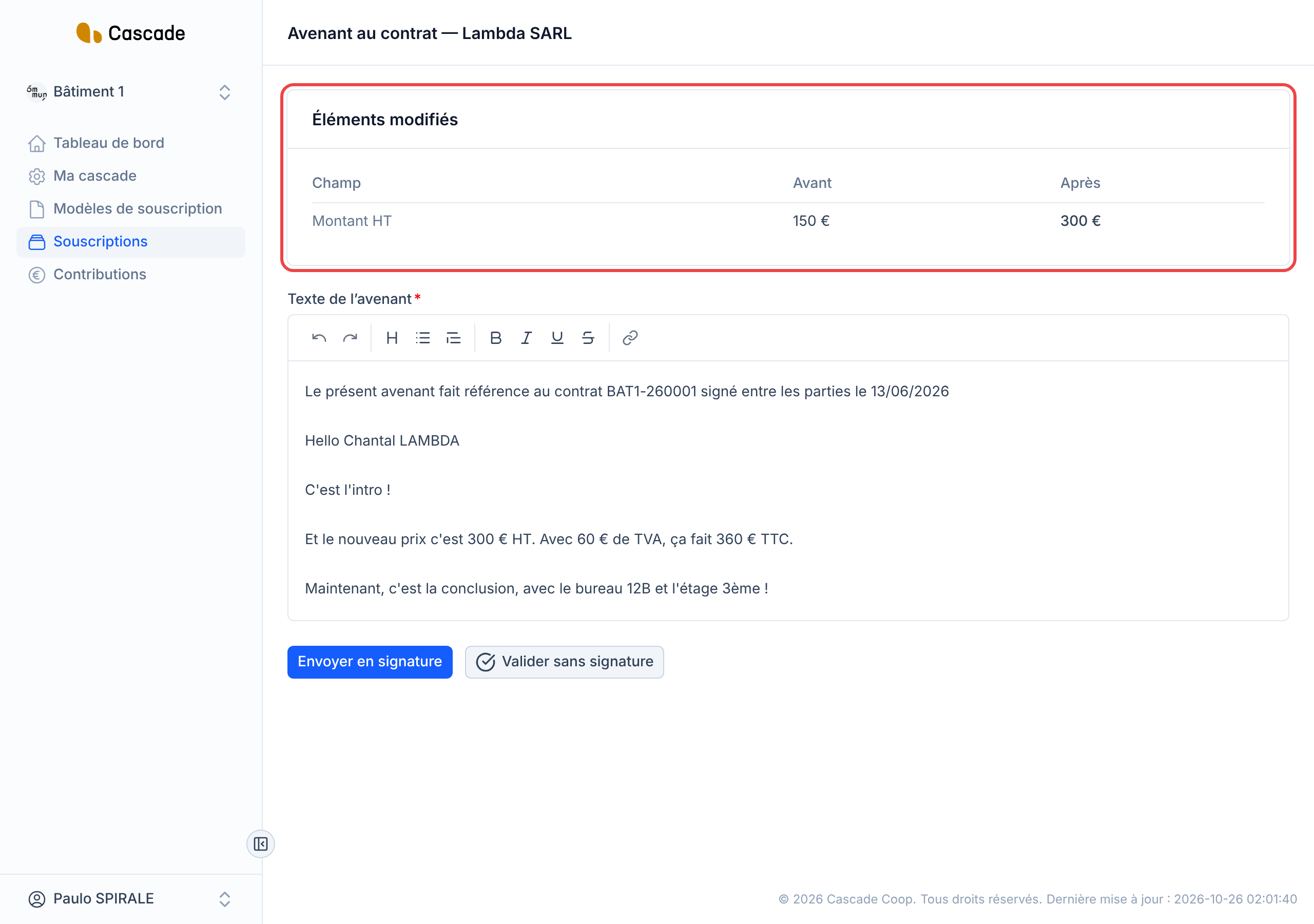
After saving, you land on the Avenant au contrat (Contract amendment) page, followed by the contributor's name. The Éléments modifiés (Changed elements) block recalls the changes (field, before, after). Below, the Texte de l'avenant (Amendment text) is generated from the amendment template: the header, the paragraphs one of whose triggers has changed, then the footer. You can edit it freely before sending.
5. Send the amendment for signature
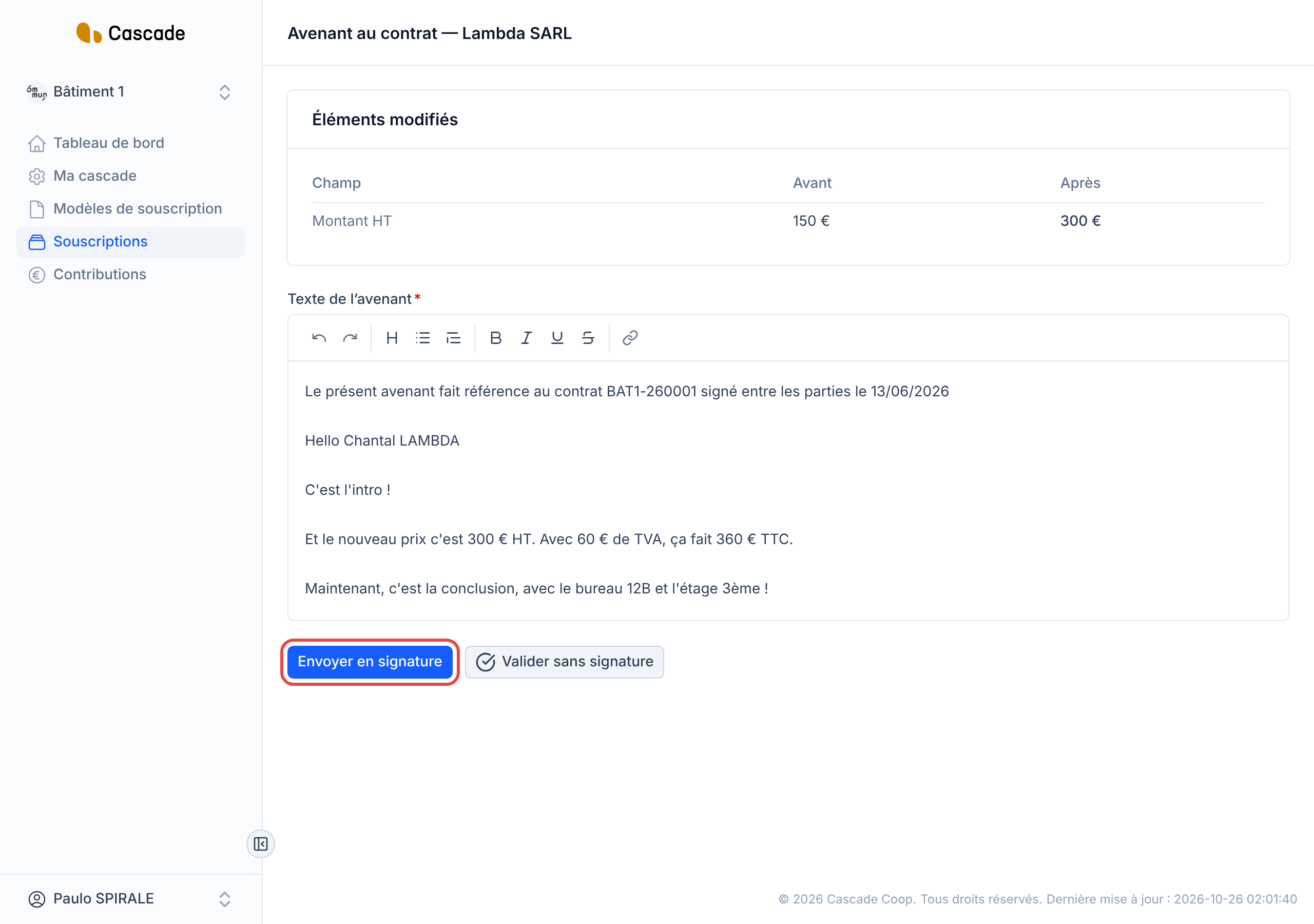
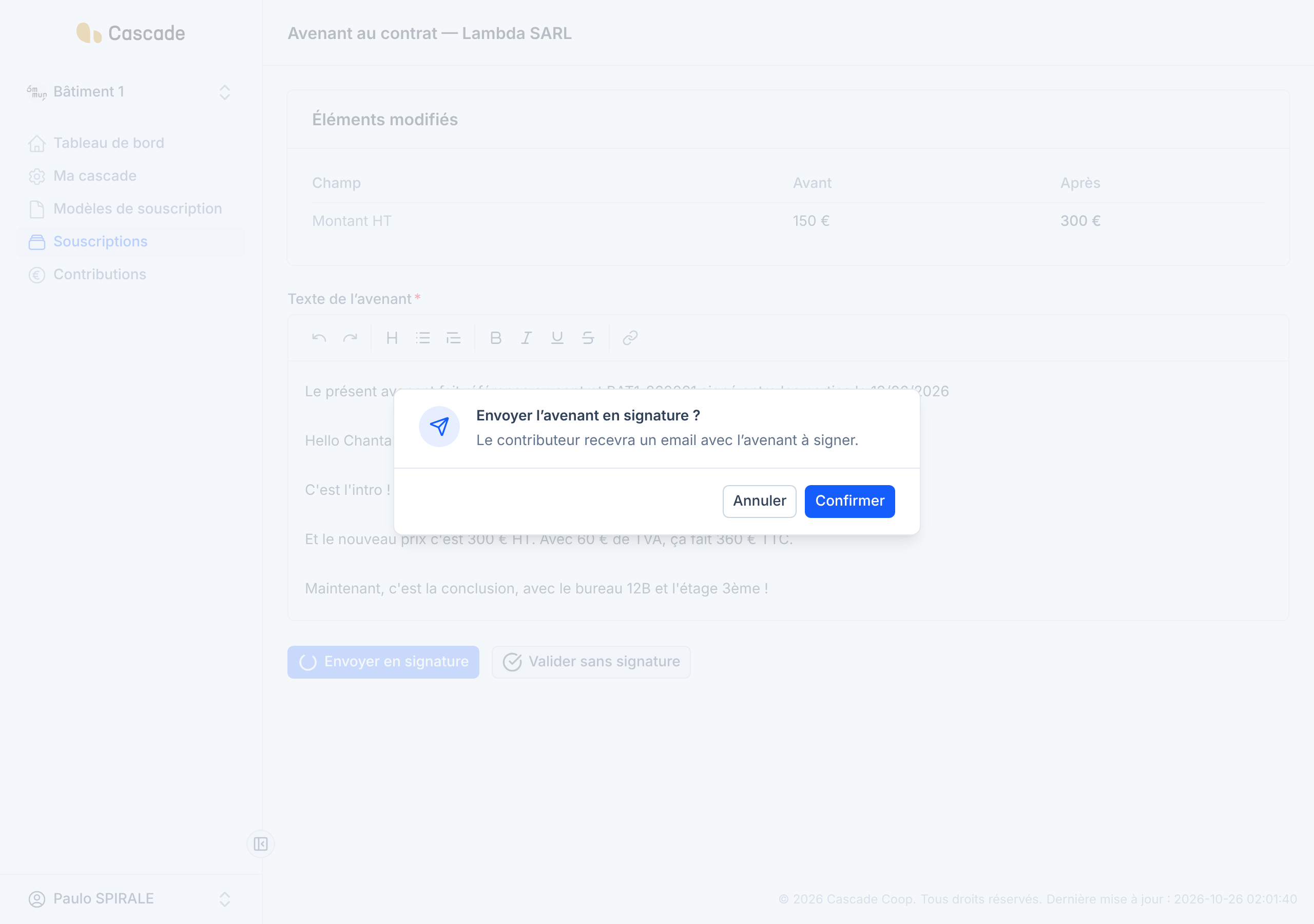
Click Envoyer en signature (Send for signature), then confirm in the Envoyer l'avenant en signature ? (Send the amendment for signature?) window: the contributor receives an email with the amendment to sign. You go back to the list of subscriptions.
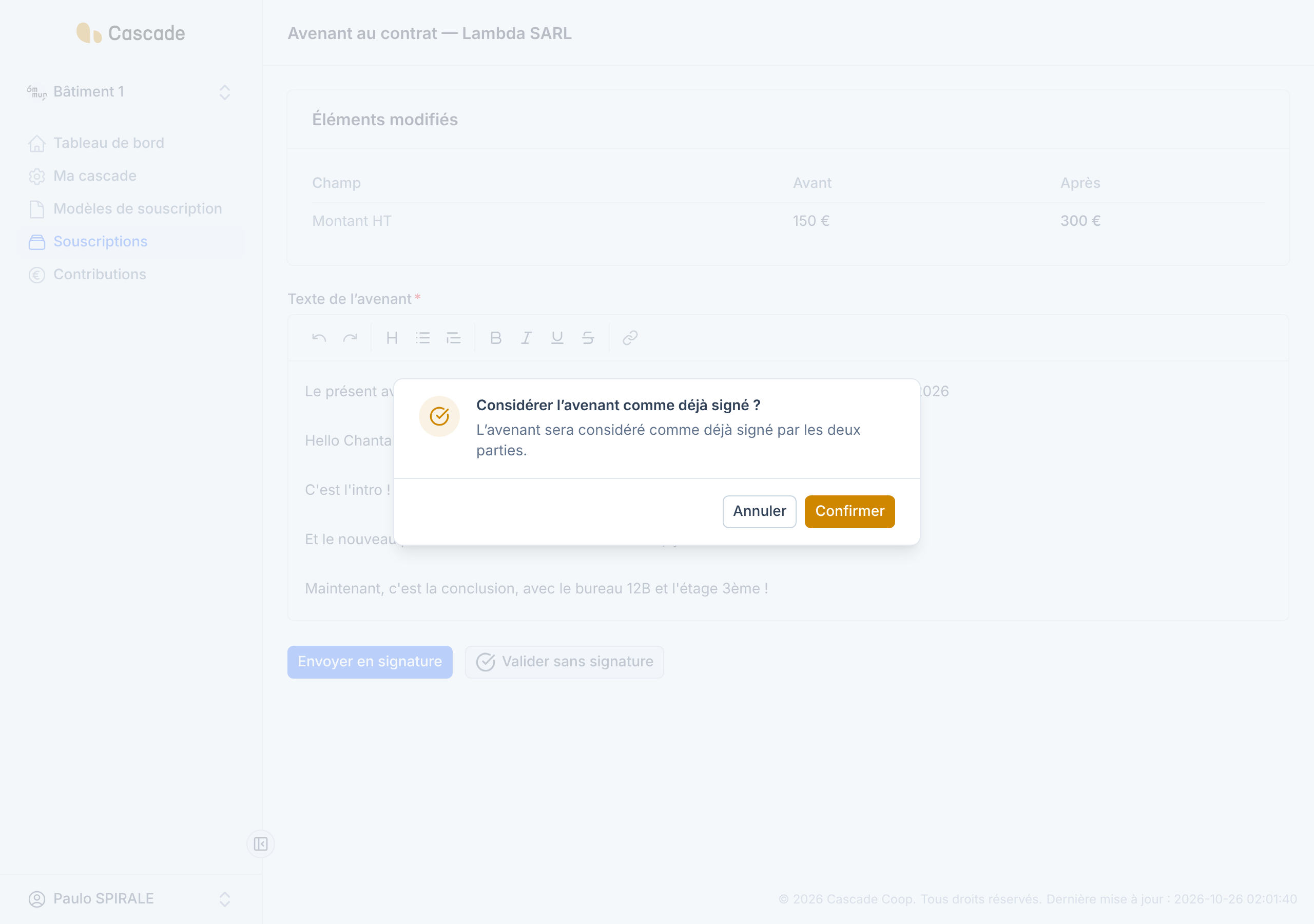
If the amendment is already signed elsewhere, for example on paper, click Valider sans signature (Approve without signature) instead and confirm in the Considérer l'avenant comme déjà signé ? (Treat the amendment as already signed?) window. The amendment is then considered signed by both parties, without any email being sent.
6. Follow the signature
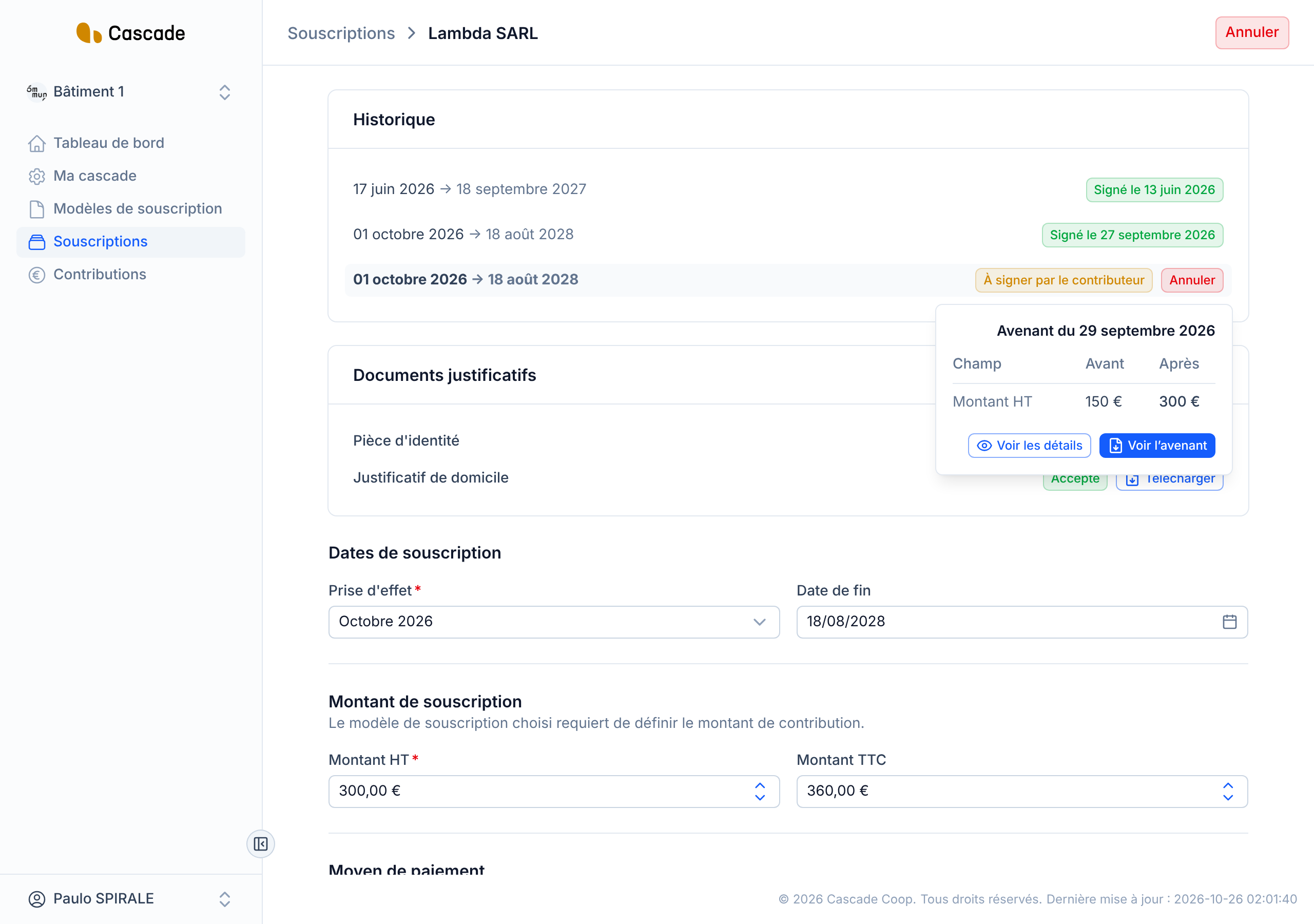
Go back to Souscriptions (Subscriptions) and open the contributor: the amendment is a new row in the Historique (History), with its status (À signer par le contributeur (To be signed by the contributor), À signer par le signataire (To be signed by the signer), then Signé le (Signed on) followed by the date). Hover over the row to see the changed elements and open the document with Voir l'avenant (View the amendment).
What happens next?
- Contributor's signature: they receive an email with a link to read and sign the amendment, with no account to create. See Sign a contract (contributor). If needed, send them a reminder: see Resend the invitation to sign.
- Countersignature: once the contributor has signed, an email is sent to the model's signer to countersign. See Countersign a contract (signer).
- When the amendment is signed on both sides: the signed document is generated, and the signer, the Cascade's administrator and the contributor are notified by email. The uninvoiced automatic contributions from the effective date are deleted, then recreated with the new values. See Generate recurring contributions automatically.
- With Valider sans signature (Approve without signature), the same thing happens right away, without an email.
- Until it is signed, the subscription keeps producing its contributions with the old values (see What Cascade does every day).
Good to know
- An amendment is created only if the contributor has already signed. As soon as they have signed, a change creates a new version, even if the signer has not yet countersigned.
- Contributions that have already been invoiced are never modified or deleted: only uninvoiced automatic contributions are replaced. Contributions created by hand are kept.
- The link received by the contributor expires 10 days after the amendment's effective date. Therefore choose a recent effective date: with an older date, the link may be expired as soon as it is sent. The signer's link does not expire.
- The contributor's information (name, email, company name, address…) is saved directly: it is not versioned and does not appear in the changed elements.
- Once the amendment is sent, its text is frozen: editing the subscription afterwards does not rewrite it. To start over while it is not signed on both sides, click Annuler (Cancel) (on the amendment's row in the Historique (History), or at the top of the page): the amendment is deleted. Once signed, it can no longer be cancelled. See Cancel a subscription.
- If you leave the amendment page without sending it, the new version already exists: open the contributor and click Créer l'avenant (Create the amendment) in the Historique (History).
- The form is greyed out, with no way to save, when an amendment already exists for the version displayed (alert Avenant existant (Existing amendment)), when the subscription has ended (alert Souscription expirée (Expired subscription)) or when it is one-time. For the details of the fields, see Edit a subscription.
- Changing the payment method is not yet offered as a trigger in amendment templates: for now, it creates a new version but adds no paragraph.
Frequently asked questions
The contributor probably has not signed their contract yet: as long as that is the case, the subscription is changed directly. Check the status in the Historique (History).
The subscription model has no header, no footer and no amendment paragraph. Complete it first: see Set up the amendment template (conditional paragraphs).
Only the template's header and footer, because no paragraph is triggered. Review it before sending it.