Set up the amendment template (conditional paragraphs)
Prepare the text of a subscription model's amendments: a header, paragraphs that only appear if a specific piece of contract data changes (amount, end date…), then a footer.
Before you start
- The subscription model must have the Contrat (Contract) membership method: the Avenants (Amendments) step does not exist with Adhésion simple (Simple membership). See Create a subscription model.
- Write the contract first: the fields you created there with Nouveau champ (New field) can then trigger an amendment paragraph. See Write the contract template (variables in square brackets).
- You can fill in this step when creating the model or later, by editing the model: see Edit a subscription model. Do it before the first change to a signed subscription: without amendment content, Cascade refuses this change.
Steps
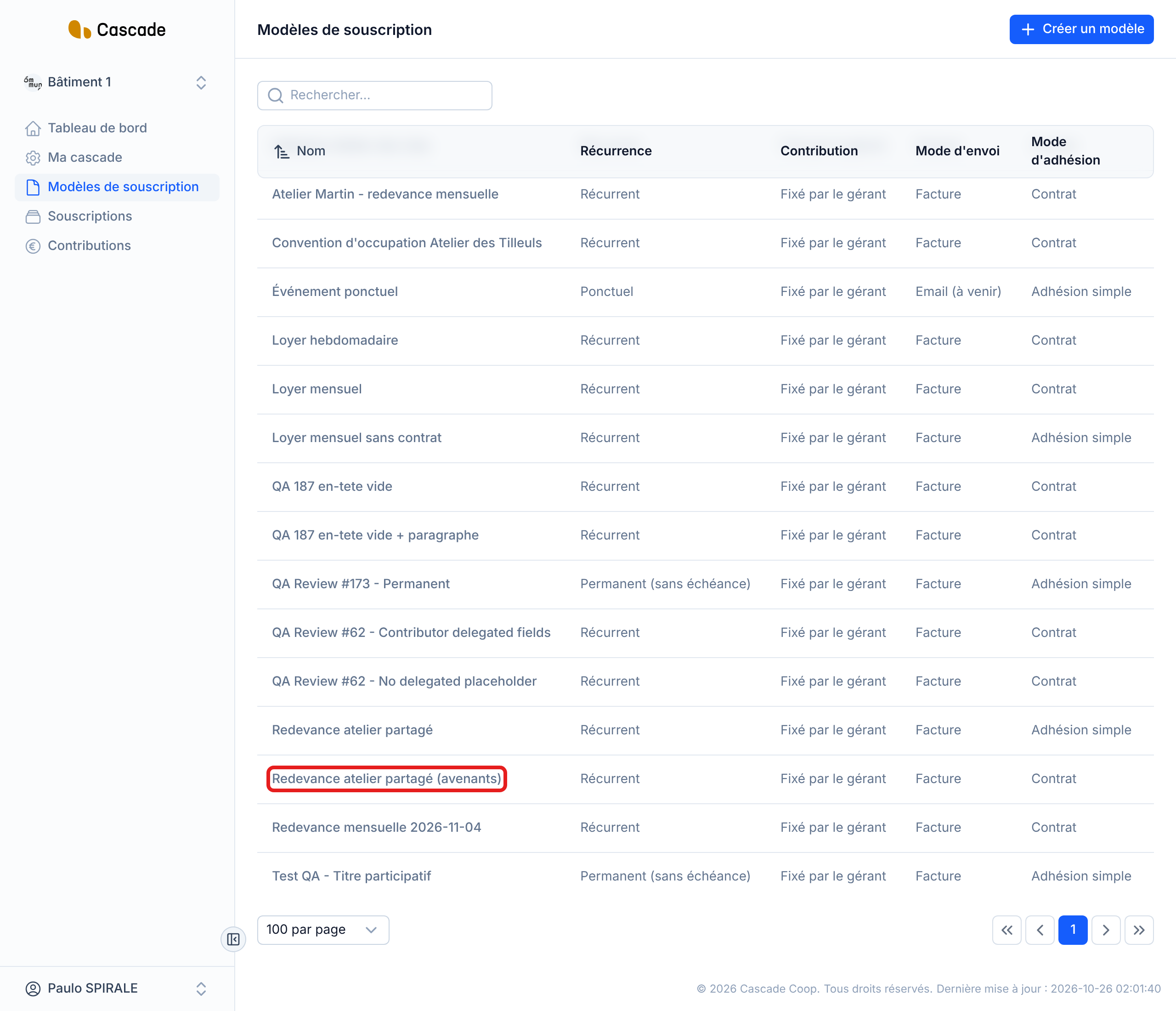
1. Open the Avenants step
In the menu, go to Modèles de souscription (Subscription models) and click the model's name. The Modifier le modèle de souscription (Edit the subscription model) form opens on Configuration générale (General configuration): click Suivant (Next) twice to reach Avenants, the third step. When creating a model, it is the same third step, after Contrat.
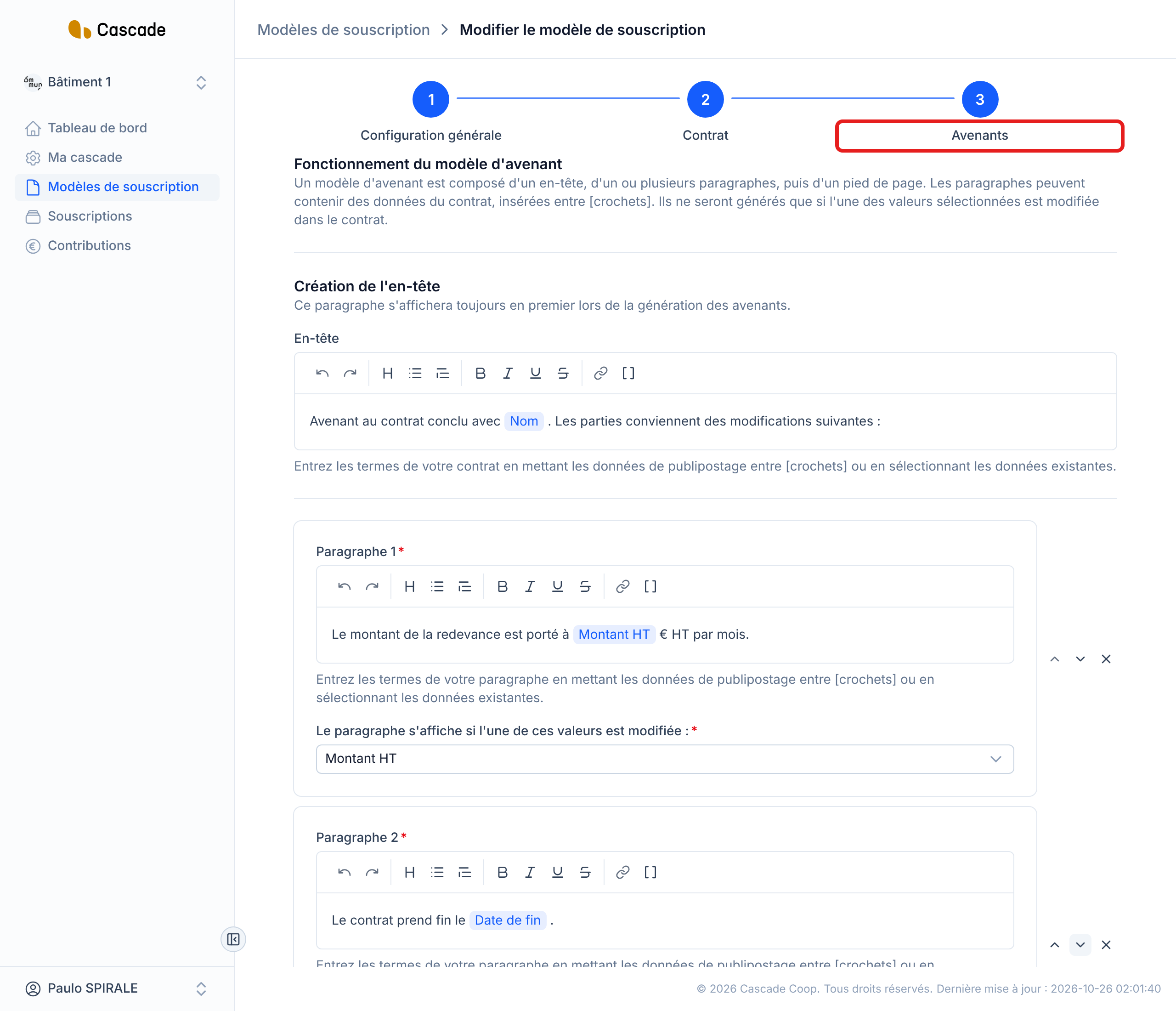
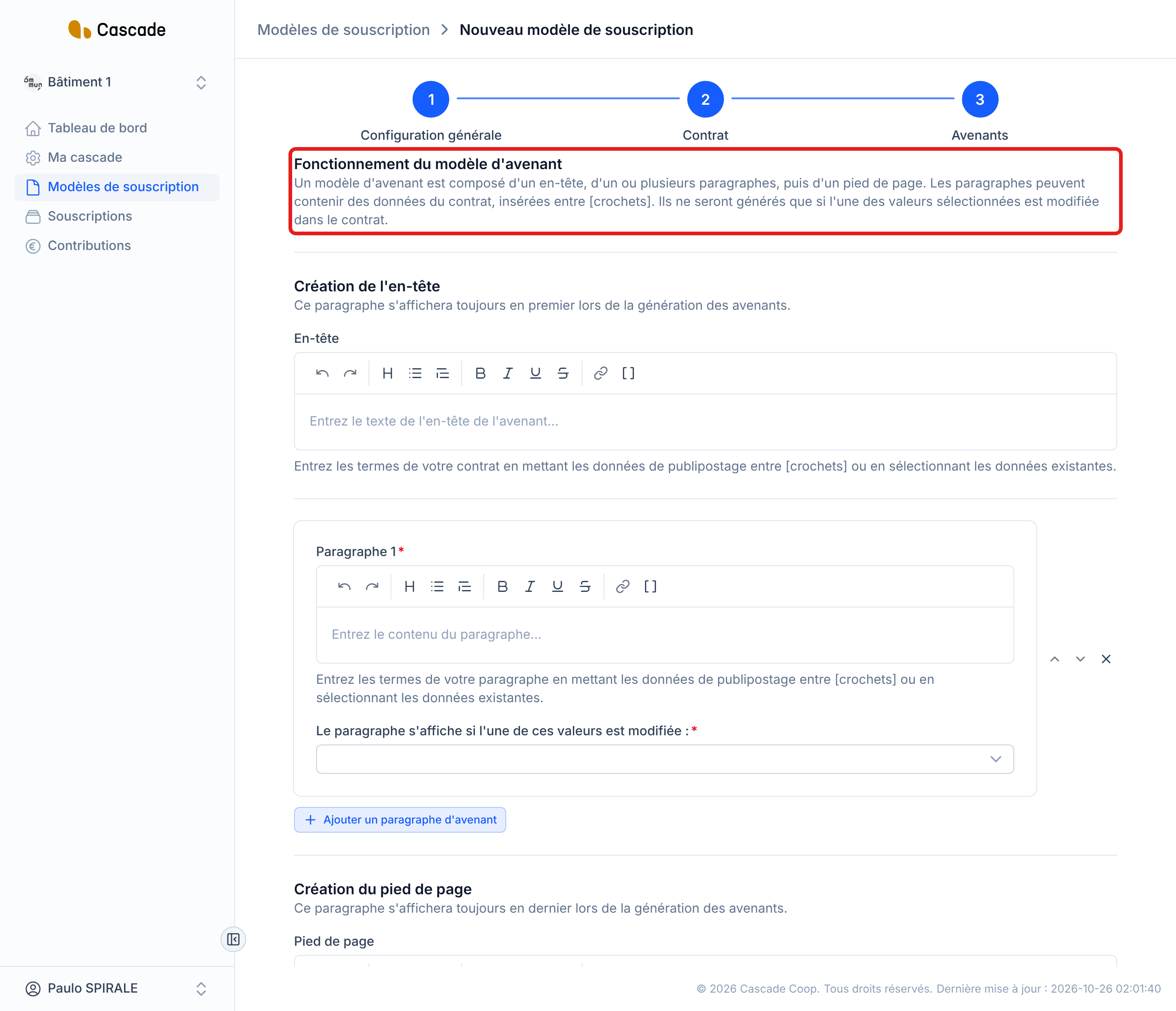
At the top of the step, a reminder explains how it works: an amendment template consists of a header, one or more paragraphs, then a footer. When creating a model, the step already offers an empty paragraph.
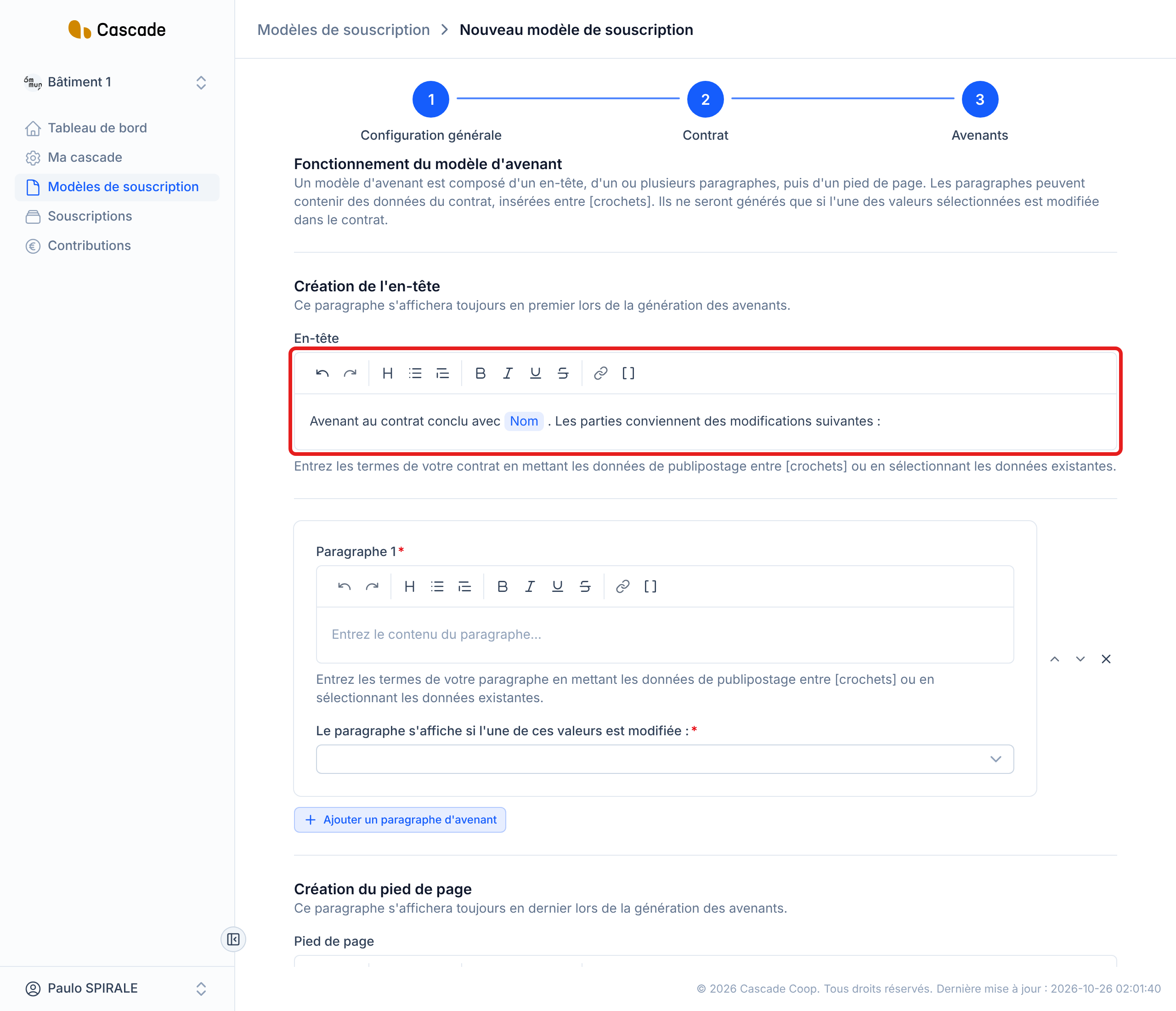
2. Write the header
The En-tête (Header) is the first text of every amendment, always present. It is optional. You insert contract data in it that will be filled in by itself: type [ or click the Données de publipostage (Mail merge data) button in the editor toolbar, then choose for example Nom (Name). These are the same data as in the contract template. In the amendment, they take the value of the subscription's new version.
3. Write a paragraph and choose what triggers it
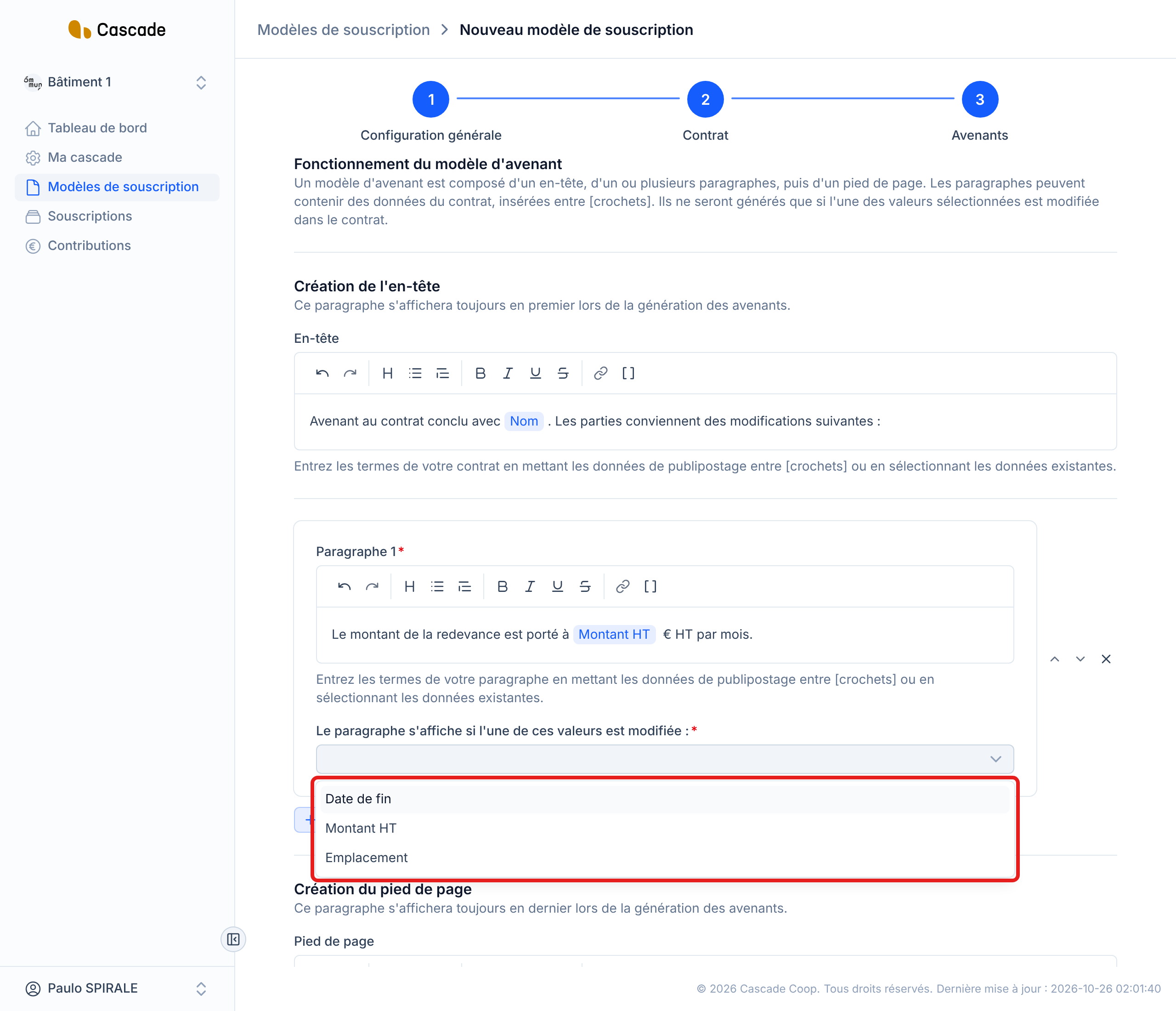
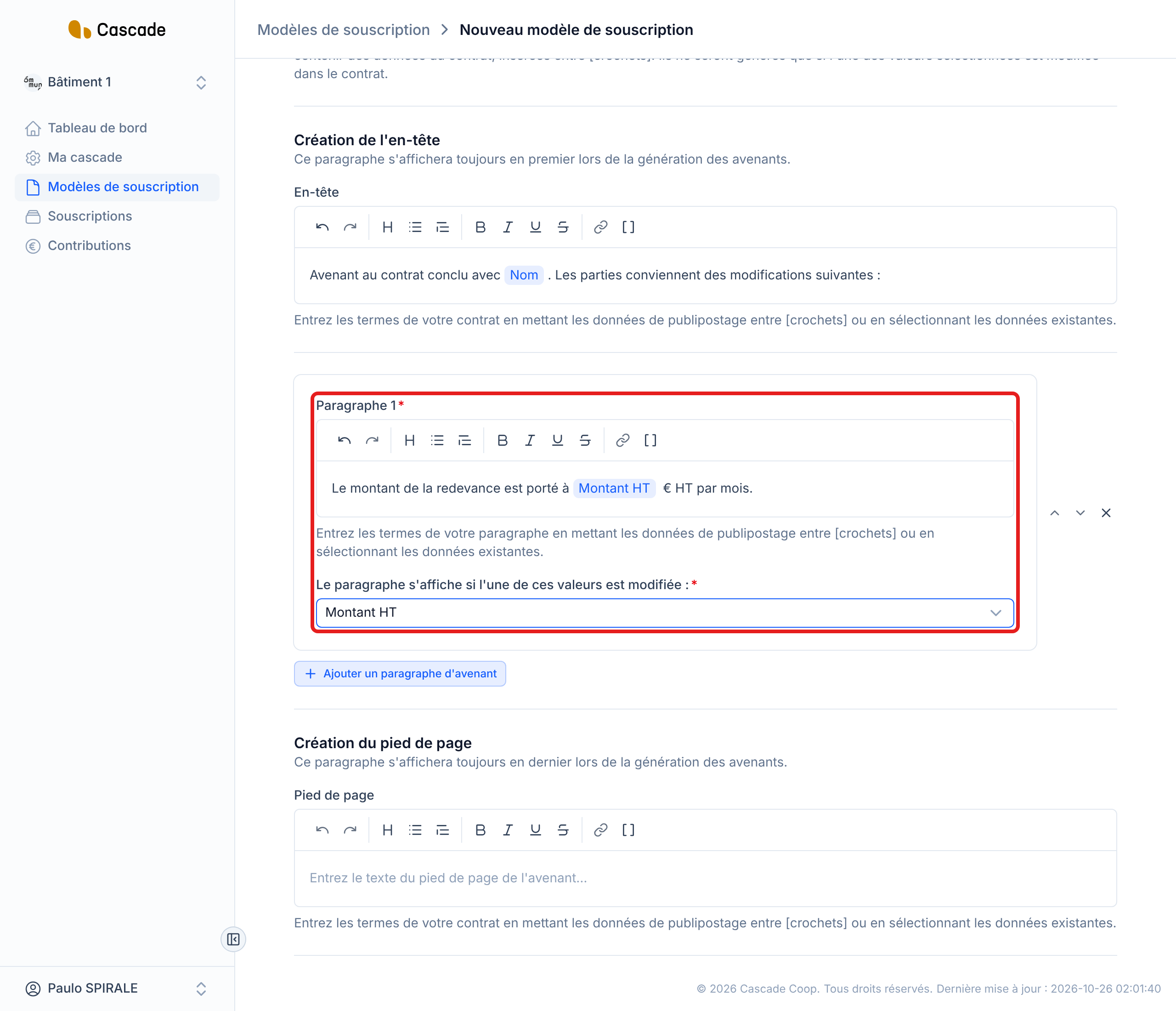
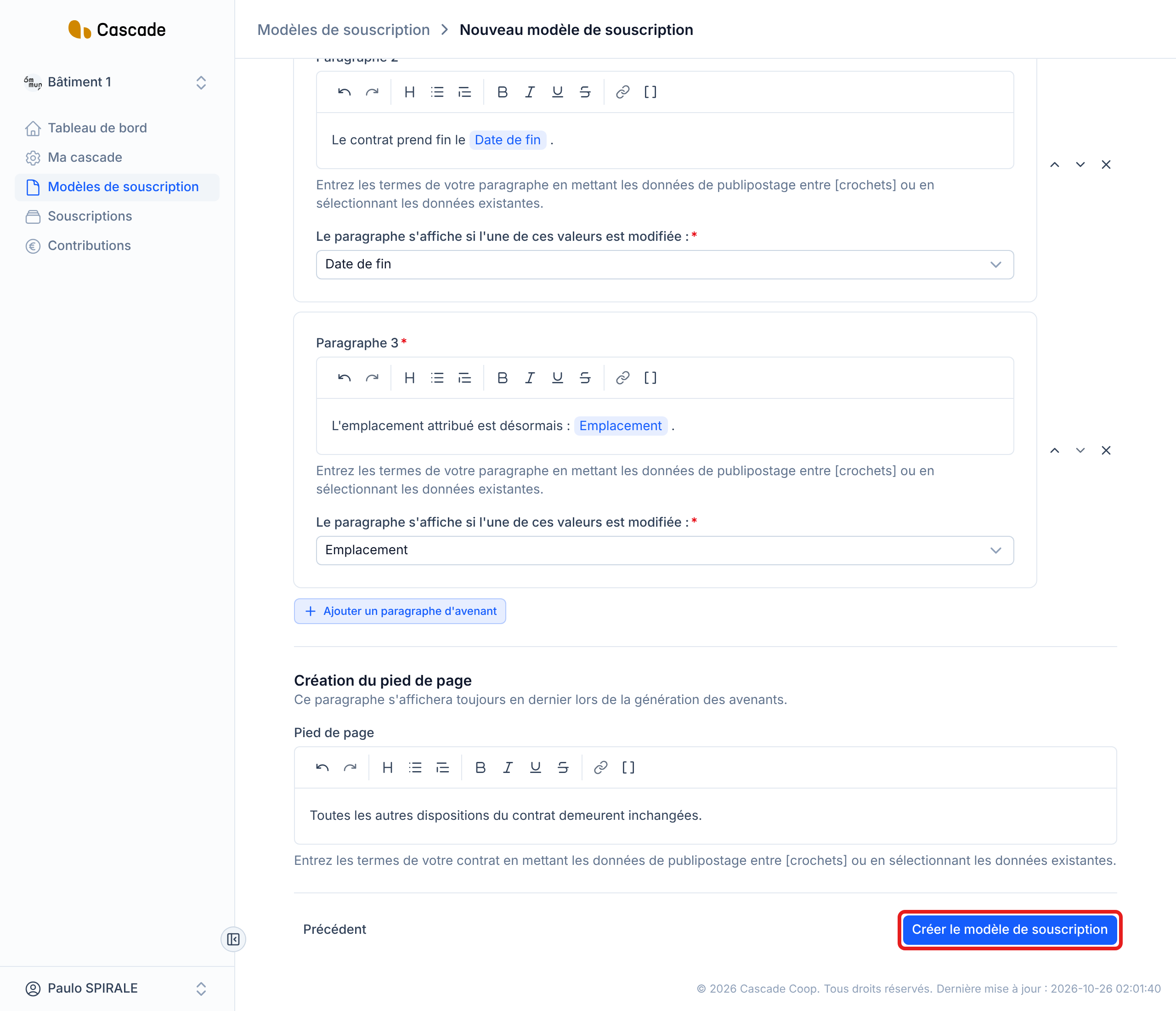
A paragraph only appears in an amendment if one of the values you associate with it has been changed. Write its text in Paragraphe 1 (Paragraph 1) (the text is required), with data in square brackets if needed. Then, in Le paragraphe s'affiche si l'une de ces valeurs est modifiée : (The paragraph is displayed if one of these values is changed:), choose one or more values. For now, the following are offered:
- Date de fin (End date);
- Montant HT (Amount excl. VAT);
- each field you created with Nouveau champ (here Emplacement (Location)).
With several values, the paragraph appears as soon as one of them changes.
4. Add more paragraphs
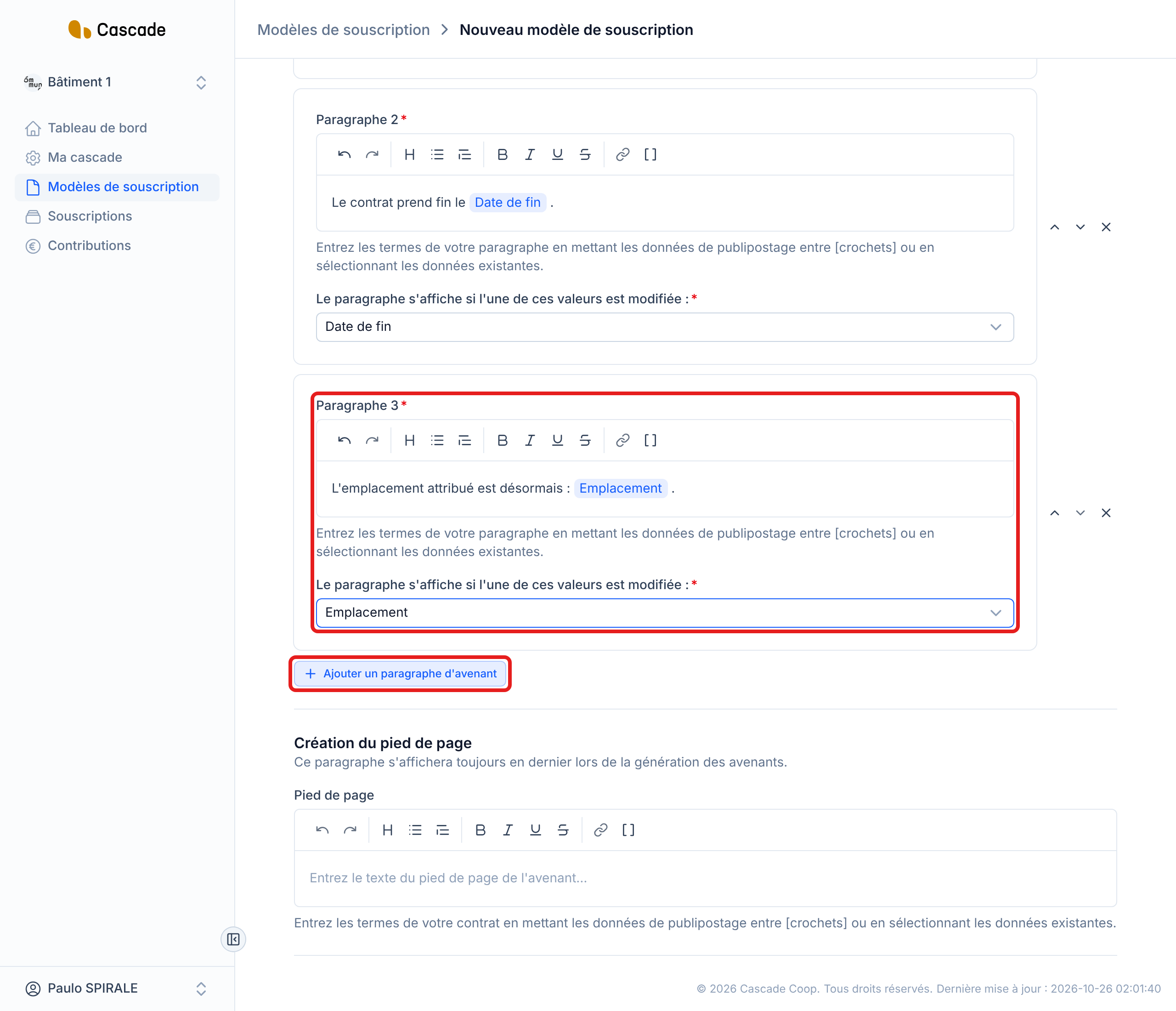
Click Ajouter un paragraphe d'avenant (Add an amendment paragraph) to create a new one, with its own trigger values. The arrows to the right of a paragraph move it up or down: the order in the template is the order in the amendment. The cross deletes it.
5. Write the footer
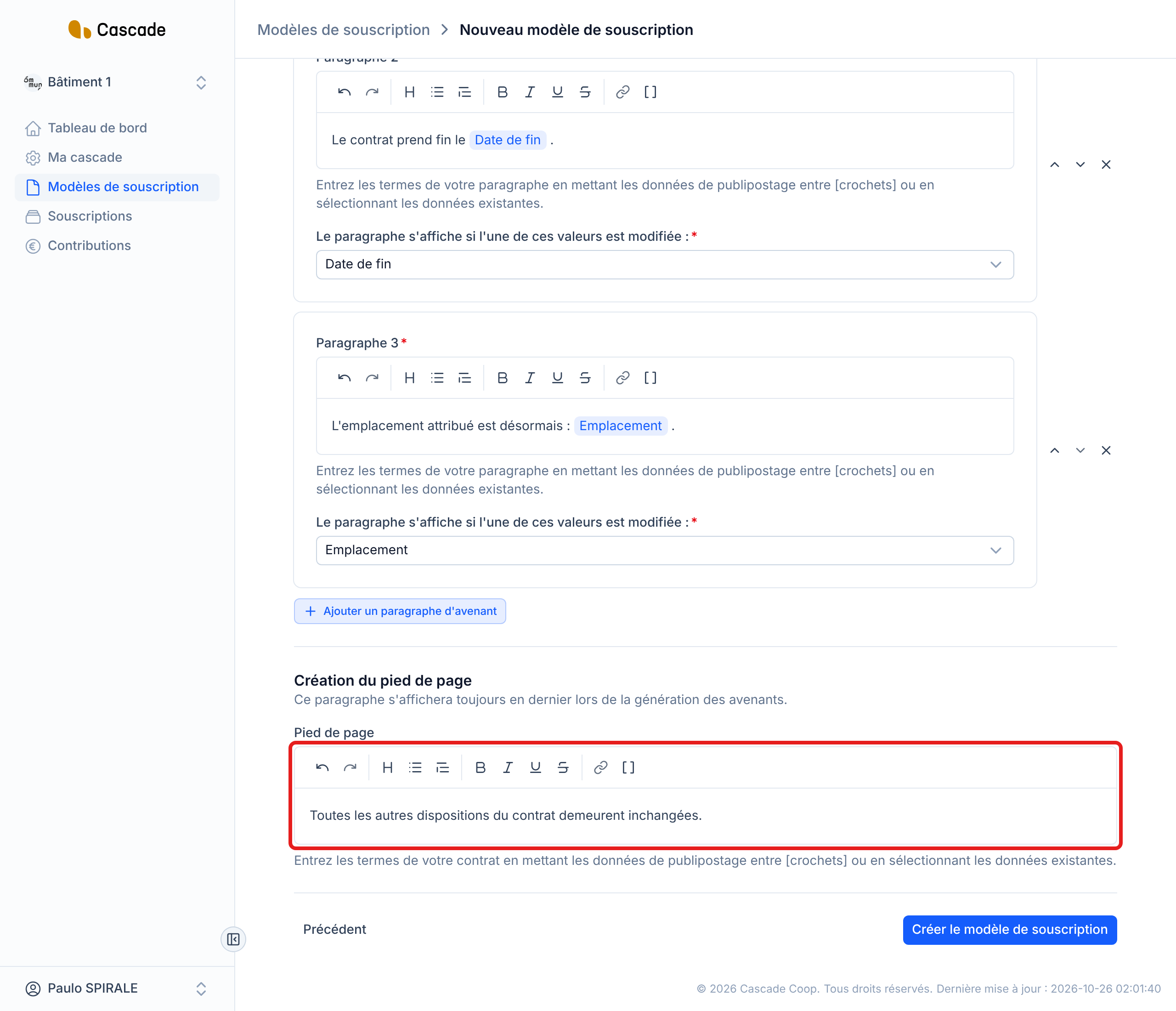
The Pied de page (Footer) is the last text of every amendment, also always present, and optional. It is used, for example, to remind that the rest of the contract does not change.
6. Save the model
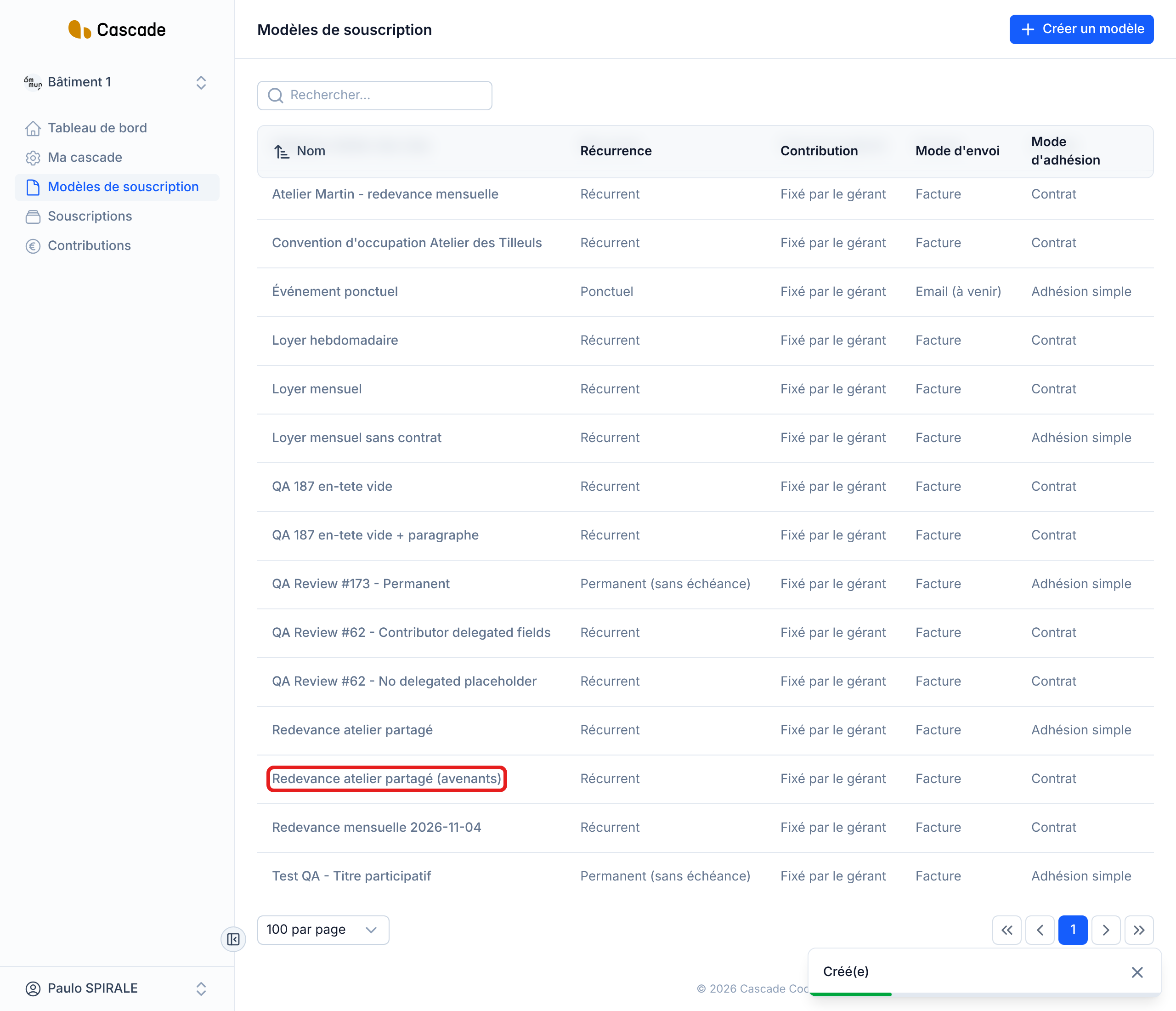
Click Enregistrer les modifications (Save changes) (when editing) or Créer le modèle de souscription (Create the subscription model) (when creating), at the bottom of the step. You go back to the list of models, with a confirmation.
What happens next?
- Nothing is sent to anyone: the amendment template is only stored.
- It is used the next time you edit a subscription of this model whose contributor has already signed the contract. Cascade then creates a new version of the subscription and offers you an amendment whose text is pre-filled: header, then the paragraphs for which a trigger value has changed compared to the previous version, then footer. An Éléments modifiés (Modified items) table shows the before and after, and you can correct the text before choosing Envoyer en signature (Send for signature) or Valider sans signature (Approve without signature). The whole journey is in Make an amendment.
- As long as the contributor has not signed the contract, a change applies directly to the subscription: there is no amendment and this template does not come into play.
- Changing the amendment template does not affect amendments already created. It applies to the next amendments, including for existing subscriptions of this model.
Good to know
- A paragraph's text is required: an empty paragraph prevents the model from being saved. The header and the footer can stay empty.
- The screen marks the choice of trigger values as required, but saving works without it. A paragraph without a value will never be displayed: always choose at least one.
- There must be at least a header, a footer or a paragraph. With nothing, Cascade refuses to edit a subscription whose contributor has signed, with the message « Ce modèle de souscription ne définit pas encore de modèle d'avenant. Définissez-en un avant de pouvoir générer des avenants. » (This subscription model does not define an amendment template yet. Define one before you can generate amendments.)
- For now, only the end date, the amount excl. VAT and the fields created with Nouveau champ can trigger a paragraph. The payment method, for example, is not offered yet.
- The data inserted in an amendment takes the value of the new version: you cannot display the old value in it. The before and after can be seen in the Éléments modifiés table, above the amendment text.
- If the change touches no trigger value, the amendment only contains the header and the footer.
Frequently asked questions
It only appears if the model's membership method is Contrat (Contract). With Adhésion simple (Simple membership), the form has only one step.
Check the values chosen under this paragraph: it only appears if one of them changed between the previous version and the new one. A change to another item does not trigger it.
Not for now: the text only receives the new value. The old amount appears in the Éléments modifiés table that comes with the amendment.