Write the contract template (variables in square brackets)
Write the text of a subscription model's contract once; Cascade then replaces the data in square brackets (name, amount, dates…) with each contributor's.
Before you start
- You need a subscription model whose membership method is Contrat (Contract): the text is written at the form's Contrat step, which does not exist with Adhésion simple (Simple membership). See Create a subscription model.
- Prepare your contract's text and identify the information that changes from one contributor to another: name, amount, start date… These are what you will place in square brackets.
- The Contrat step also requires at least one signer contact (see Create a subscription model); supporting documents are optional (see Define the supporting documents required).
Steps
1. Open the Contrat step
In the menu, go to Modèles de souscription (Subscription models), then click Créer un modèle (Create a model) (or the name of an existing model to edit it). Fill in the Configuration générale (General configuration), choose the Contrat membership method and click Suivant (Next). The Contrat step opens: at the very bottom, the Modèle de contrat (Contract template) section contains the Modèle (Template) field, which is required.
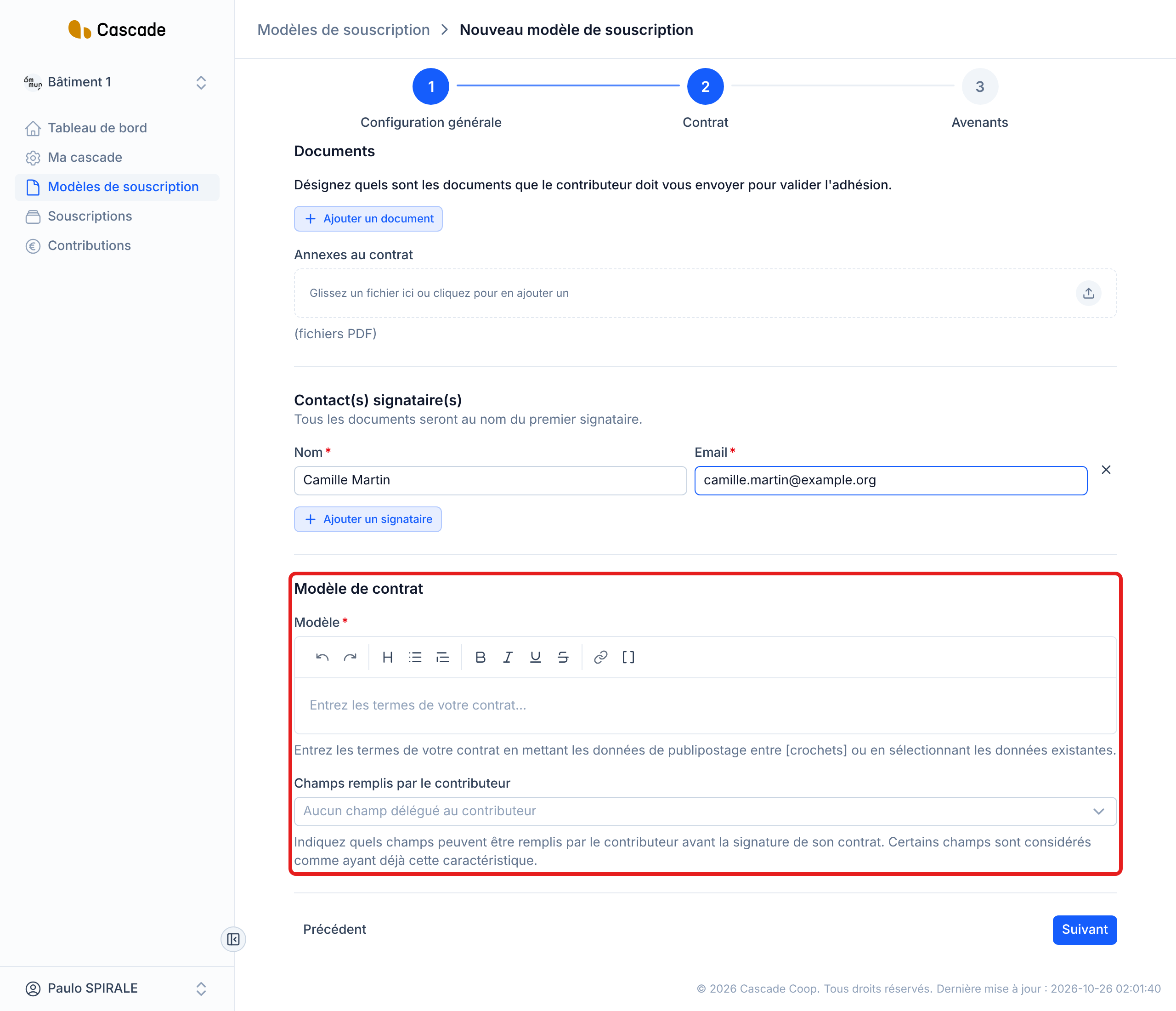
2. Write the contract text
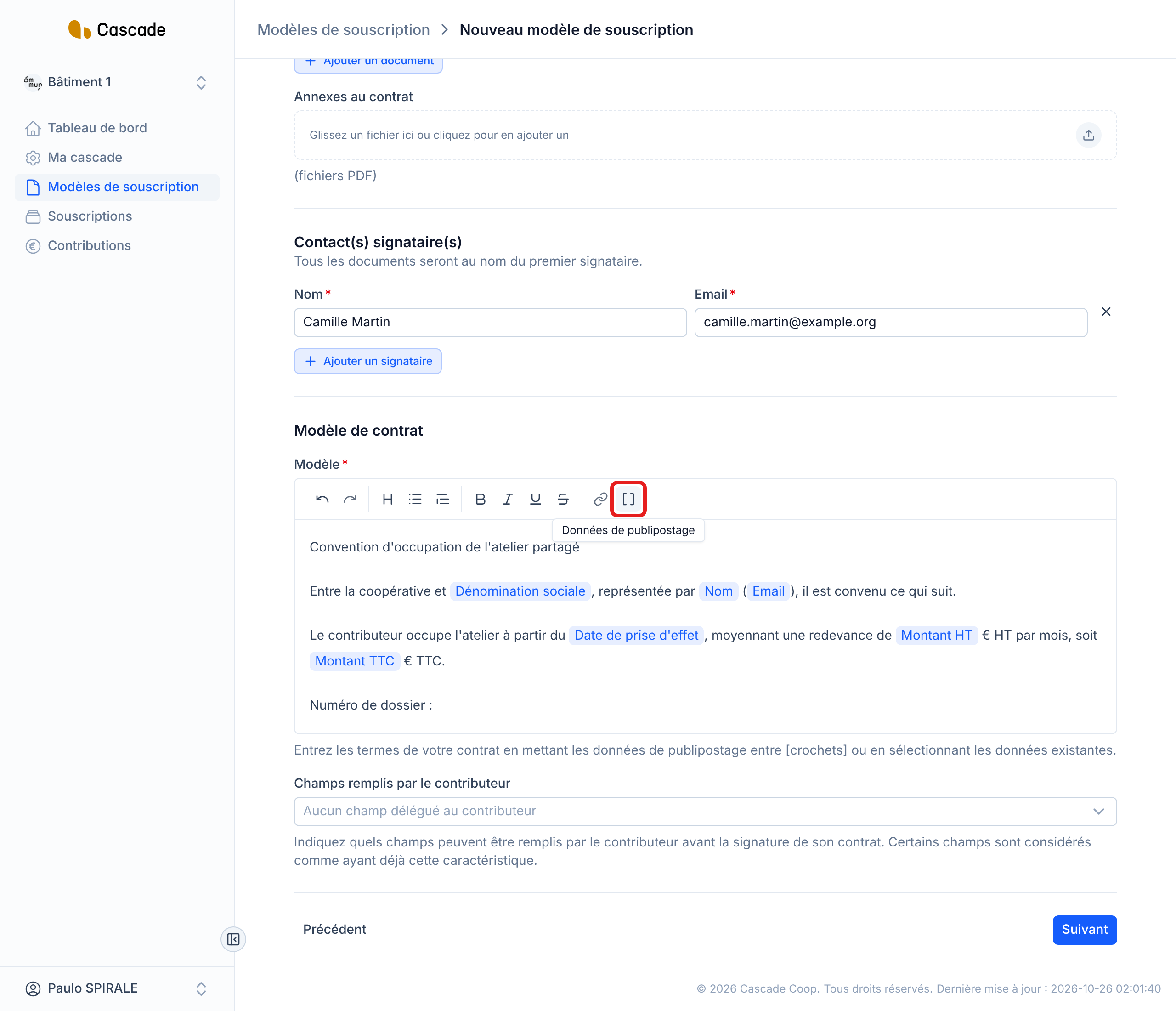
Write the contract in the editor. The toolbar offers: undo and redo, headings, bulleted or numbered lists, bold, italic, underline, strikethrough, link, and the Données de publipostage (Mail merge data) button (the button with two square brackets). Write the text only once: when each contract is created, Cascade replaces the data in square brackets with the contributor's.
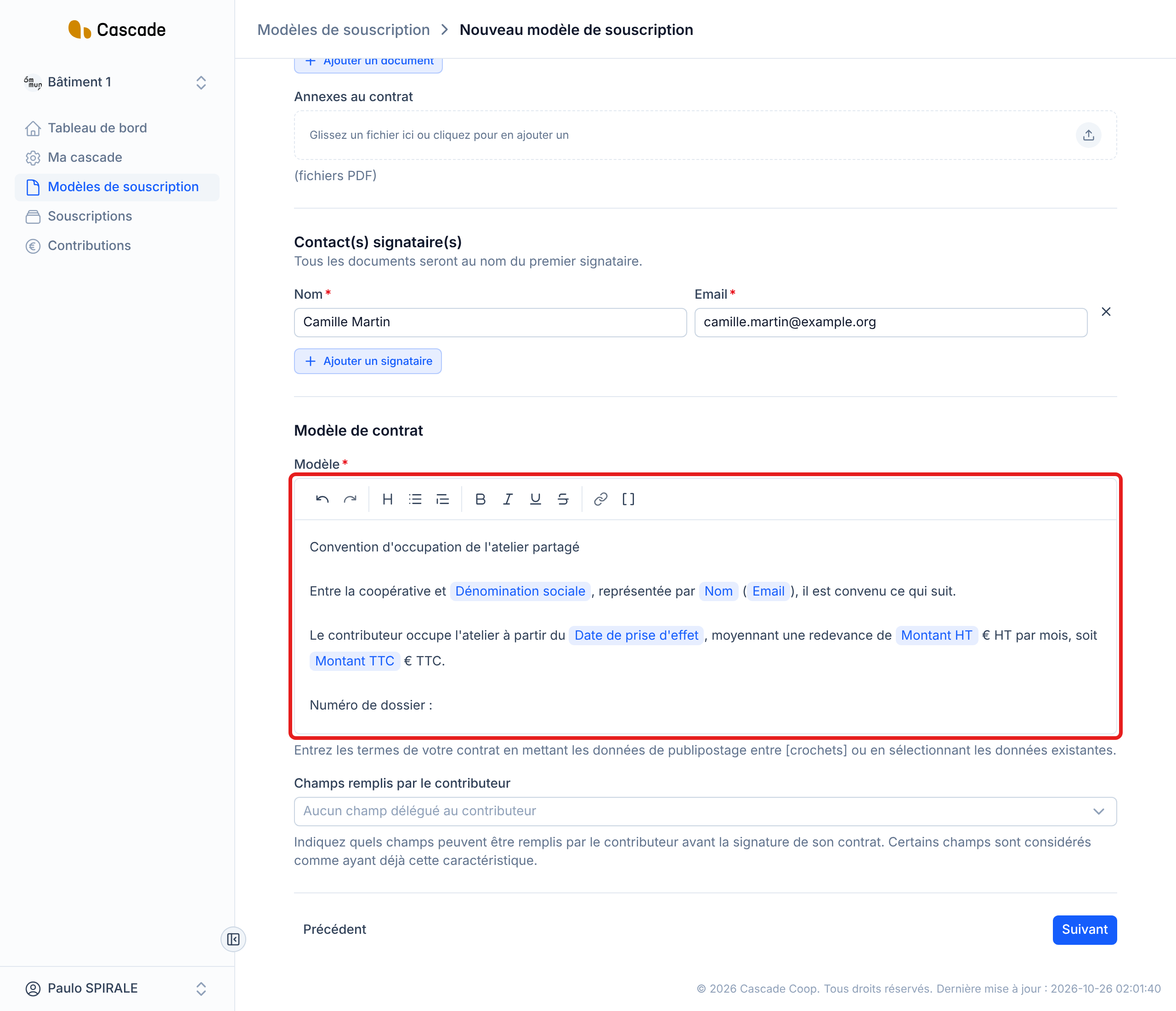
3. Insert data with the Données de publipostage button
Place the cursor where the data should appear, click Données de publipostage and choose the data from the list. It is inserted as a blue pill bearing its name. Data already used in the text is written in blue in the list. The list scrolls: it contains 14 data items.
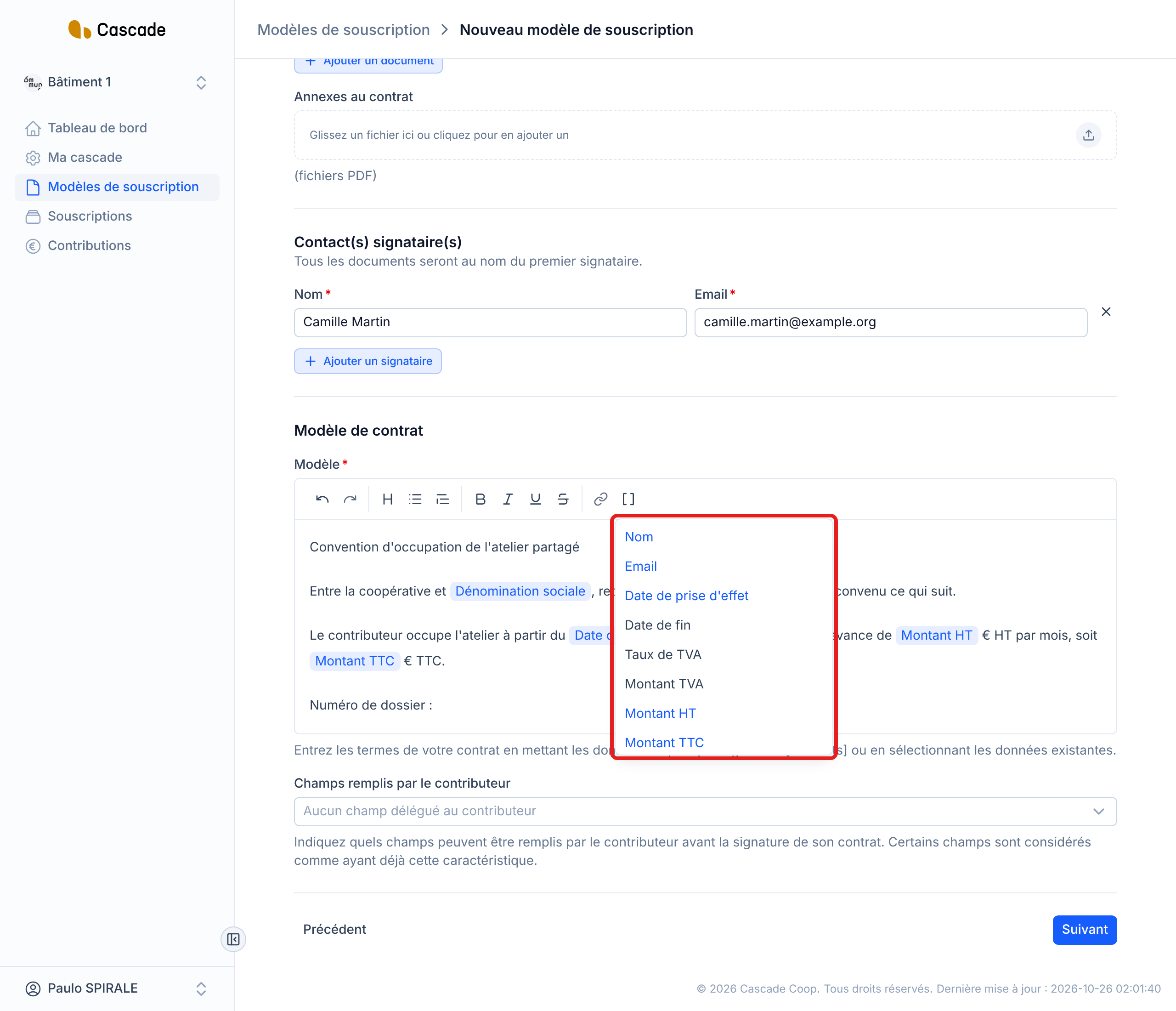
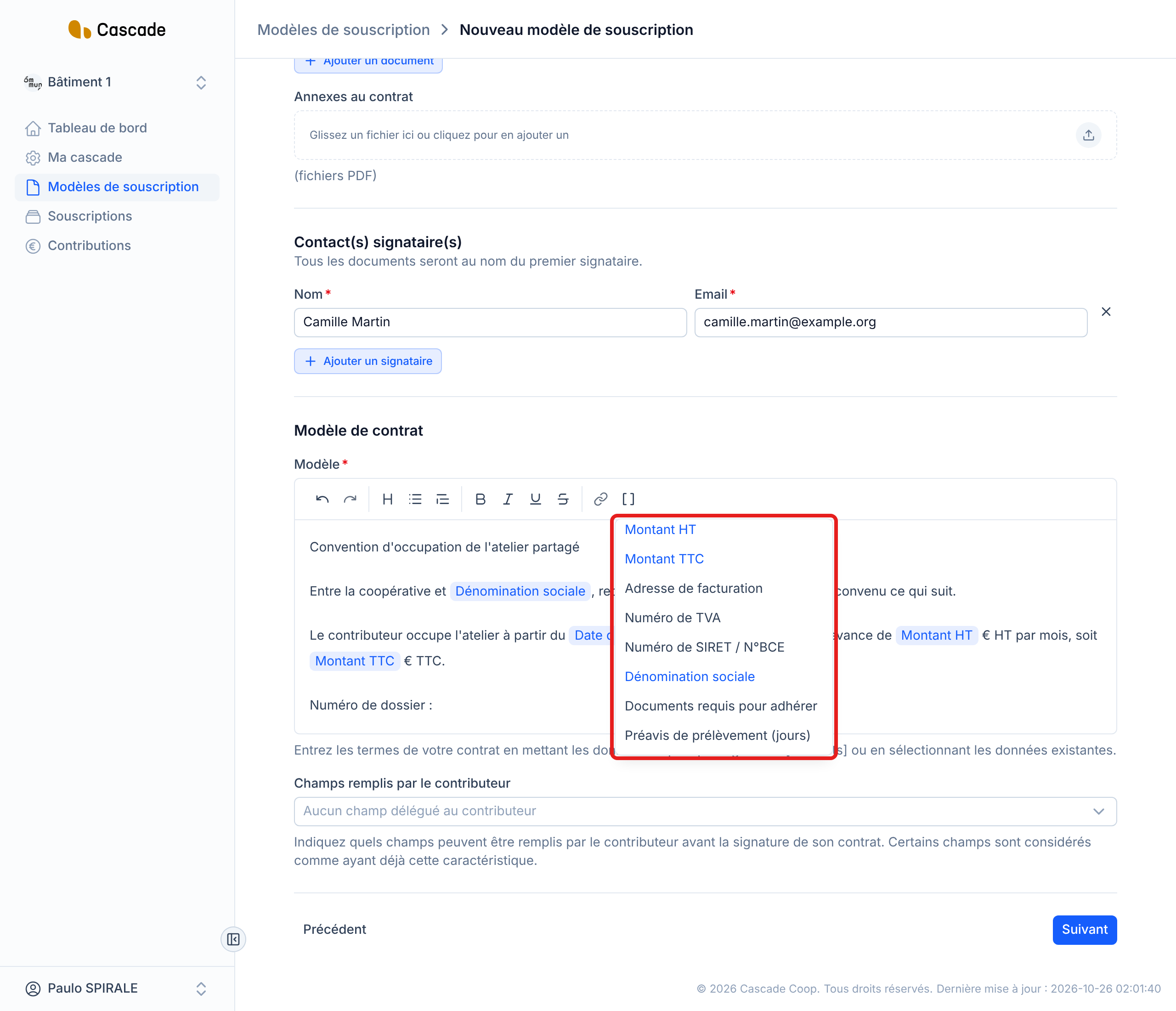
Here is what Cascade puts in place of each one:
| Data | What Cascade writes in the contract |
|---|---|
| Nom (Name) | The name of the signer on the contributor's side, entered when the subscription was created. |
| This signer's email address. | |
| Date de prise d'effet (Effective date) | The subscription's effective date, with the month written out in full (for example « 01 décembre 2026 »). |
| Date de fin (End date) | The subscription's end date or, failing that, the model's default end date. Without an end date, the name of the data appears instead. |
| Taux de TVA (VAT rate) | The model's VAT rate, without the % symbol: add it yourself. |
| Montant TVA (VAT amount) | The contribution's VAT amount, without the € symbol. |
| Montant HT (Amount excl. VAT) | The subscription's amount excluding tax (for example « 180 »), without the € symbol. |
| Montant TTC (Amount incl. VAT) | The amount including all taxes (for example « 216 »), without the € symbol. |
| Adresse de facturation (Billing address) | The contributor's billing address. |
| Numéro de TVA (VAT number) | The contributor's VAT number. |
| Numéro de SIRET / N°BCE (SIRET / BCE number) | The contributor's company identification number. |
| Dénomination sociale (Company name) | The contributor's company name. |
| Documents requis pour adhérer (Documents required to join) | The bulleted list of the supporting documents requested by the model. See Define the supporting documents required. |
| Préavis de prélèvement (jours) (Direct debit notice (days)) | The number of days between sending the invoice and the direct debit. Empty if the model has no automatic invoicing or direct debit lead time. See Choose the default payment method and the direct debit lead time. |
4. Or open the menu with the square bracket
You can also type [ (opening square bracket) in the text: the same menu opens under the cursor. Keep typing to filter it (for example « montant »), then choose the data with the mouse or the Enter key.
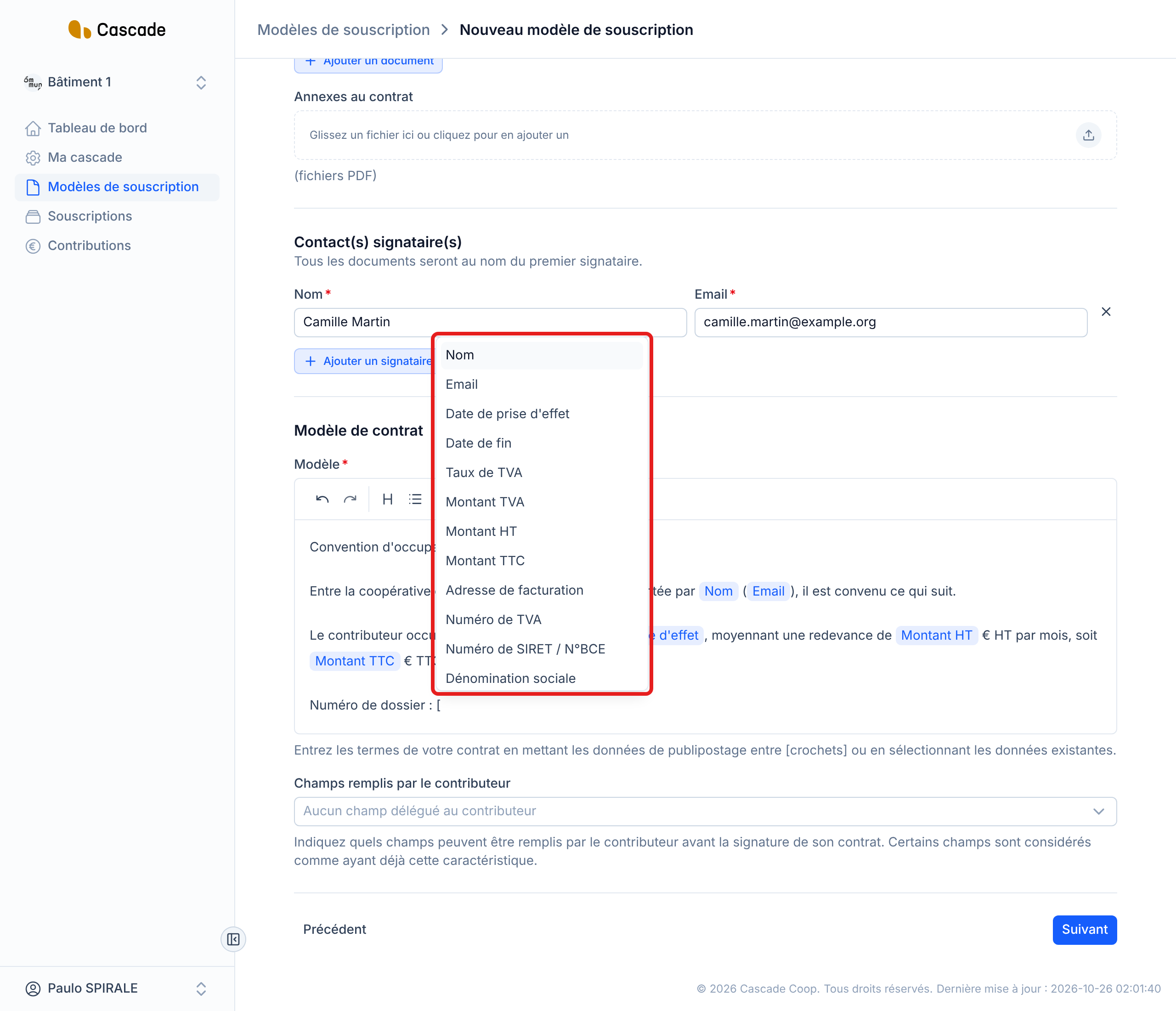
For a piece of data from the list, always choose it from the menu: if you type [Nom] or [Montant HT] by hand, Cascade does not recognize the existing data: it creates a new field with the same name, to be filled in by hand for each subscription.
5. Create a new field for information specific to your contract
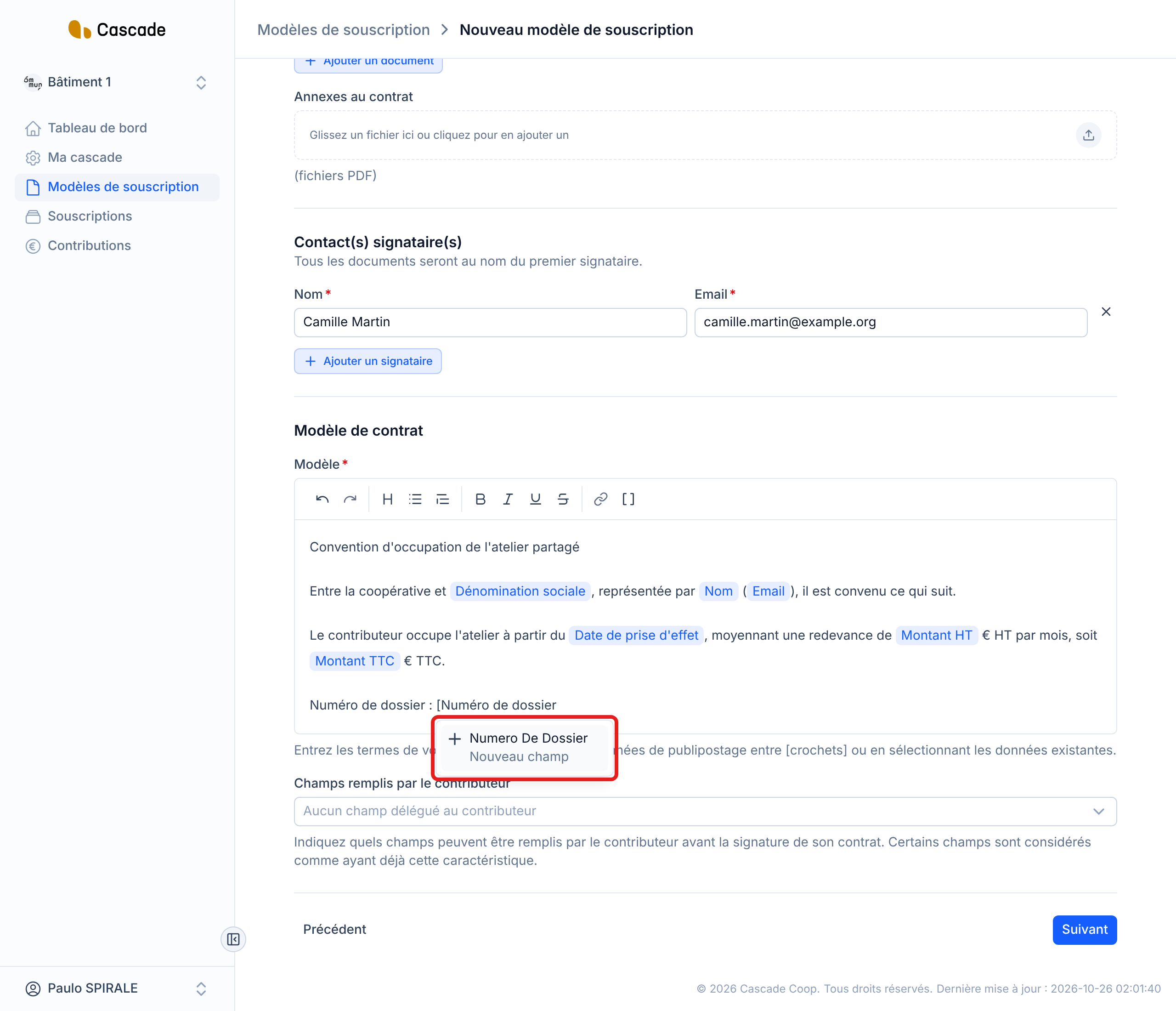
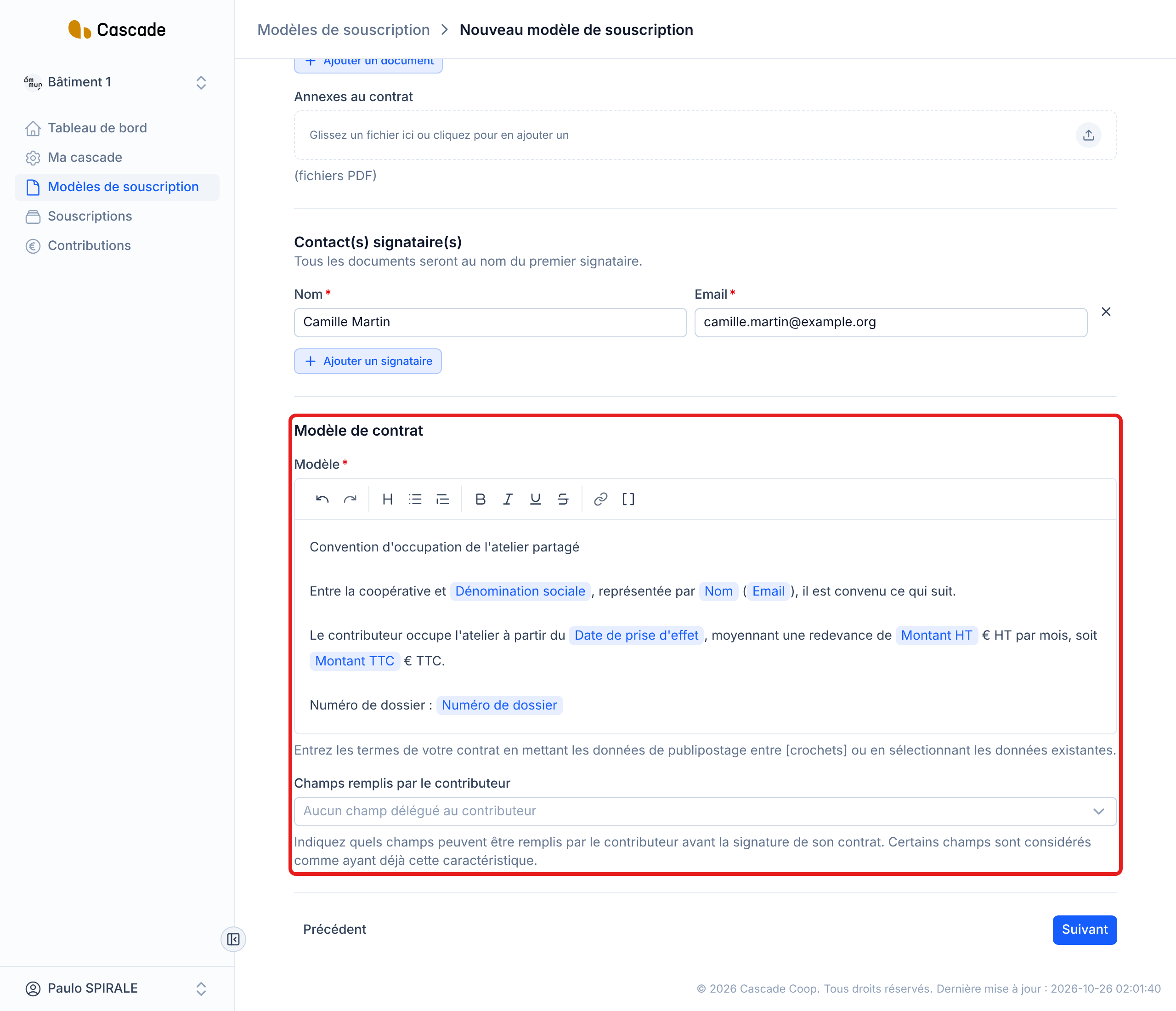
For information that is not in the list (a file number, a floor, a lot…), type [ then the name of the field. The menu offers Nouveau champ (New field): confirm it and the field is added to the text as a pill. You can also type the name up to the closing bracket, for example [Numéro de dossier]. The field is then offered in the list of data, and it is requested when each subscription is created.
6. Choose the fields the contributor fills in themselves
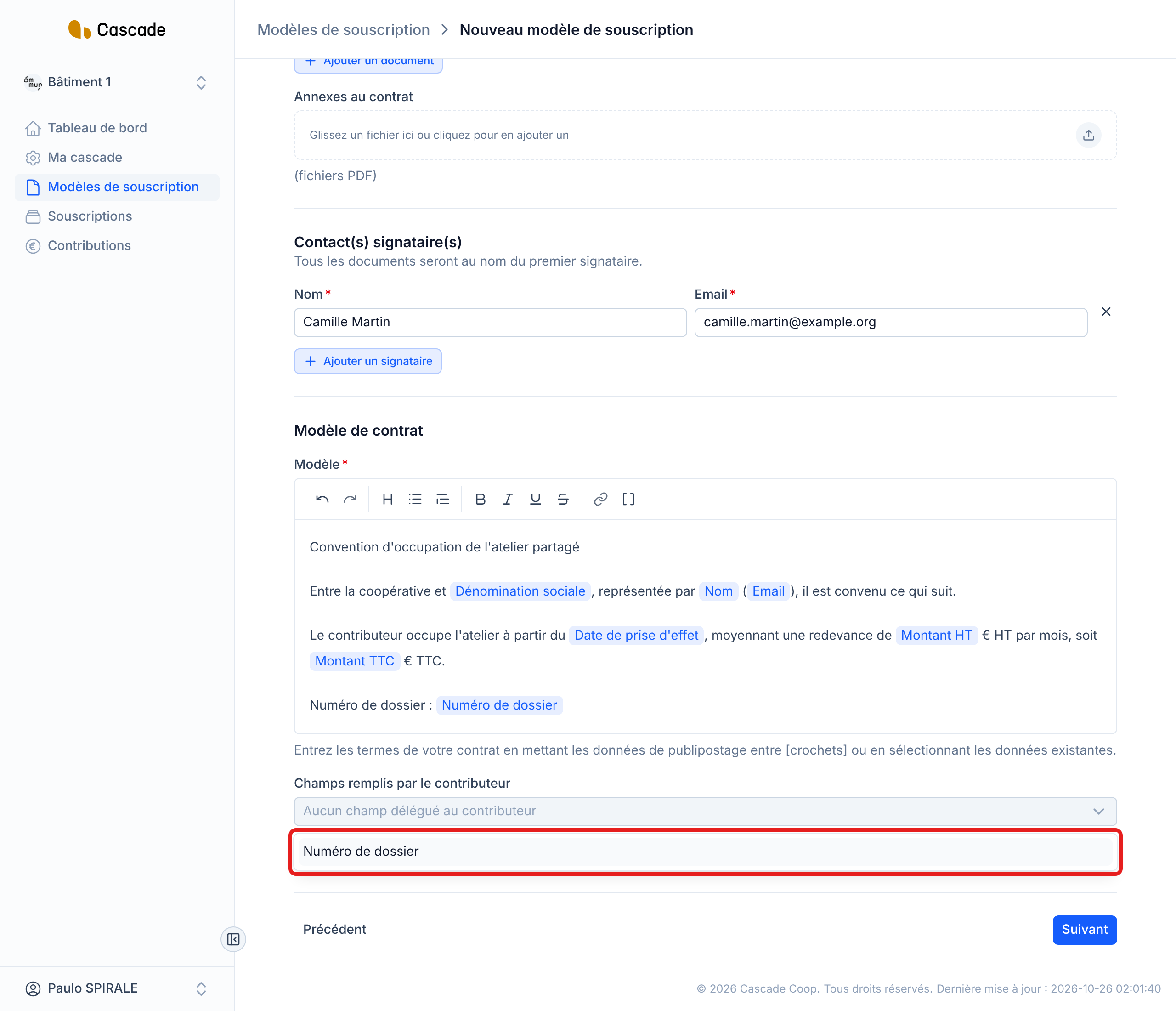
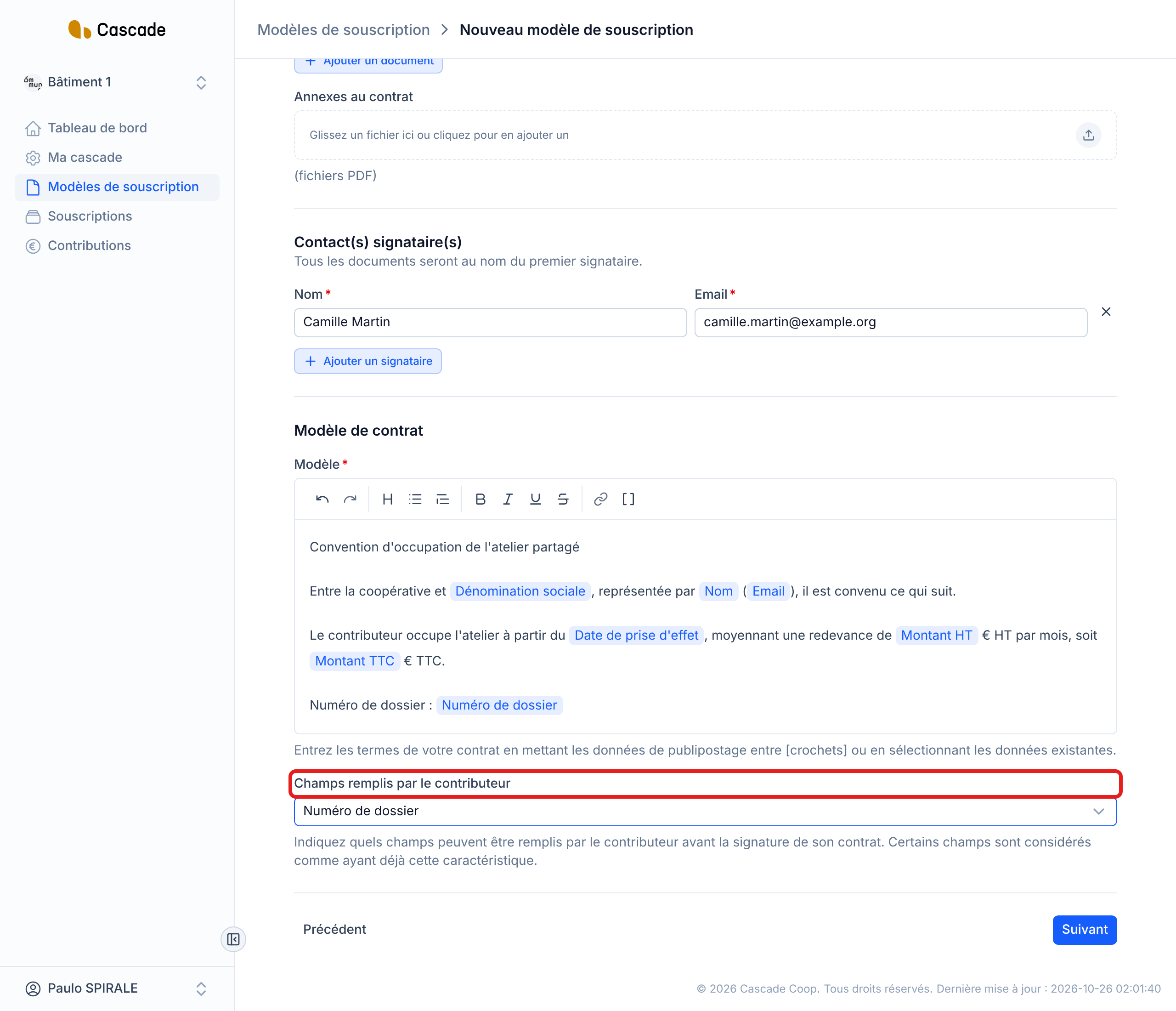
Under the text, the Champs remplis par le contributeur (Fields filled in by the contributor) field lists your new fields. Those you choose here will be completed by the contributor before they sign, instead of by you. By default (Aucun champ délégué au contributeur (No field delegated to the contributor)), you fill in each field when creating the subscription. Some data is already filled in by the contributor without you having to specify it, for example the Adresse de facturation (Billing address) when you let them enter their information.
7. Finish the form
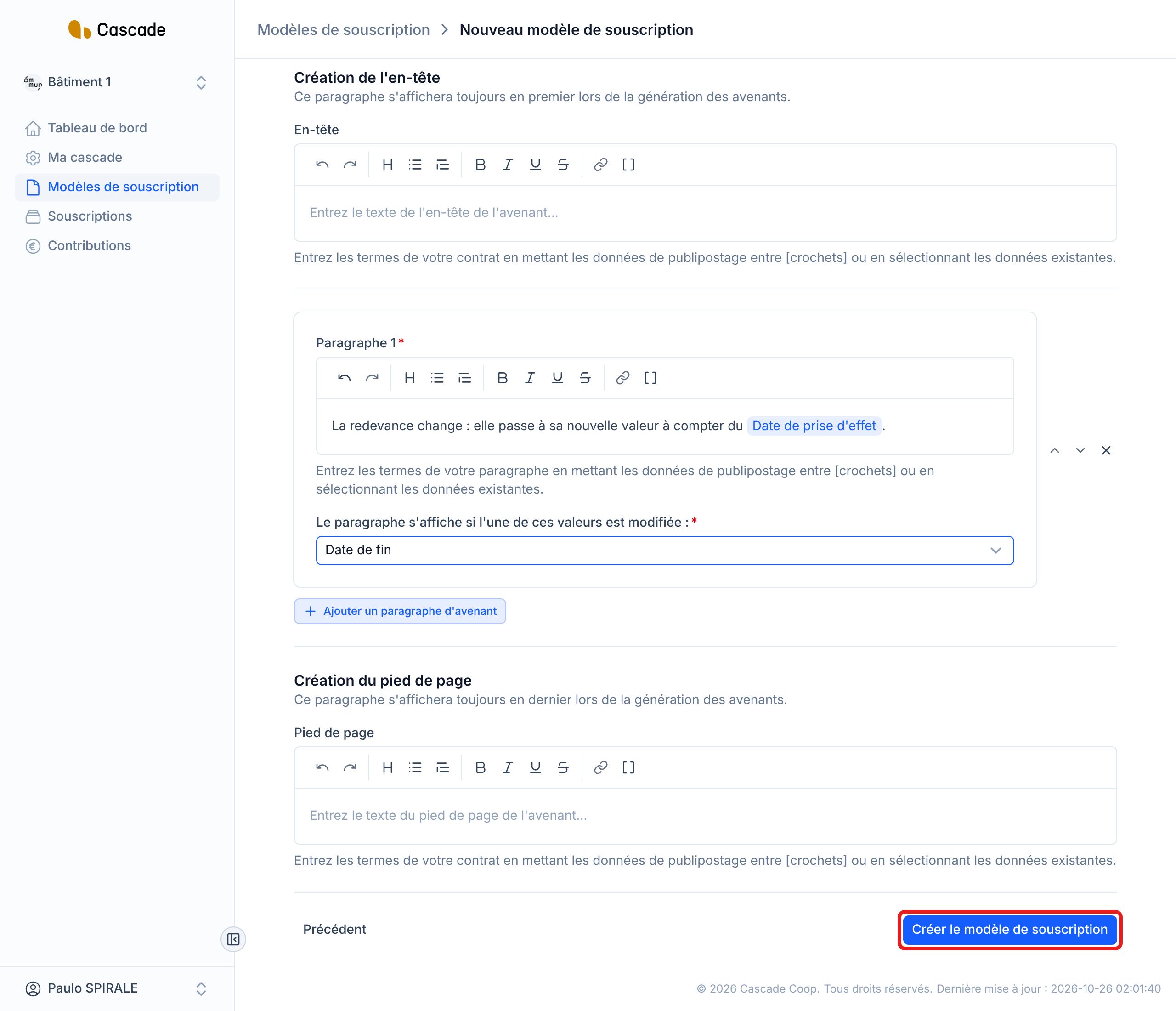
Click Suivant (Next) to go to the Avenants (Amendments) step, which asks for the amendment template (see Set up the amendment template (conditional paragraphs)). Then save with Créer le modèle de souscription (Create the subscription model) for a new model, or Enregistrer les modifications (Save changes) for an existing model. If a field is incomplete, a message tells you which one to fix.
What happens next?
- When a subscription is created: Cascade asks you for the value of each field you did not entrust to the contributor, then composes the contract from your text. See Create a subscription (invite a contributor).
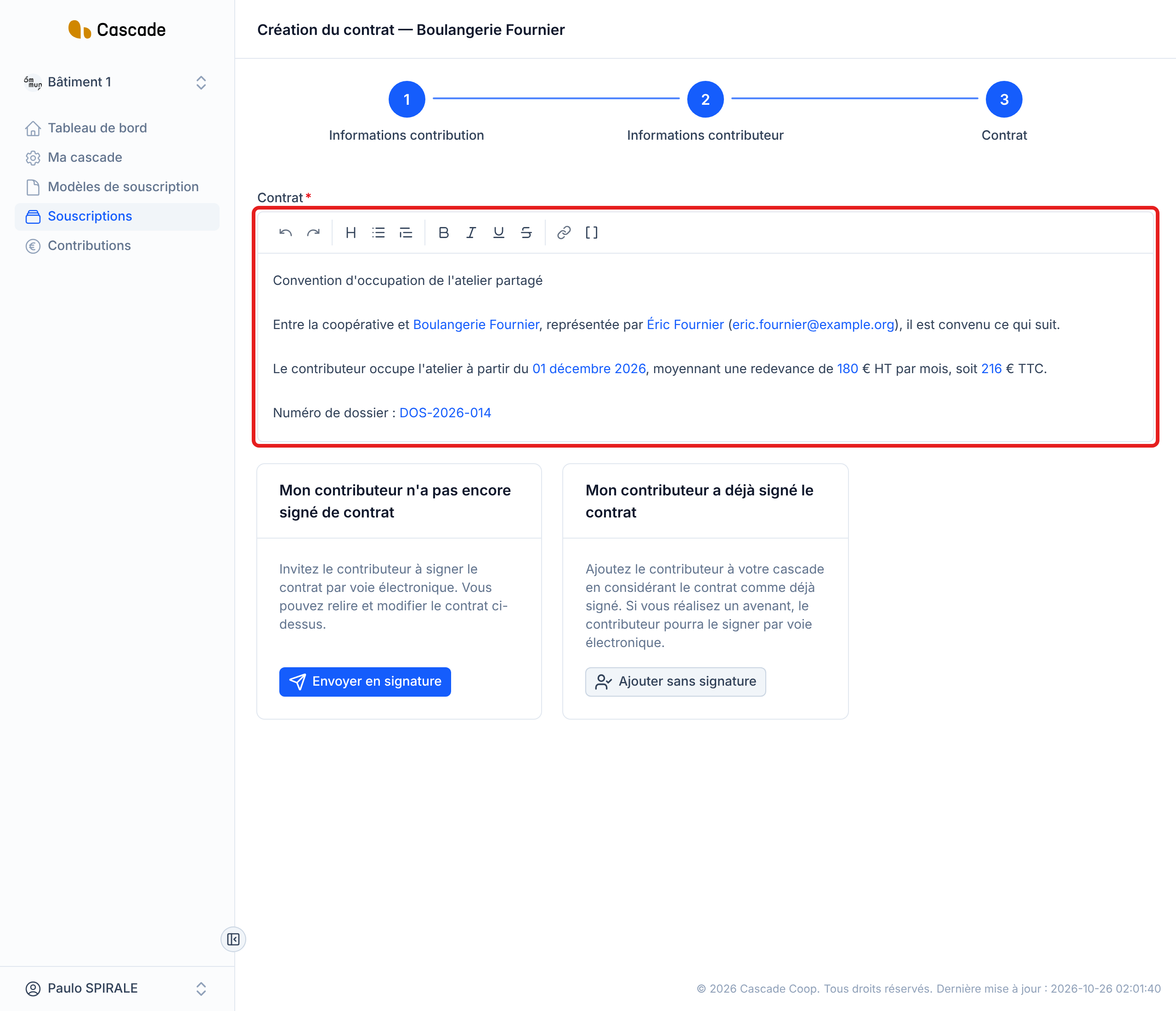
- On the « Création du contrat » page (Contract creation): you reread the text, with the data replaced by their values, and you can touch it up by hand before sending it. See Send a contract for signature.
- On the contributor's side: they receive the contract by email, complete the fields you entrusted to them, then sign it. See Sign a contract (contributor).
- A contract already created keeps its text: editing the model afterwards does not change contracts already created. To change a subscription after signing, see Make an amendment.
Good to know
- The Modèle field is required: without text, you cannot move on to the next step.
- All the data is always offered, even data your model does not feed (the direct debit notice without direct debit, for example). When a value is missing, the name of the data (for example « Adresse de facturation ») is displayed in its place in the contract: spot it when rereading, before sending.
- Amounts and the rate are written without a unit: write « € HT » (excl. VAT), « € TTC » (incl. VAT) or « % » yourself after the data.
- A new field created from the menu loses the accents in its name (« Numéro de dossier » becomes « Numero De Dossier »). To keep it intact, type its full name in square brackets with the accents.
- Capital letters do not matter in data typed between square brackets, but the spelling of the name must stay the same everywhere in the text, so that it is a single field.
- The paragraphs of the amendment template use the same data in square brackets: see Set up the amendment template (conditional paragraphs).
- To edit the text of an existing model: see Edit a subscription model.
Frequently asked questions
Data typed by hand with the name from the menu is treated as a new field. Delete it and insert the data with the Données de publipostage button or by choosing from the menu that opens with the square bracket.
The value does not exist for this contributor (here, the subscription has no end date). Fill it in on the subscription, or touch up the text on the « Création du contrat » page before sending.
Create a new field at step 5, then choose it in Champs remplis par le contributeur.