Define the supporting documents required
Specify the documents the contributor must upload before signing their contract: you list them once in the subscription model, and they are requested from every contributor.
Before you start
- You need a subscription model whose membership method is Contrat (Contract): the list of documents is set at the model's Contrat step, which does not exist with Adhésion simple (Simple membership). See Create a subscription model; to change an existing model, see Edit a subscription model.
- Prepare the list: one name per document, as the contributor will read it (for example « Pièce d'identité » (ID document) or « Attestation d'assurance » (Insurance certificate)).
Steps
1. Open the subscription model
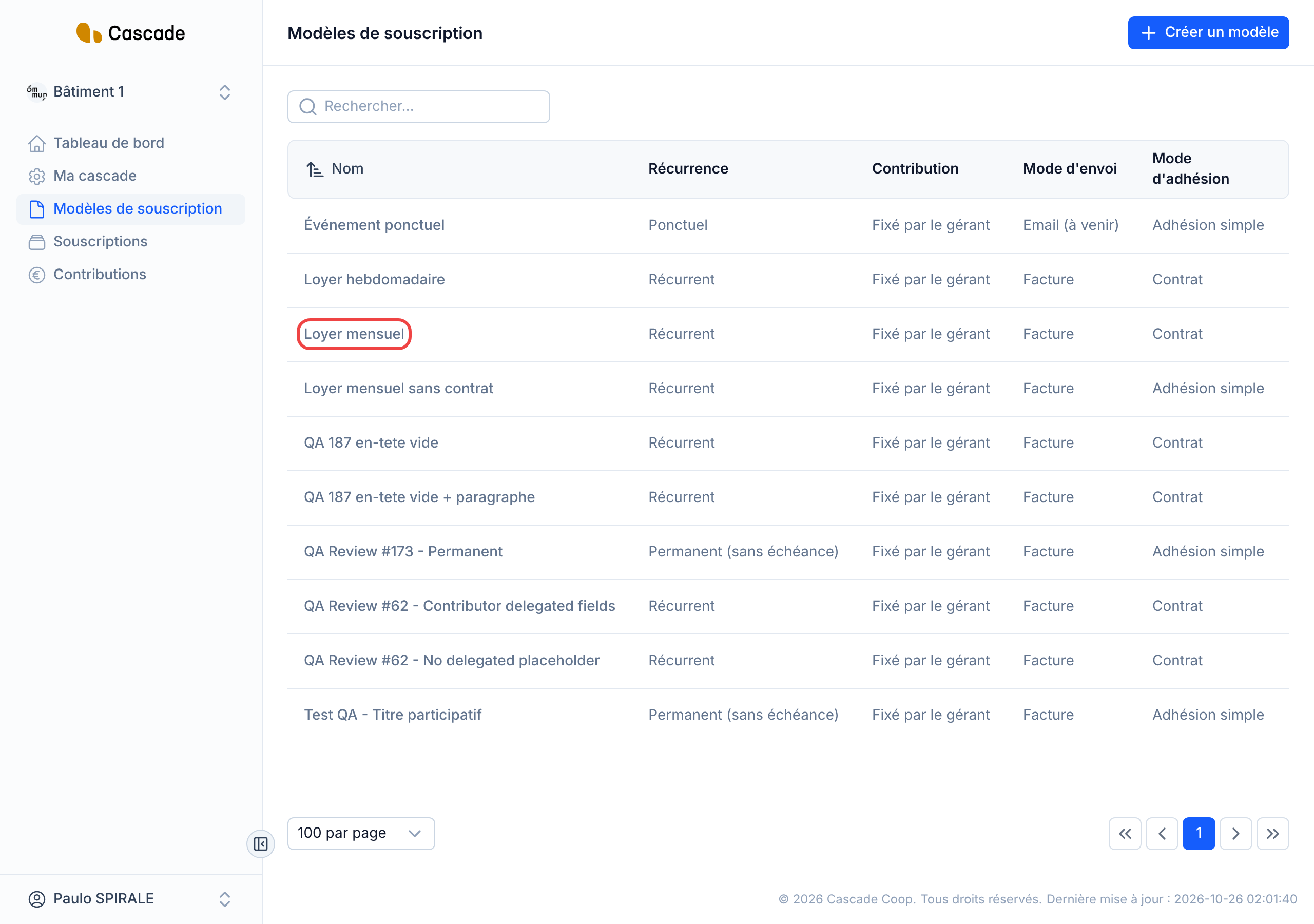
In the menu, go to Modèles de souscription (Subscription models), then click the name of the model to edit. For a new model, click Créer un modèle (Create a model): the form is the same.
2. Check the membership method and go to the Contract step
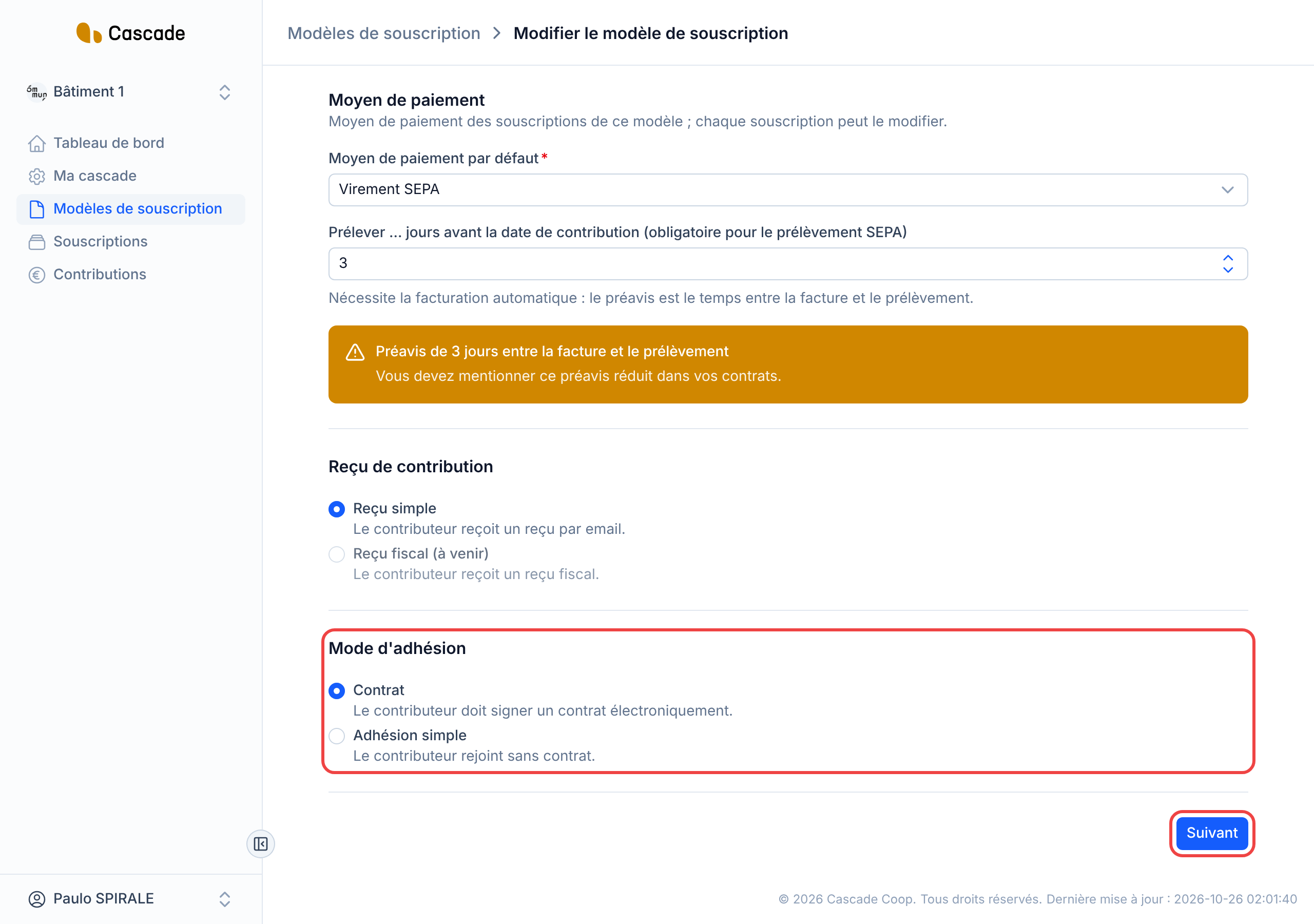
On the first step, Configuration générale (General configuration), scroll down to Mode d'adhésion (Membership method) and choose Contrat (Contract) (« Le contributeur doit signer un contrat électroniquement » (The contributor must sign a contract electronically)). The Contrat and Avenants (Amendments) steps then appear at the top of the form. Click Suivant (Next): Cascade checks the step before letting you move on.
3. Add the documents requested
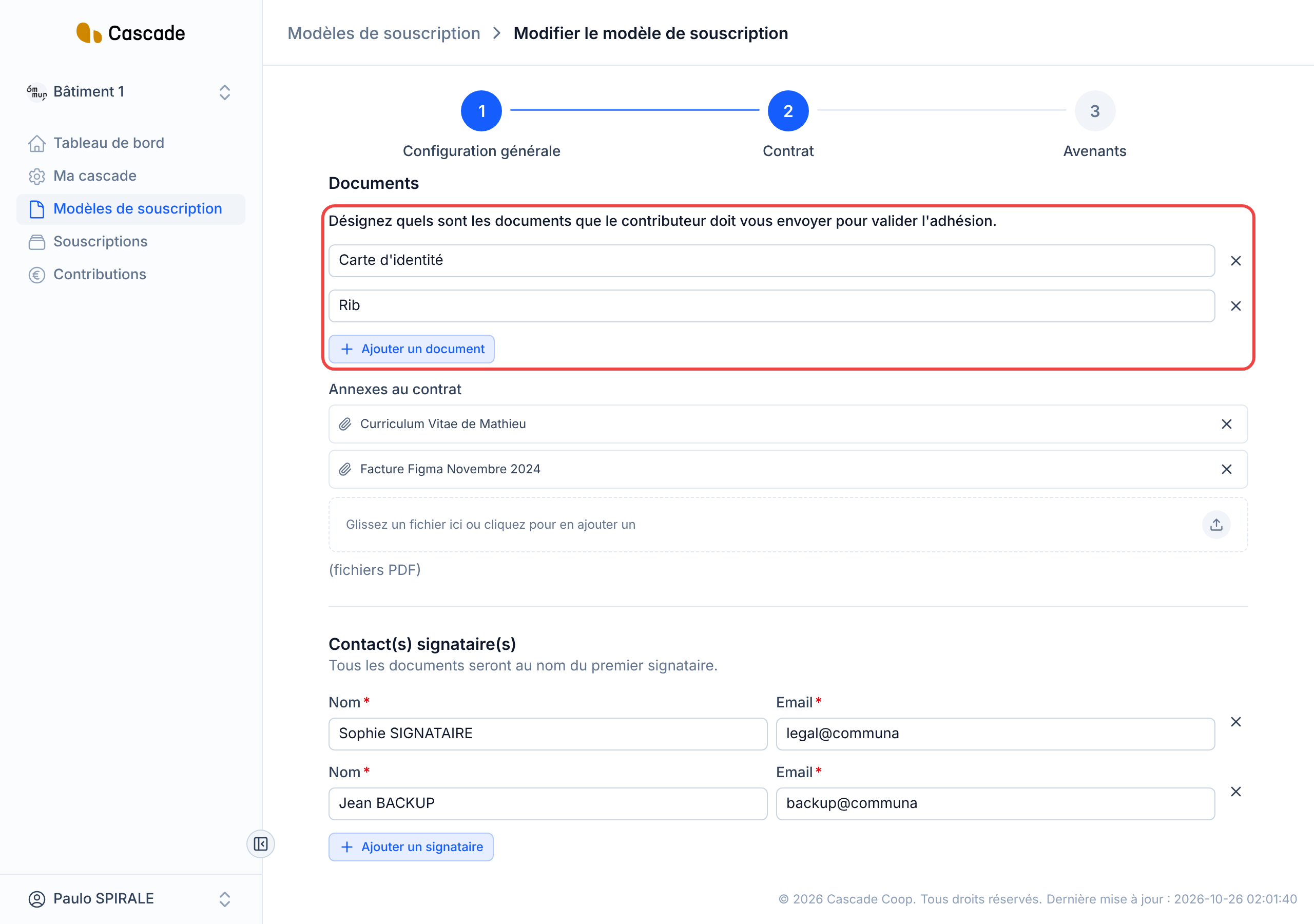
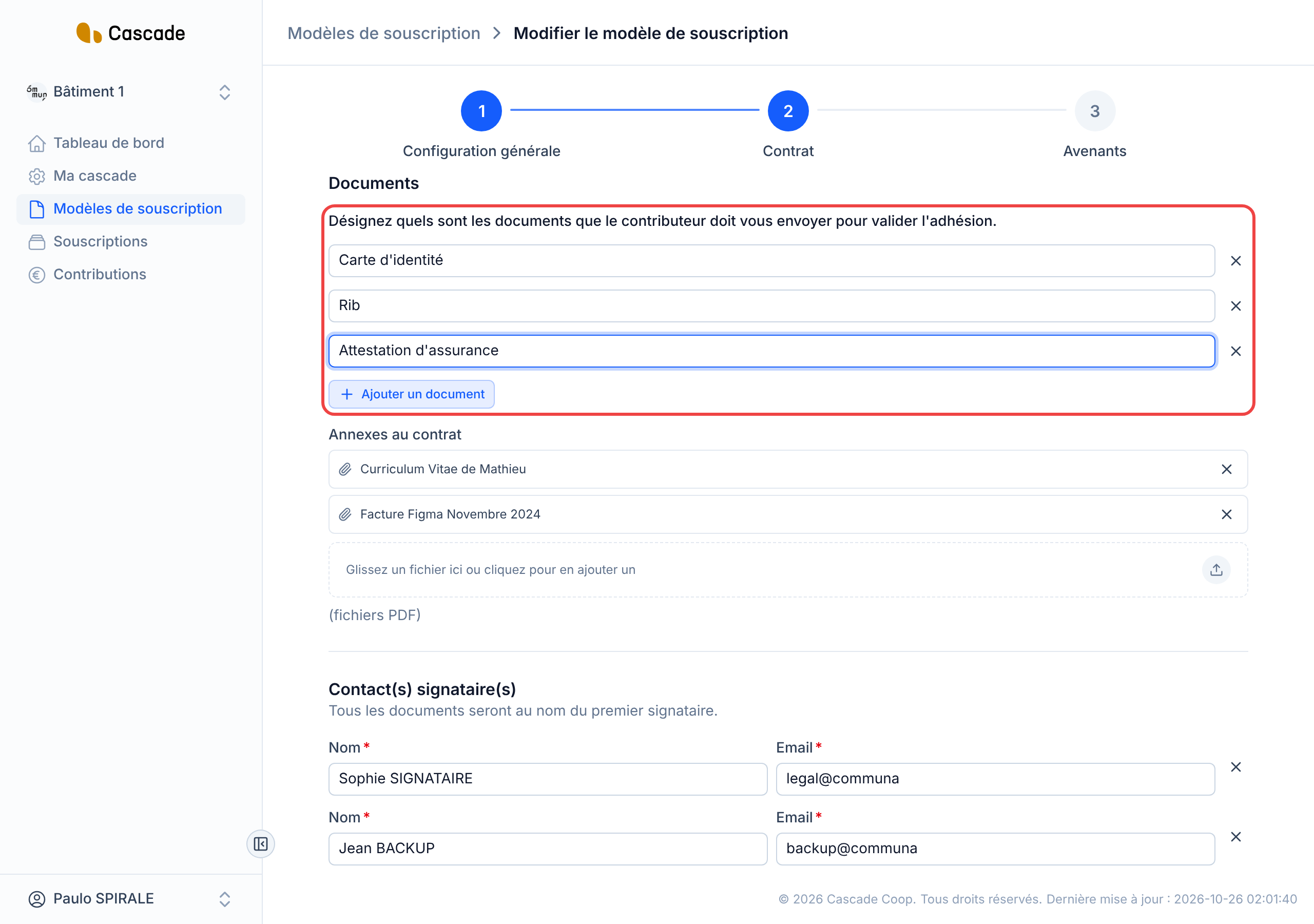
On the Contrat (Contract) step, the Documents section invites you to specify the documents the contributor must send you to validate their membership. Click Ajouter un document (Add a document) and type its name in the Document field; repeat for each document. The cross on the right of a row deletes it.
There is no limit to the number of documents. Rows left empty are ignored when saving. Each document has a different name: the name serves as the document's identifier.
4. Mention the documents in the contract (optional)
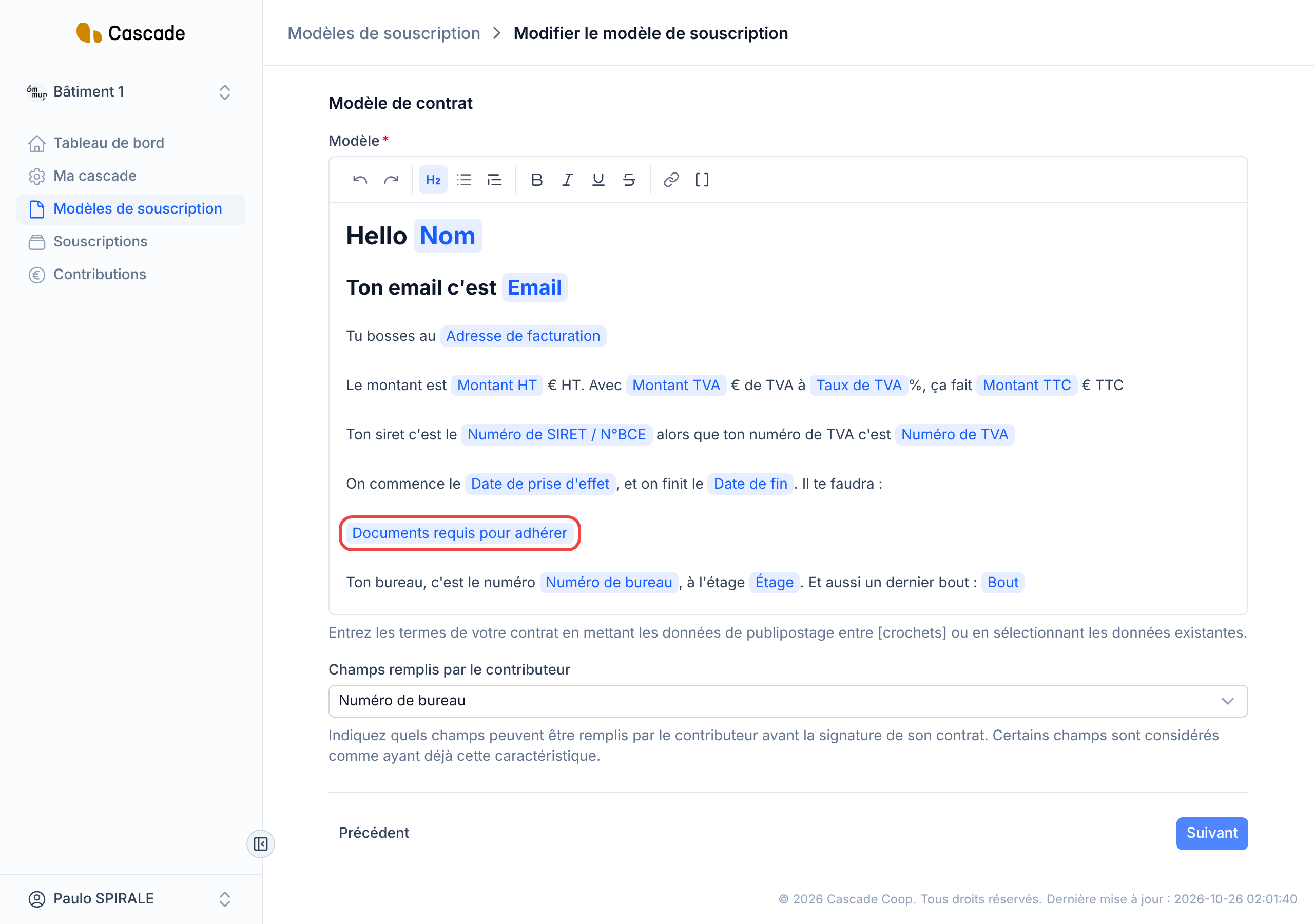
In the contract template text, the mail merge data Documents requis pour adhérer (Documents required to join) inserts the list of your documents into the contract sent to the contributor. See Write the contract template (variables in square brackets).
5. Save the model
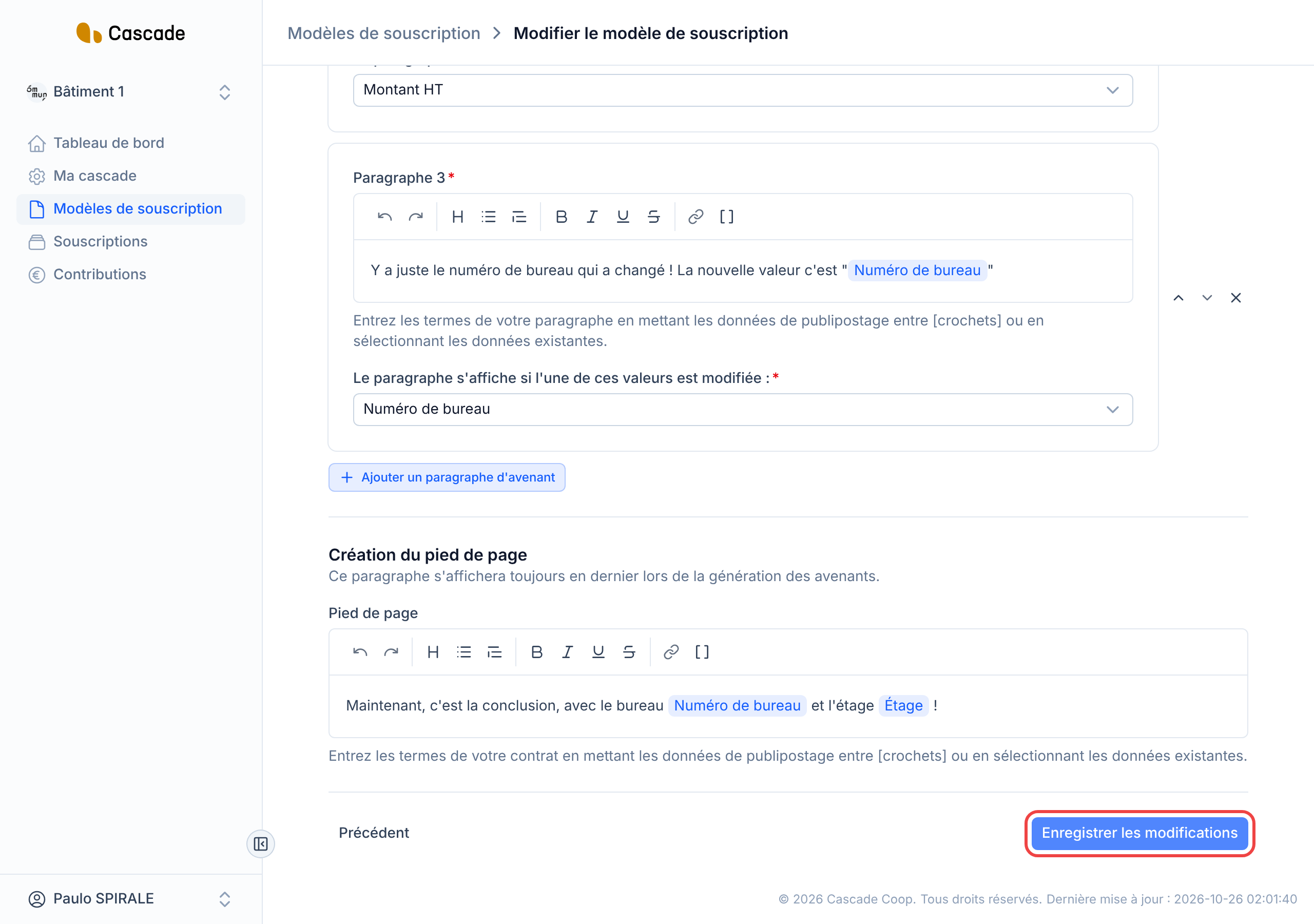
Click Suivant (Next) up to the last step, Avenants (Amendments), then Enregistrer les modifications (Save changes) (for a new model, the button is called Créer le modèle de souscription (Create the subscription model)). You go back to the list of subscription models. Until you save, nothing is changed.
What happens next?
The documents are only requested when the contract is signed. Here is the journey, first from the contributor's side, then from yours.
- Before signing: when you send a contract for signature, the preparation page recalls the list in a card Documents que le contributeur doit vous envoyer (Documents the contributor must send you). See Send a contract for signature.
- Contributor's side: they have no account, they act from the link received by email. On the contract page, a card Justificatifs à fournir (Supporting documents to provide) shows one field per document, all of them required. They can upload a PDF, JPEG or PNG file (drag and drop or click). They must upload all the documents before they can click Signer (Sign); otherwise the screen tells them « Envoyez d'abord tous les justificatifs requis ci-dessus pour pouvoir signer » (First send all the required supporting documents above in order to sign) and a message « Ce justificatif est requis. » (This supporting document is required.) appears under each empty field. If they first have to complete their information, the documents are only requested afterwards. See Sign a contract (contributor) and Upload supporting documents.
- As soon as they have signed: the contract moves to the status Documents à valider (Documents to approve). You receive an email with a link to the Documents à valider page (see below for who it is sent to). The contributor receives an email telling them their documents are being reviewed, and their page shows « Vos pièces justificatives sont en cours de validation. Le signataire signera ensuite le contrat. » (Your supporting documents are being reviewed. The signer will then sign the contract.)
- What you see: the Documents à valider entry appears in the menu, with a badge counting the subscriptions concerned, only as long as at least one document is awaiting a decision. The page lists the contributor, the effective date, the subscription model and the documents to approve. Clicking a row opens a window: you open each file, then choose Accepté (Accepted) or Rejeté (Rejected). A rejection requires a Raison du rejet (Reason for rejection), communicated to the contributor. You approve all of a subscription's pending documents at once with Confirmer (Confirm). See Approve or reject supporting documents. On the subscription page, the Documents justificatifs (Supporting documents) section keeps each document with its status (En attente (Pending), Accepté (Accepted) or Rejeté (Rejected)) and a Télécharger (Download) button.
- If everything is accepted: the contract awaits the signer's signature, who receives their link by email. See Countersign a contract (signer). Since documents are requested, the contributor does not receive the « contrat en cours de signature » (contract being signed) email: the one about the review of their documents takes its place.
- If at least one document is rejected: the contract moves to the status Documents à mettre à jour (Documents to update). The contributor receives an email listing the rejected documents with your reason, and the same link. They re-upload only the rejected documents, sign again, and the review cycle starts over.
Good to know
- All the documents in the list are required: there is no optional document. Cascade does not check a file's content, you are the one who judges at review.
- Cascade does not impose a maximum file size on the contributor; the formats offered are PDF, JPEG and PNG.
- If you switch a model to Adhésion simple (Simple membership), the list of documents is emptied on saving.
- The documents are never requested with Add a contract without a signature (already signed on paper).
- The list is read from the model when the contributor opens the signing page: changing the list therefore also affects contracts already sent but not yet signed. Do not count on it to retrieve a missing document from a contributor who has already signed. A document already uploaded stays saved under its name, even if you later remove or rename the row.
- The link received by the contributor expires 10 days after the subscription's effective date. See Resend the invitation to sign: for now, resending the invitation generates a link that keeps this same deadline.
- The "documents to approve" email goes to a single manager, the first one of the organization, not to all of them: the other managers simply see the entry in the menu.
- A file sent by the contributor but never submitted with their signature is deleted automatically, between 24 and 48 hours after it was uploaded (see What Cascade does every day).
Frequently asked questions
Not for now. Everything you add to the list must be uploaded before signing. If a document is only useful in some cases, request it separately, outside Cascade.
Check the effective date of their subscription: their link expires 10 days after it. Resending the invitation does not extend this deadline for now.
No, a contributor who has already signed is not asked again, unless one of their documents is rejected. Ask them for the document directly.