Approve or reject supporting documents
When a contributor has uploaded their documents while signing, you open them one by one and accept or reject them: your decision either unlocks the contract signature or sends the contributor back to re-upload their documents.
Before you start
- A contributor must have uploaded their documents while signing their contract: as long as they have not signed, nothing arrives in your list. See Upload supporting documents; the requested documents are defined in the subscription model, see Define the supporting documents required.
- You only see the subscriptions of the current Cascade: if you manage several Cascades, choose the right one first. See Change the current Cascade.
Steps
1. Open the Documents à valider page
In the menu, under Souscriptions (Subscriptions), click Documents à valider (Documents to approve). This entry only appears when at least one subscription is awaiting a decision, with a badge counting these subscriptions (not the documents). You can also reach it from the link in the email Cascade sends you when a contributor has uploaded their documents.
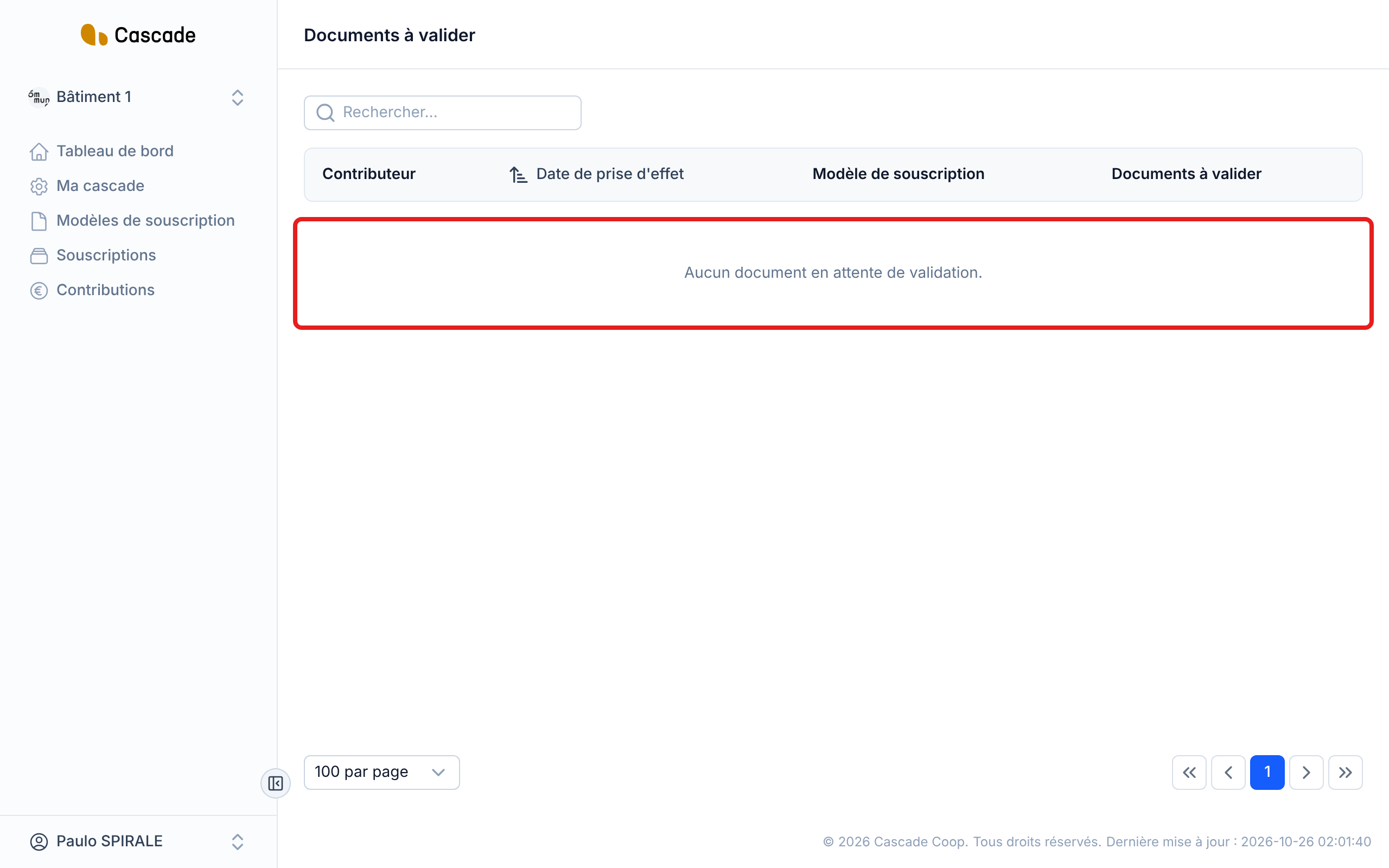
The page lists one row per subscription: the Contributeur (Contributor), the Date de prise d'effet (Effective date), the Modèle de souscription (Subscription model) and the Documents à valider (Documents to approve) (their names). Rows are sorted by effective date. When nothing is awaiting a decision any more, the page displays « Aucun document en attente de validation. » (No documents awaiting approval.)
2. Open the subscription to process
Click the contributor's row: a window opens, titled with the contributor's name. It lists all the documents of that subscription that are awaiting a decision.
3. Look at each document
Each document is a button bearing its name, with a download icon. Click it: the file opens in a new tab. Look at it before deciding; Cascade does not check its content.
4. Accept or reject each document
To the right of each document, choose Accepté (Accepted) or Rejeté (Rejected). Neither is selected at the start: you must decide on each document.
If you choose Rejeté, the Raison du rejet (Reason for rejection) field appears (« Communiqué au contributeur » (Communicated to the contributor)). It is required and limited to 255 characters. Explain what is wrong (« Pièce illisible, merci d'envoyer un scan plus net » (Illegible document, please send a clearer scan)), since the contributor will read this text in their email and on their page.
5. Confirm
Click Confirmer (Confirm). All the documents of the subscription are decided at once: Cascade refuses the confirmation as long as a document has no decision or a rejection has no reason. Annuler (Cancel) closes the window without changing anything.
The message « Documents mis à jour » (Documents updated) is displayed. You stay on the Documents à valider page if other subscriptions remain to be processed; otherwise you land on the list of subscriptions.
What happens next?
- If everything is accepted: the contract awaits the signer's signature. Each signer designated in the subscription model receives an email with their signing link. The contributor does not receive an email at that point. See Countersign a contract (signer).
- If at least one document is rejected: the contract moves to the status Documents à mettre à jour (Documents to update). The contributor receives an email listing the rejected documents with your reason, and their link. They re-upload only these documents and sign again: the subscription then comes back into your list, with only the new documents. Documents already accepted are not requested again. See Upload supporting documents.
- Trail: on the subscription page, the Documents justificatifs (Supporting documents) section keeps each document with its status (En attente (Pending), Accepté (Accepted) or Rejeté (Rejected)), the reason for the rejection and a Télécharger (Download) button.
- The contributor is then informed of the contract's final signature. See Sign a contract (contributor).
Good to know
- A decision is final. There is no screen to go back on an accepted or rejected document. If you rejected by mistake, the contributor will have to re-upload the document; if you accepted by mistake, there is currently no way to put it back to pending.
- The whole subscription at once. You cannot approve one document and leave the others "for later": the window gathers them all.
- All the managers of the Cascade see the page and can decide, but the « documents à valider » (documents to approve) alert email only goes to the first manager of the organization.
- Only the initial contract gives rise to documents to approve, not an amendment. See Make an amendment.
- The menu badge counts the subscriptions of the current Cascade that are awaiting a decision.
- Once the documents are decided, the subscription is found in the list of subscriptions. See View and filter subscriptions.
Frequently asked questions
It only appears when a subscription of the current Cascade is awaiting a decision. Also check that you are in the right Cascade, and that the contributor has signed their contract with their documents.
There is no undo. Warn the contributor: they will receive the rejection email with your reason, re-upload the document and sign again. They will come back into your list.
The email goes out with the link to their signing page, which expires 10 days after the subscription's effective date. See Define the supporting documents required.