Add a contract without a signature (already signed on paper)
When the contributor has already signed their contract on paper, add it as is: the contract is considered signed by both parties, with no sending or online signature, and its contributions are created right away.
Before you start
- The subscription model must be in the Contrat (Contract) membership mode, with a contract template written. See Create a subscription model and Write the contract template (variables in square brackets).
- You start from the creation of a subscription: see Create a subscription (invite a contributor). This page picks up at the moment you reach the contract page.
- You have the contract signed on paper (or its equivalent): Cascade does not ask you for it and does not keep a copy. The contract it keeps is the one you validate here.
Steps
1. Fill in the contributor's information yourself
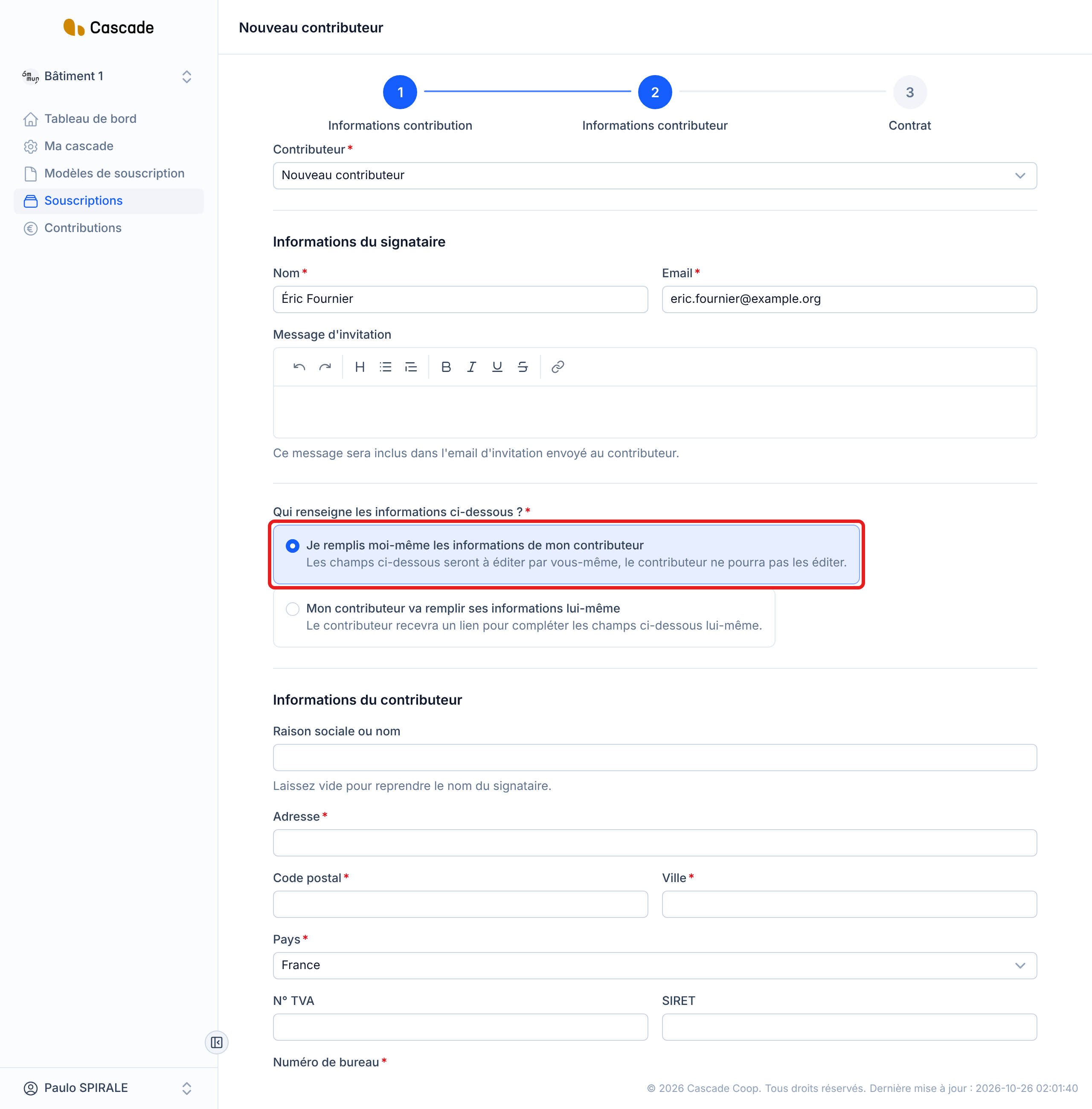
In the Nouveau contributeur (New contributor) form, fill in the first two steps. In the Informations contributeur (Contributor information) step, the question Qui renseigne les informations ci-dessous ? (Who fills in the information below?) decides whether you will be able to add the contract without a signature: choose Je remplis moi-même les informations de mon contributeur (I fill in my contributor's information myself). If you choose Mon contributeur va remplir ses informations lui-même (My contributor will fill in their information themselves), the Ajouter sans signature (Add without signature) button is not offered (see "Good to know"). Then click Créer (Create): you land on the third step, Contrat (Contract).
2. Review the contract
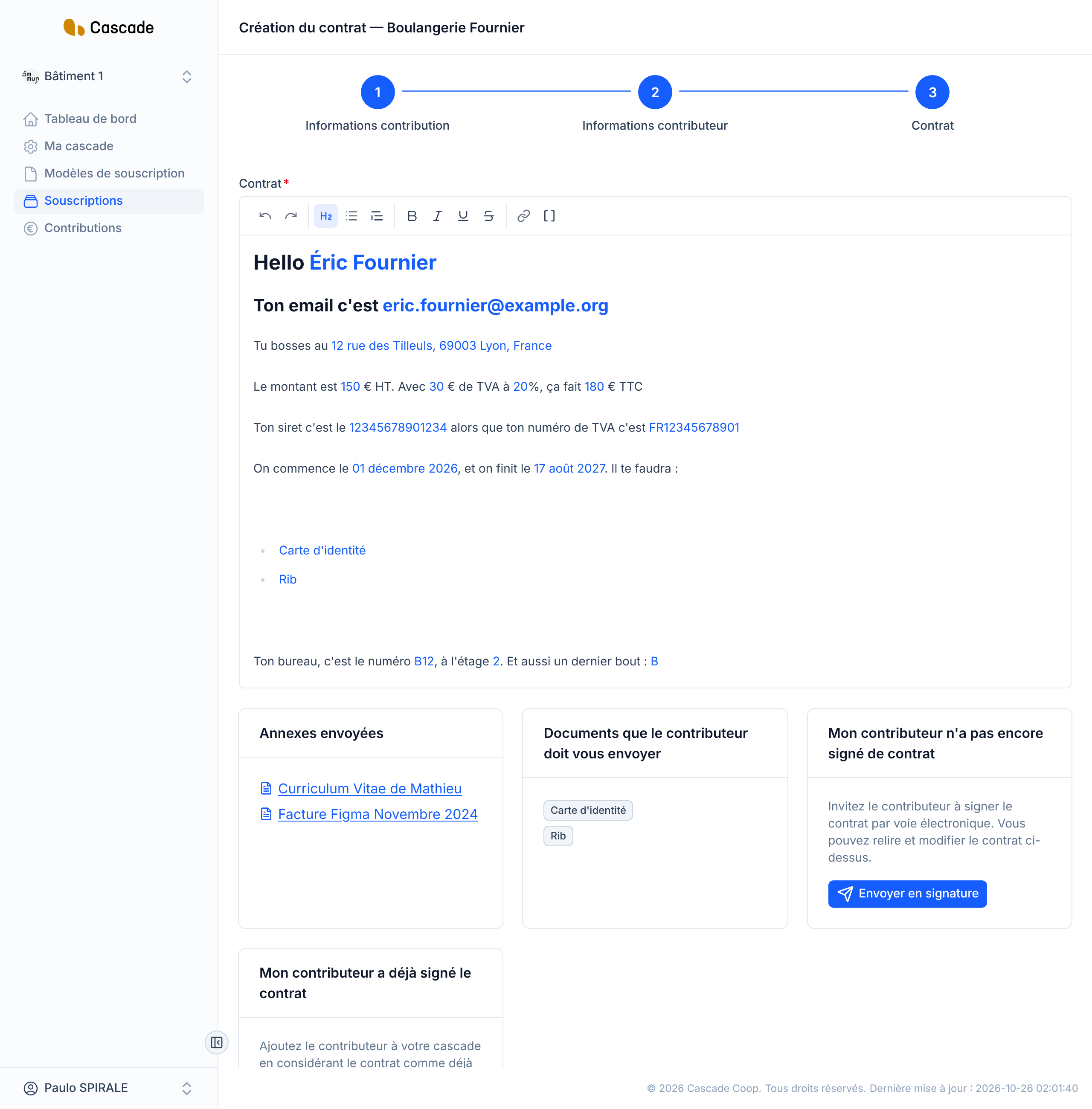
The page is called « Création du contrat » (Contract creation) followed by the contributor's name. The Contrat (Contract) field contains the text generated from the contract template, already filled in with the subscription's information. Review it and correct it if needed: this exact text is what will be kept as the signed contract. For details on the editor and the fields you can insert, see Send a contract for signature.
Below the text, the Annexes envoyées (Attachments sent) and Documents que le contributeur doit vous envoyer (Documents the contributor must send you) boxes only appear if the model provides for them. They are informative.
3. Click « Ajouter sans signature »
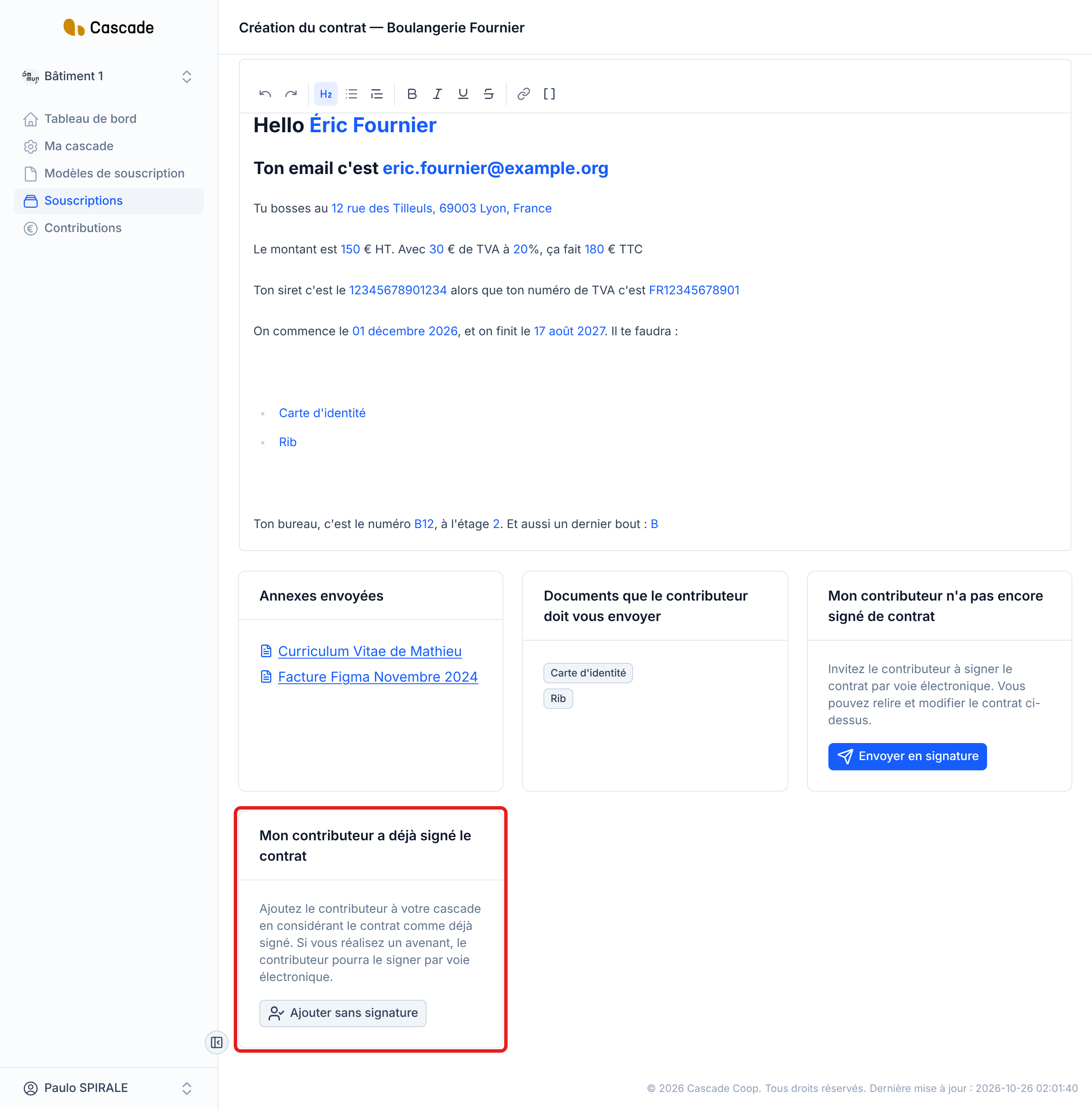
In the Mon contributeur a déjà signé le contrat (My contributor has already signed the contract) box, click Ajouter sans signature (Add without signature). Next to it, the Mon contributeur n'a pas encore signé de contrat (My contributor has not signed a contract yet) box remains the online signature path: see Send a contract for signature.
4. Confirm
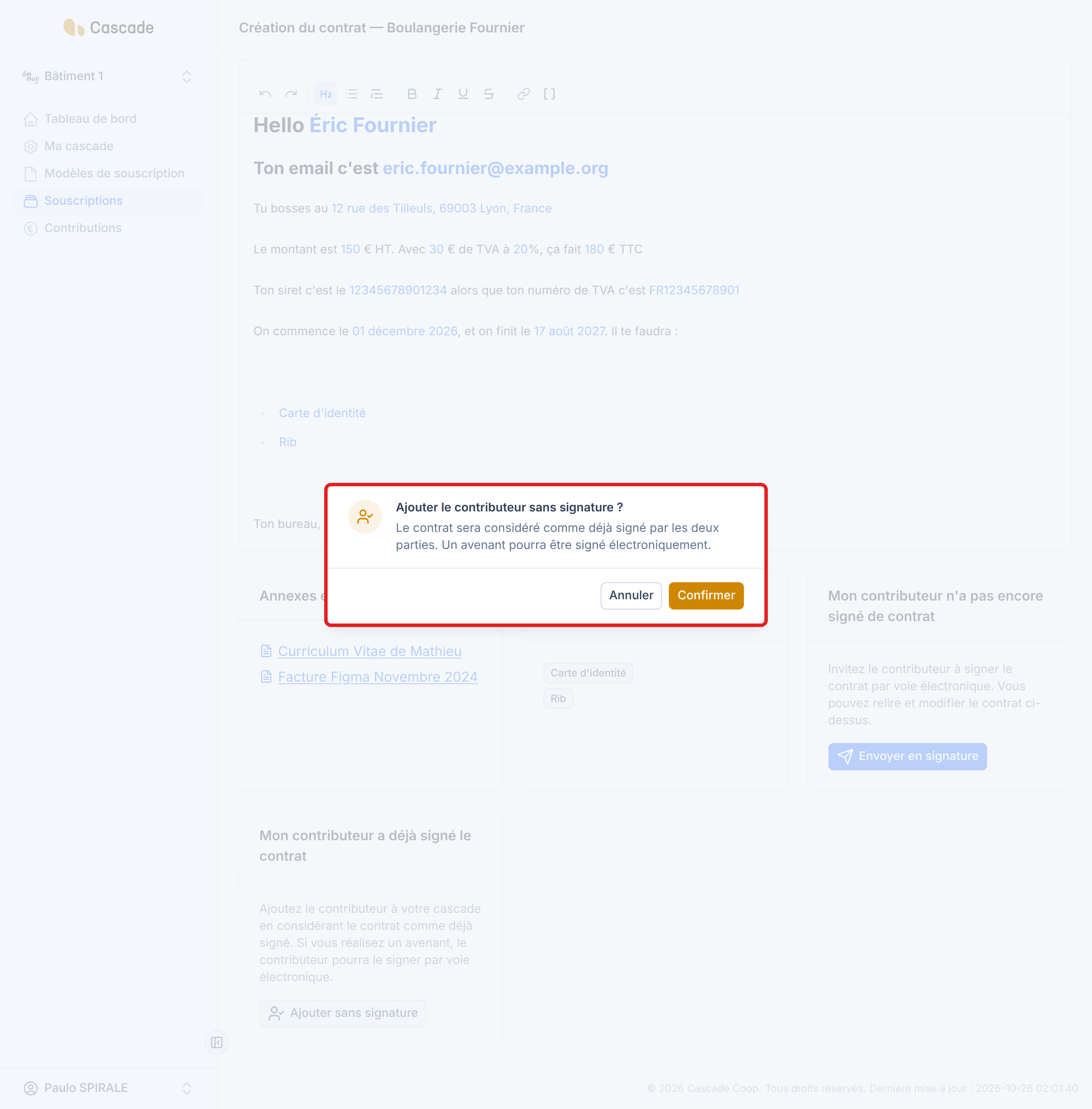
A window asks you: Ajouter le contributeur sans signature ? (Add the contributor without a signature?) It warns you that the contract will be considered already signed by both parties. Click Confirmer (Confirm) (or Annuler (Cancel) to go back to the contract). You go back to the list of subscriptions.
What happens next?
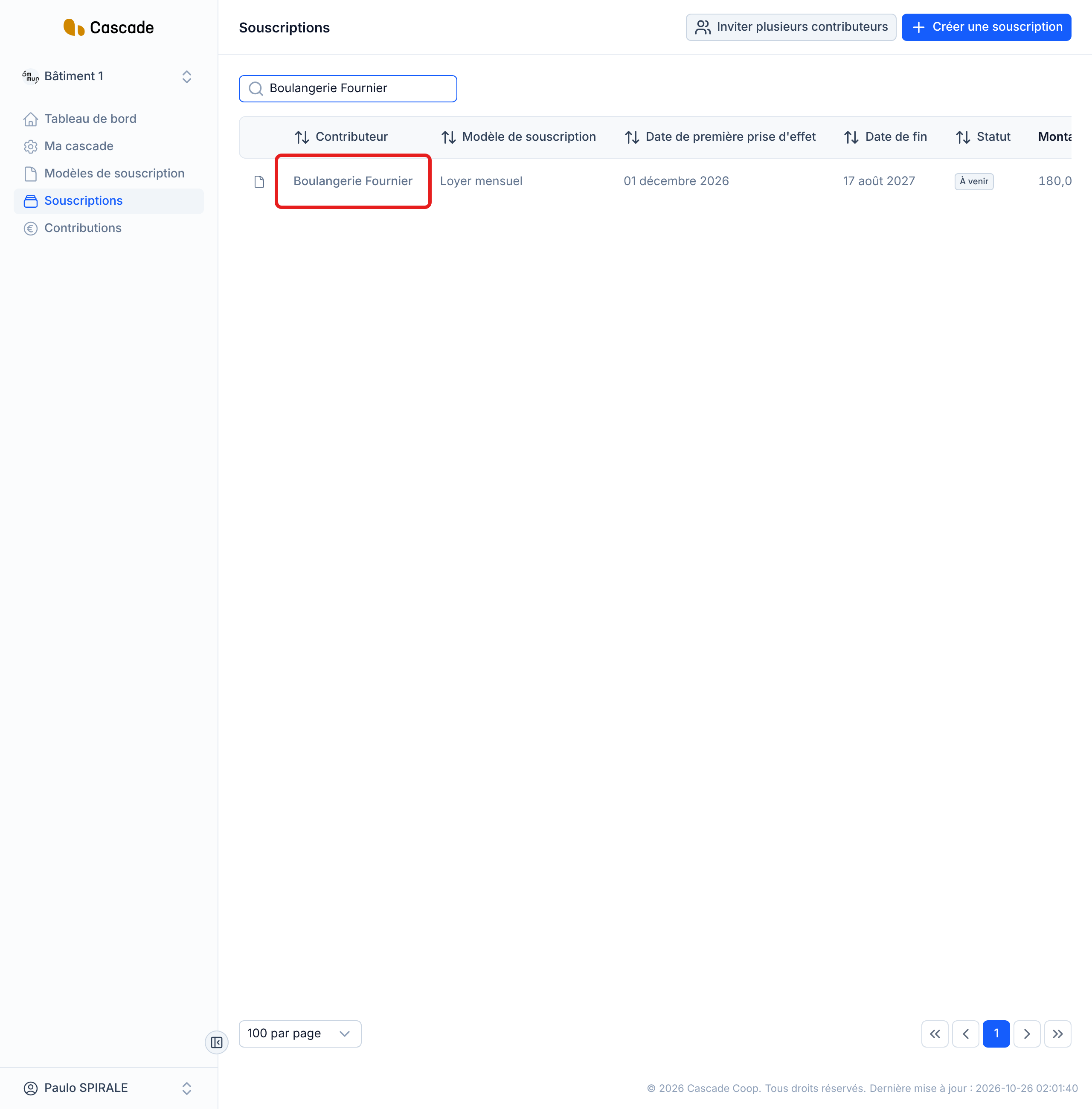
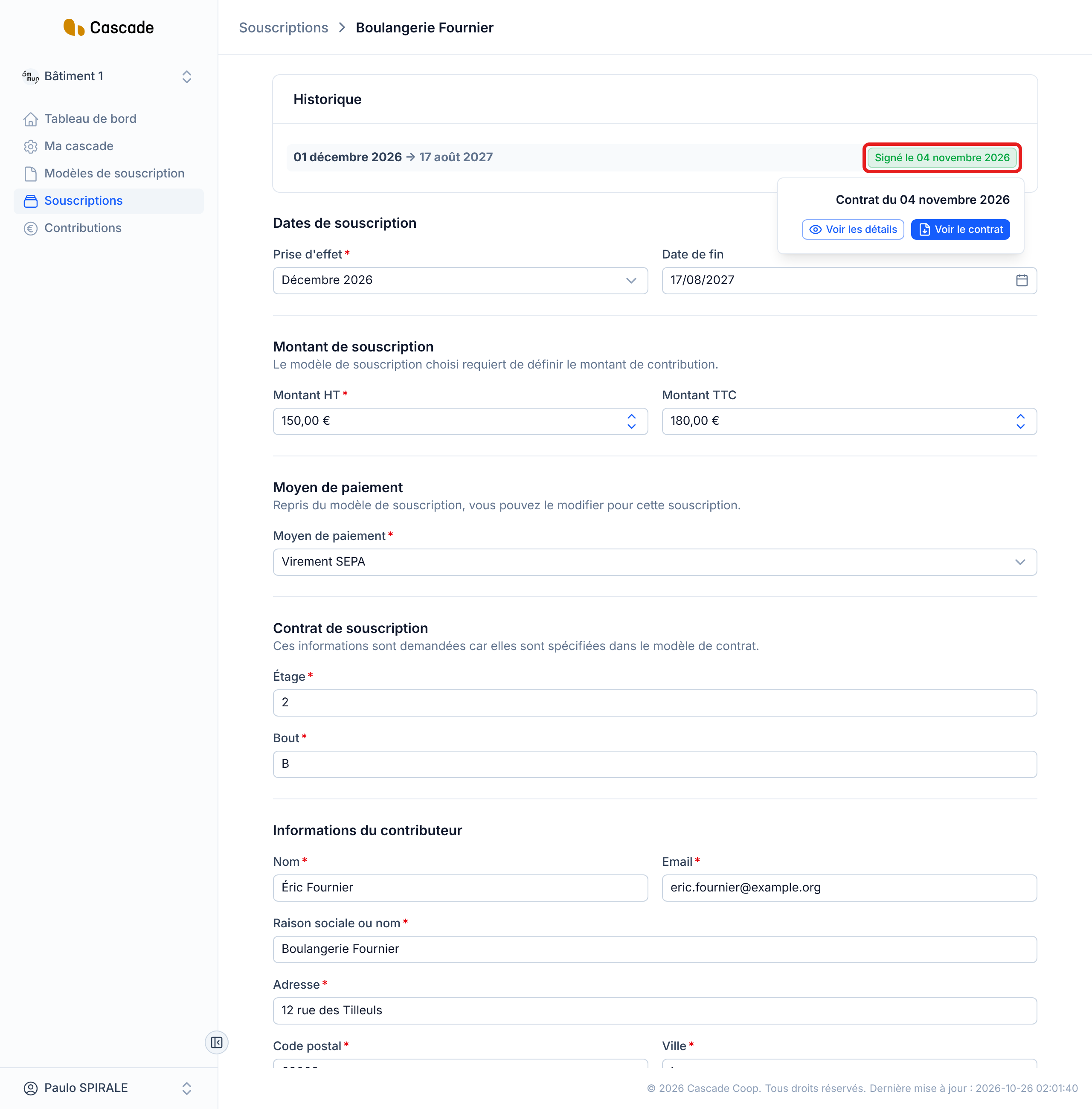
- Contract signed right away: the subscription is in the list, with the status À venir (Upcoming) if it starts later, or Actif (Active) otherwise. In the subscription's Historique (History) section, a green badge reads Signé le (Signed on) followed by today's date, and hovering offers Voir le contrat (View the contract).
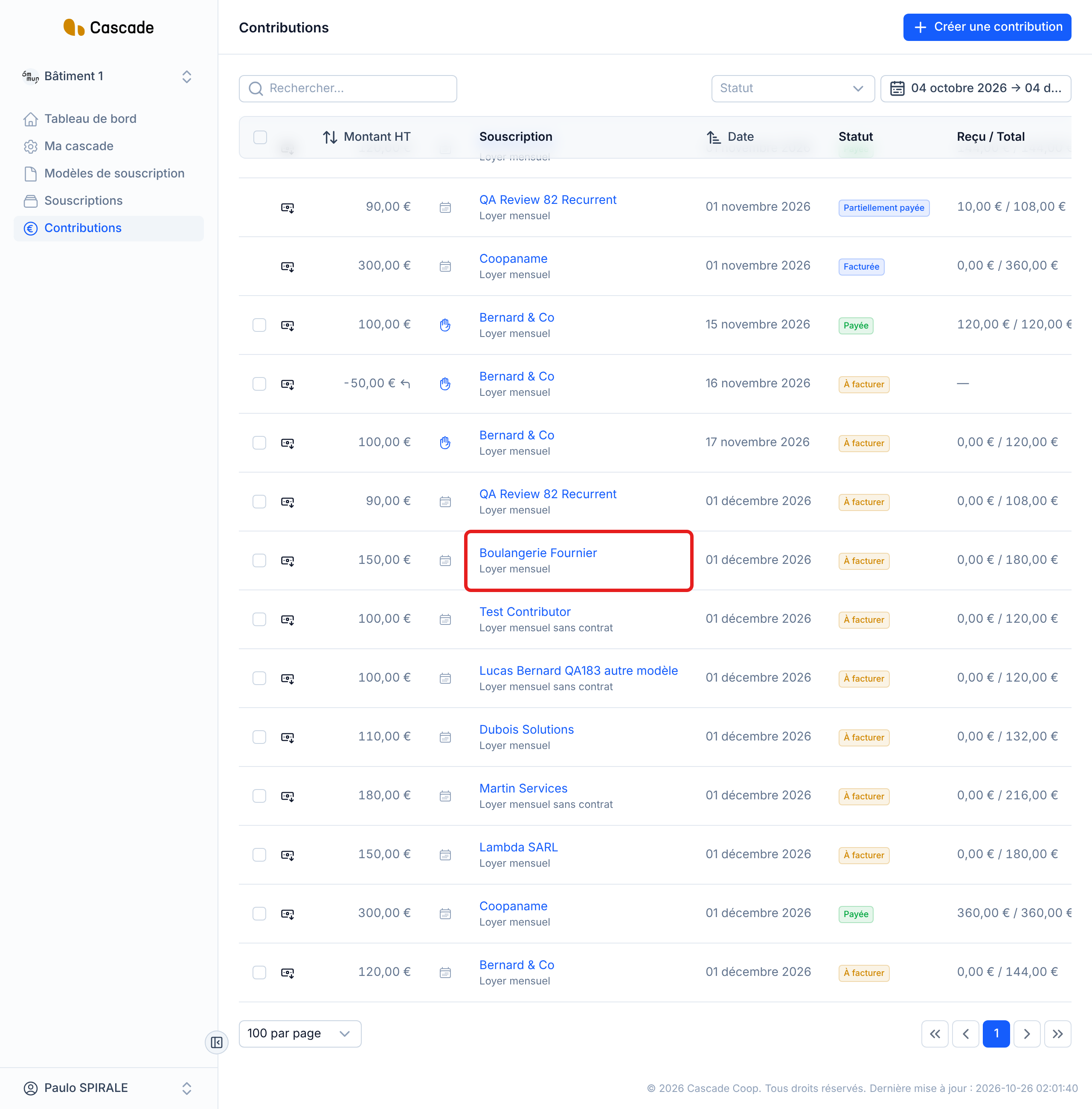
- Contributions: they are created immediately, without waiting for any signature (for example the contribution for the effective date of a recurring subscription). They are À facturer (To invoice) when the model sends an invoice. The following ones are created by Cascade: see Generate recurring contributions automatically and What Cascade does every day. For invoicing: Invoice automatically.
- PDF contract: Cascade prepares it in the background, with the model's attachments; it is then available through Voir le contrat (View the contract).
- No email: neither the contributor nor the model's signers receive anything.
- Signature path: it does not take place. For that path (invitation, documents, countersignature), see Send a contract for signature.
Good to know
- Ajouter sans signature (Add without signature) is only offered if you filled in the contributor's information yourself. If they have to complete their own, only Envoyer l'invitation (Send the invitation) exists.
- The signature date recorded is the day you confirm, not the date of the signature on paper.
- The supporting documents listed by the model are not requested: the contributor is not contacted in any way. See Define the supporting documents required if you have to collect them another way.
- The contract is only created once per subscription. Once added, the creation page is no longer accessible, the text can no longer be edited and you can no longer cancel the subscription (the Annuler (Cancel) button disappears as soon as the contract is signed).
- To change the terms afterwards, use an amendment: edit the subscription. At the next step, the page is called « Avenant au contrat » (Contract amendment) and offers Envoyer en signature (Send for signature) or Valider sans signature (Validate without signature). See Make an amendment. The contributor will also be able to sign this amendment online.
- If you leave the page before choosing, the subscription already exists without a contract: open it, then click Créer le contrat (Create the contract) in the Historique (History) section.
Frequently asked questions
You chose to have the contributor fill in their information themselves. You need to recreate the subscription, choosing Je remplis moi-même les informations de mon contributeur (I fill in my contributor's information myself).
No. Nothing is sent to them: they are not even aware of the subscription through Cascade.
The contract can no longer be edited or deleted. Correct the terms with an amendment.